Every time Windows 10 opens a file in the “wrong” app, a tiny part of your soul sighs.
PDFs in a clunky viewer, photos in something slow, links hijacked by the browser you
definitely did not choose… all fixable. The good news: changing default programs
in Windows 10 is straightforward once you know where Microsoft hid the right switches.
In this guide, you’ll learn exactly how to change default apps in Windows 10 the right way:
by category, by file type, by protocol, and by appplus how to handle stubborn settings
that keep resetting. We’ll walk through practical examples so your files launch where
you want, every time, without wrestling your PC on Monday morning.
What “Default Programs” Actually Mean (And Why They Matter)
A default program (or default app) is the application Windows 10 automatically uses to
open a specific type of content or link. For example:
- The default browser opens web links (HTTP/HTTPS).
- The default mail app launches when you click an email address (MAILTO).
- A default PDF viewer opens all
.pdffiles. - A default photo app handles
.jpg,.png, and more.
Getting defaults right:
- Makes daily workflows faster (no constant “Open with” clicks).
- Reduces confusion for less technical users (kids, clients, colleagues).
- Prevents unwanted apps from taking over after updates or new installs.
Think of default apps as traffic rules for your files. Set them once, and everything
knows where to go.
Method 1: Change Core Default Apps in Settings
This is the cleanest way to change big, everyday defaults such as your browser,
email app, music player, video player, and photo viewer.
Step-by-step: Change Default Apps by Category
- Click the Start button and select Settings (the gear icon), or press Win + I.
- Click Apps (on some older Windows 10 builds, go to System > Default apps).
- Select Default apps from the left sidebar.
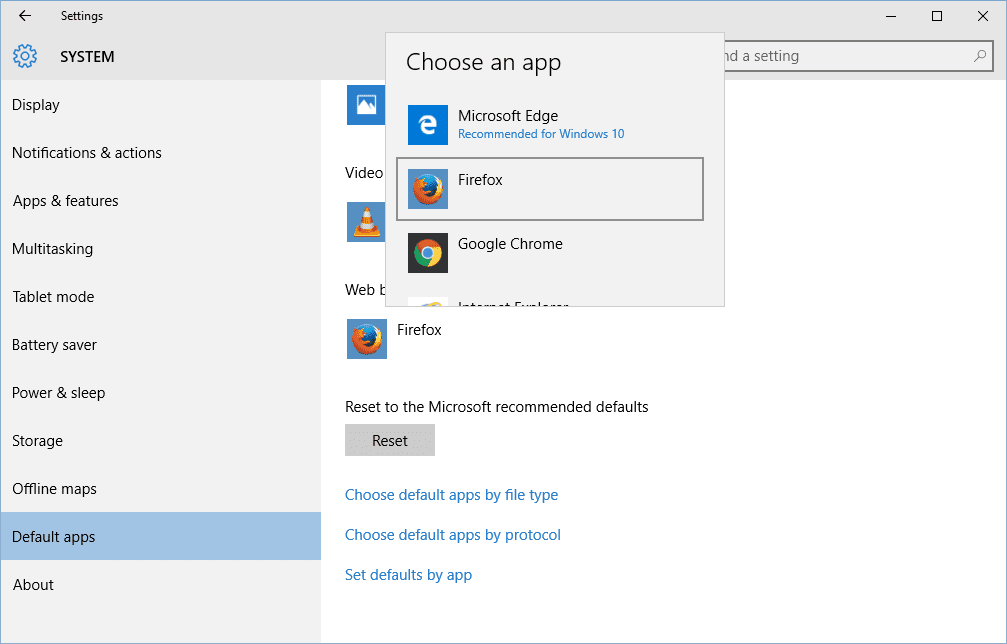
- Under each category (Email, Maps, Music player, Photo viewer, Video player, Web browser), click the current app name.
- Choose the app you want from the list.
Example: Want Chrome, Firefox, or Brave instead of Edge? Go to Default apps >
Web browser > choose your browser. Done. No more surprise launches in Edge.
If your preferred app doesn’t appear, make sure it’s installed first. Many apps register
themselves as options only after a proper install via their official installer.
Method 2: Change Default Programs by File Type
Perfect when you want fine-grained controlmaybe you like one app for PDFs, another for images,
and a very specific editor for .html or .psd files.
Using “Choose default apps by file type”
- Open Settings > Apps > Default apps.
- Scroll down and click Choose default apps by file type.
-
On the left, find the file extension you want to change (for example,
.pdf,
.jpg,.mp4). - On the right, click the current default app and choose a new one from the list.
This method is ideal if:
- You want all
.pdffiles to open in Adobe Acrobat instead of Edge. - You prefer VLC for
.mkvand.mp4instead of the default Movies & TV app. - You need a specific IDE or editor to always handle
.js,.php, or.cssfiles.
Method 3: Change Default Programs by Protocol
Protocols control how Windows opens types of links, like web links or email actions.
If you care about how links behave, this section is your friend.
- Go to Settings > Apps > Default apps.
- Click Choose default apps by protocol.
-
Find the protocol you want to change, such as HTTP, HTTPS,
MAILTO, or custom app protocols. - Click the current app and select your preferred one.
This is especially important when:
- Your email links keep opening in the wrong app.
- Links from software tools open in a browser you never use.
Method 4: Set Defaults by App
Want one app to handle everything it possibly can? Use this centralized view.
- Open Settings > Apps > Default apps.
- Click Set defaults by app.
- Select the app (for example, your PDF suite, media player, or browser).
- Click Manage to see all file types and protocols that app can open.
- Assign it as the default where appropriate.
This is a power move for productivity: one page to confirm a professional tool
really owns all its formats.
Method 5: Use “Open with” or File Properties (On-the-Fly)
For quick changes without diving into Settings, you can set a default directly from a file.
Using “Open with”
- Right-click the file you want to open.
- Select Open with > Choose another app.
- Select your preferred program.
- Check Always use this app to open .xxx files.
- Click OK.
Using File Properties
- Right-click the file and choose Properties.
- Under Opens with, click Change.
- Select the app you want and confirm.
This is perfect when you’re working with a specific extension and want to fix it on the spot.
When Your Default Programs Won’t Stick (Troubleshooting)
If you change your default apps and Windows 10 silently switches them back,
you’re not imagining it. A few common causes:
- Untrusted or broken apps: Windows may reset defaults if an app is removed, corrupted, or considered unsafe.
- System or feature updates: Major updates sometimes re-check associations.
- Third-party “optimizer” tools: Some utilities overwrite or reset file associations.
- Work/School PCs: IT policies can enforce defaults via Group Policy.
Fixes to Try
- Reinstall or update the app you want as default using its official installer.
- Reapply defaults using Settings > Apps > Default apps after updates.
- Click Reset (on the Default apps page) only if things are truly messy.
- Disable or uninstall aggressive “tune-up” tools that alter associations.
- On managed devices, talk to your IT admin instead of fighting Group Policy.
Advanced: For Power Users and IT Admins
Managing many machines or building a standardized setup?
Windows 10 allows centralized control of default app associations.
-
Use Group Policy with a Default App Associations XML to enforce
consistent defaults across user profiles. -
Export and import associations with deployment tools on supported builds
for lab, office, or classroom environments. -
Avoid unsupported registry hacks for per-user defaults; Windows 10 is strict
about honoring the modern Default apps model.
For most home users, though, everything you need lives in
Settings > Apps > Default apps.
Smart Best Practices When Choosing Default Apps
- Match the app to the job: Use pro-grade tools for work files (e.g., dedicated PDF editors, robust media players).
- Consider performance: Lightweight apps can dramatically speed up everyday actions.
- Think security: Choose reputable, actively maintained software, especially for browsers, PDFs, and email.
- Stay consistent: Use the same defaults across devices when possible to reduce confusion.
Quick FAQ
Can I use different default apps for different user accounts?
Yes. Defaults are per-user. Each account on the same PC can choose its own apps.
Why doesn’t my app show up in the list?
It may not be installed correctly or doesn’t register as a handler for that file type.
Reinstall it, then check again. If still missing, use Open with > Choose another app
and browse to its executable.
Will changing defaults harm my system?
No. You’re using built-in Windows controls designed for this. The worst case?
You don’t like it and switch back in a few clicks.
Conclusion
Once you understand where Windows 10 hides the controls, changing default programs
is less “mysterious registry magic” and more “two minutes in Settings.”
Whether you’re escaping unwanted apps, standardizing a workspace, or fine-tuning
every file extension to behave exactly how you like, the tools are already there.
Set your rules once, and let Windows follow themso your browser, PDFs, media,
and documents open in the right place every single time.
SEO Summary
Imagine you’ve installed Chrome or Firefox because your team’s tools run better there,
but every time you click a link in Outlook or a PDF, Microsoft Edge pops up like an
uninvited guest. By going to Settings > Apps > Default apps and explicitly
setting your preferred browser under Web browser, you create a consistent
experience: links from email, chat apps, and documents all open where your extensions,
saved logins, and password manager live. Over a full workweek, those saved seconds
and reduced annoyances are noticeable.
2. The Creative Pro with Specialized File Types
Designers, developers, and video editors often juggle specific formats: .psd,
.ai, .prproj, .html, .css, and more.
Letting Windows guess is a recipe for chaos. A practical workflow is to:
- Install your core tools (Adobe apps, VS Code, JetBrains IDEs, DaVinci Resolve, etc.).
- Use Choose default apps by file type to bind each extension to the right tool.
- Use Set defaults by app to confirm each pro app owns its ecosystem.
The result: double-click any project file and it opens in the correct environment,
without hunting through menus. That’s not just convenience; it protects you
from editing in the wrong app and breaking workflows.
3. The Home User Locking Down a Family PC
On a shared computer, kids might install random viewers, toolbars, or “free players”
that quietly claim certain file types. By periodically reviewing
Default apps and setting trusted software as the default browser,
media player, and PDF viewer, you:
- Reduce exposure to sketchy apps.
- Keep the interface familiar for everyone.
- Ensure homework files, photos, and downloads open reliably.
Pair that with a quick talk about not blindly clicking “Yes, make this my default”
and your support calls from the living room drop dramatically.
4. The Small Business or Lab Setup
If you run a small office, training center, or classroom with multiple Windows 10 PCs,
inconsistent defaults waste time: some machines open PDFs in a browser, others in
a full editor; some launch links in different browsers. Using a standardized default
app configurationset once, then replicatedmeans every user sits down at a predictable,
professional environment. Even without deep Group Policy wizardry, you can:
- Configure one “golden” PC with all desired defaults.
- Mirror those choices manually or via management tools as your environment allows.
5. The Power User Keeping Control After Updates
Over time, Windows updates and new app installs will occasionally nudge or prompt you
to switch defaults. The users who stay in control treat it like email inbox maintenance:
when a new app asks to become default, they read the prompt instead of auto-clicking.
If something changes unexpectedly, they immediately revisit
Settings > Apps > Default apps to correct it.
In practice, once you’ve walked through these scenarios a couple of times, managing
default programs in Windows 10 becomes muscle memory. Instead of feeling like your PC
is choosing for you, you’re firmly back in chargeand that’s exactly how a modern
desktop should work.