
Deleting a Minecraft account sounds simple, right? A button, a warning, one dramatic click, and boomyour digital pickaxe retires to a peaceful farm somewhere. In real life, the process is a little more “Microsoft account settings maze” and a little less “throw account into lava.” Today, most Minecraft accounts are connected to a Microsoft account, which means deleting Minecraft access often involves closing the entire Microsoft account linked to the game.
That detail matters. A lot. Closing the wrong Microsoft account can affect Minecraft, Xbox, Outlook, OneDrive, Skype, Microsoft Store purchases, Game Pass, saved profiles, subscriptions, and other services tied to the same login. In other words, do not sprint into account deletion like a creeper with commitment issues. Take a minute, check what is connected, back up what you need, and make sure you are deleting the right thing.
This guide explains how to delete a Minecraft account in five practical steps, what happens after deletion, what to do before you close the account, and safer alternatives if you only want to stop playing. Whether you are cleaning up old accounts, helping a child move away from Minecraft, protecting your privacy, or simply saying goodbye to your blocky empire, here is the smart way to do it.
Can You Delete Only a Minecraft Account?
For most players, the honest answer is: not exactly. Modern Minecraft sign-in is handled through a Microsoft account. That means your Minecraft profile, Xbox gamertag, purchases, multiplayer access, and some privacy settings are connected to Microsoft services. If you close the Microsoft account, you may lose access to the Minecraft license and other Microsoft services attached to that login.
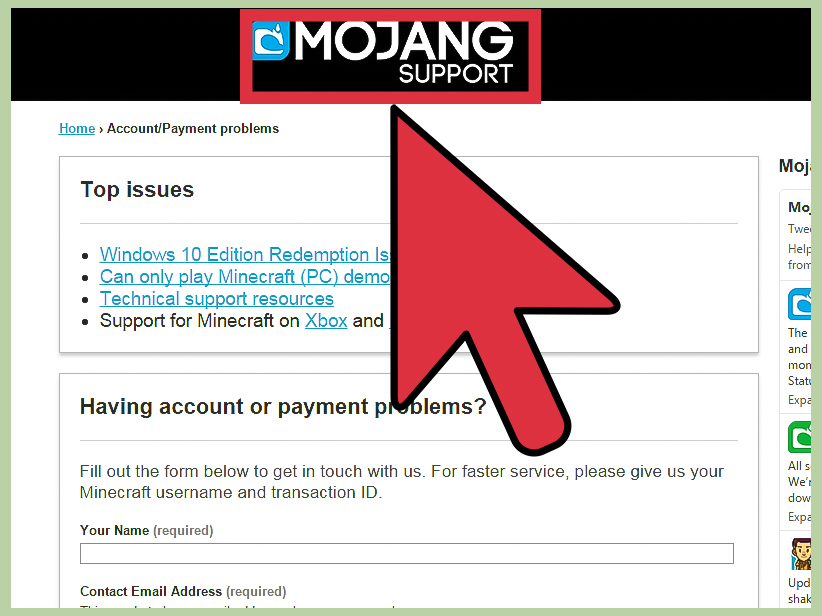
Older guides often mention deleting a Mojang account. Those instructions are mostly outdated. Mojang account migration has ended, and Minecraft Java Edition users were moved toward Microsoft account sign-in. If you still see old tutorials telling you to log into a Mojang account panel and click a delete button, treat them like a wooden sword in the Nether: historically interesting, but probably not useful today.
Before deleting anything, decide what you really want. If your goal is to stop playing, you may only need to uninstall Minecraft, cancel Realms, turn off recurring billing, change privacy settings, or remove the account from a device. If your goal is permanent deletion, then you need to prepare for the broader effects of closing the Microsoft account.
Before You Delete: Important Things to Know
Deleting a Minecraft account is not like deleting a saved world. You cannot always undo it after the recovery period ends. Microsoft usually offers a grace period before permanent deletion, but once that window closes, the account and associated data may be gone for good. That includes the Xbox profile, gamertag, achievements, purchased content, and access to games tied to that Microsoft account.
Also remember that worlds may exist in different places. Some are stored locally on your computer, console, or mobile device. Others may be connected to cloud saves, Minecraft Realms, marketplace content, or platform-specific systems. If you care about screenshots, world files, skins, behavior packs, texture packs, or server information, save what you need before starting the closure process.
Parents should also be careful. If the Minecraft account belongs to a child, family safety settings, parental permissions, and the child’s Microsoft account may affect what can be changed or deleted. A child account may require adult approval for certain privacy or account actions. In that case, the adult organizer should review the Microsoft Family settings first.
How to Delete a Minecraft Account in 5 Steps
Step 1: Confirm Which Microsoft Account Owns Minecraft
Start by identifying the exact Microsoft account connected to Minecraft. This is the most important step because many players have more than one Microsoft login. Maybe one is for Outlook, one is for Xbox, one is for school, and one was created at 2 a.m. because Minecraft would not let you join a server. We have all been there.
Open the Minecraft Launcher, Minecraft for Windows, or the platform where you normally play. Check the signed-in email address and gamertag. If you play Java Edition, the Minecraft Launcher usually shows the profile in the account menu. If you play Bedrock Edition, check the Microsoft account shown in the game’s profile area.
Do not assume the email you remember is the correct one. If you close the wrong Microsoft account, you may delete unrelated services while leaving the Minecraft account untouched. Look for purchase receipts, Xbox profile details, Microsoft Store order history, and subscription records. Your goal is to answer one simple question: “Which Microsoft account actually owns my Minecraft access?”
Step 2: Back Up Worlds, Screenshots, and Important Data
Before you delete the account, save anything you might regret losing. Minecraft worlds can represent hundreds of hours of mining, building, farming, exploring, and politely pretending you did not fall into lava because of your own bad bridge design. Back them up.
On PC, Java Edition worlds are usually stored locally in the saves folder. Bedrock Edition worlds may be stored in app data or device-specific storage. On consoles and mobile devices, saves may depend on the platform’s cloud system. If you use Minecraft Realms, download copies of your worlds before canceling or closing anything.
Also review marketplace purchases, skins, capes, texture packs, add-ons, and server memberships. Some content may be tied to the account and cannot be transferred. If you run a Realm, tell members before deleting the account. Otherwise, your friends may log in one day and discover the world vanished like a suspiciously convenient Enderman.
Step 3: Cancel Minecraft Realms, Game Pass, and Other Subscriptions
Next, check for active subscriptions. This may include Minecraft Realms, Xbox Game Pass, Microsoft 365, OneDrive storage, or other services billed through the same Microsoft account. Closing an account without canceling subscriptions first can create confusion, especially if billing is still active or if you need access to receipts later.
Go to your Microsoft account services and subscriptions area and review every recurring charge. Cancel anything you no longer want. If Minecraft was accessed through Xbox Game Pass rather than a direct purchase, remember that canceling Game Pass removes subscription-based access to the game, but it does not necessarily delete the Microsoft account. That may be enough if your goal is simply to stop playing.
If you own a Realm, cancel it separately and download any worlds you want to keep. If you are part of a family group, check whether the account is connected to a child profile, shared billing, or parental controls. A little patience here prevents “why is this still charging me?” panic later.
Step 4: Start the Microsoft Account Closure Process
Once you are sure you want to proceed, go to Microsoft’s account closure process and sign in with the account connected to Minecraft. Microsoft will ask you to verify your identity. This may involve a password, security code, authenticator app, backup email, or phone verification.
After signing in, read the closure checklist carefully. Microsoft shows warnings because closing the account can affect more than Minecraft. You may lose access to Outlook email, OneDrive files, Xbox profile data, Microsoft Store purchases, Skype, Microsoft Rewards, and other services connected to the same account.
Check each acknowledgment box only after you understand the consequences. This is not the moment to speedrun like you are beating the Ender Dragon. Choose the reason for closing the account, then select the option to mark the account for closure. Microsoft may offer a 30-day or 60-day reopen window, depending on the situation and security settings.
Step 5: Wait Through the Reopen Window or Restore the Account
After you mark the account for closure, it is not always deleted immediately. The account usually enters a waiting period. During this time, you can still change your mind and reopen the account by signing in and completing security verification.
If you reopen the account during the grace period, services and content that were still attached may become available again. However, subscriptions you canceled may need to be restarted, and time lost during the closure period may not be refunded or restored. If the reopen window expires, the account is permanently deleted and may not be recoverable.
When the account is permanently deleted, Minecraft access tied to that Microsoft account may also be gone. You may need to buy the game again under a new account if you decide to return later. That is why backing up data and checking purchases before deletion is so important.
What Happens After You Delete a Minecraft Account?
After the Microsoft account is permanently closed, you should expect to lose access to Minecraft purchases tied to that account. Your Xbox gamertag, achievements, multiplayer identity, and certain marketplace purchases may also be affected. If you used the same Microsoft account for other services, those services may be lost too.
Your local Minecraft files may remain on your device unless you delete them manually. For example, uninstalling Minecraft does not always remove every world, screenshot, mod, or configuration file. Account deletion and device cleanup are separate tasks. If privacy is your main reason for deleting the account, consider clearing local files and signing out of devices after closure.
Server data is another gray area. If you played on third-party Minecraft servers, those servers may still have logs, usernames, builds, chat records, or ban history according to their own rules. Deleting your Microsoft account does not automatically erase data stored by independent servers. Contact server administrators if you need data removed from a private community.
Alternatives to Deleting Your Minecraft Account
Permanent deletion is a big move. If Minecraft has become distracting, stressful, expensive, or simply boring, you have other options. You can uninstall the game, set screen-time limits, cancel Realms, leave servers, disable multiplayer for a child account, or change privacy settings. These choices are less dramatic and easier to reverse.
If you are worried about online safety, adjust Xbox privacy settings instead of deleting the entire account. You can limit who can send messages, join multiplayer games, view profiles, or communicate with the player. For parents, Microsoft Family Safety tools can help manage playtime and permissions without deleting a child’s whole digital identity.
If you are trying to start fresh, consider creating a new profile or changing your gamertag, depending on what you need. Just remember that purchases usually do not transfer between Microsoft accounts. A fresh start may feel nice, but losing paid content feels about as fun as digging straight down into a lava lake.
Common Mistakes to Avoid
Deleting the Wrong Microsoft Account
This is the biggest mistake. Always confirm the email address connected to Minecraft before starting account closure. Check the Minecraft Launcher, Xbox profile, Microsoft Store purchase history, and email receipts.
Forgetting to Download Realm Worlds
If you own a Realm, download your worlds before canceling or deleting the account. Once access is gone, recovering those worlds may be difficult or impossible.
Confusing Uninstalling with Deleting
Uninstalling Minecraft removes the app from a device. It does not delete your Microsoft account, Xbox profile, marketplace purchases, or cloud-connected account data.
Ignoring Other Microsoft Services
Your Minecraft login may also be your Outlook, OneDrive, Xbox, Windows, or Microsoft Store account. Review everything tied to it before closing it.
Experience Section: What Deleting a Minecraft Account Really Feels Like
Deleting a Minecraft account is rarely just a technical decision. For many players, it feels surprisingly emotional. Minecraft is not only a game; it is a timeline made of blocks. One world might hold your first awkward dirt hut. Another might have a castle you built with friends over summer break. Somewhere, there may be a chest full of diamonds you were “saving for later,” which is gamer language for “I am emotionally attached to blue rocks.”
One common experience is realizing how connected the account has become. A player may begin by thinking, “I just want to delete Minecraft,” then discover the account also holds Xbox achievements, Microsoft Store purchases, Realms billing, saved skins, marketplace packs, and years of multiplayer identity. That surprise can make deletion feel heavier than expected. It is not just removing a game account; it can mean retiring a username people recognize.
Another real-world lesson is that backups are worth the extra ten minutes. Players who download their worlds before deleting or canceling services usually feel more confident. Even if they never play again, they still have a copy of their builds. It is like putting an old photo album in a closet. You may not open it often, but knowing it exists feels better than wondering whether your giant floating sheep statue is gone forever.
Parents often experience the process differently. For them, deleting a Minecraft account may be part of setting boundaries, reducing screen time, or protecting a child from online interactions. In many cases, full deletion is not necessary. Adjusting privacy settings, disabling multiplayer, canceling Realms, or setting playtime limits may solve the problem without erasing purchases or saved worlds. The best choice depends on whether the issue is safety, billing, distraction, or permanent account cleanup.
Some players delete because they want a fresh start. Maybe the old gamertag is embarrassing. Maybe they joined too many servers. Maybe they want a cleaner online identity. In those cases, account deletion may be overkill. Changing account settings, updating privacy controls, or creating a new gaming routine can be easier. Remember: you do not need to burn down the village just because one villager keeps making annoying noises.
The biggest practical takeaway is this: slow down. Minecraft teaches players not to dig straight down, and the same rule applies to account deletion. Look below the surface first. Confirm the account, save important files, cancel subscriptions, review consequences, and only then proceed. A careful deletion feels clean and intentional. A rushed deletion feels like realizing your bed was obstructed after falling into the void.
Final Thoughts
Deleting a Minecraft account in 2026 is mostly about managing the Microsoft account connected to Minecraft. The process is not difficult, but it is important to understand the consequences. Closing the Microsoft account can affect Minecraft, Xbox, purchases, subscriptions, email, cloud files, and other services. That is why the safest approach is to confirm the account, back up your data, cancel subscriptions, follow Microsoft’s closure process, and wait through the reopen window.
If you only want a break from Minecraft, consider uninstalling the game, changing privacy settings, canceling Realms, or setting time limits instead. Permanent deletion should be saved for moments when you are truly ready to close the account and lose access to connected services. Handle it carefully, and your final goodbye to Minecraft can be peacefulnot a creeper explosion in your digital life.
Note: Account menus and recovery options may change over time, so users should review the current Microsoft account closure page and Minecraft support guidance before permanently deleting an account.