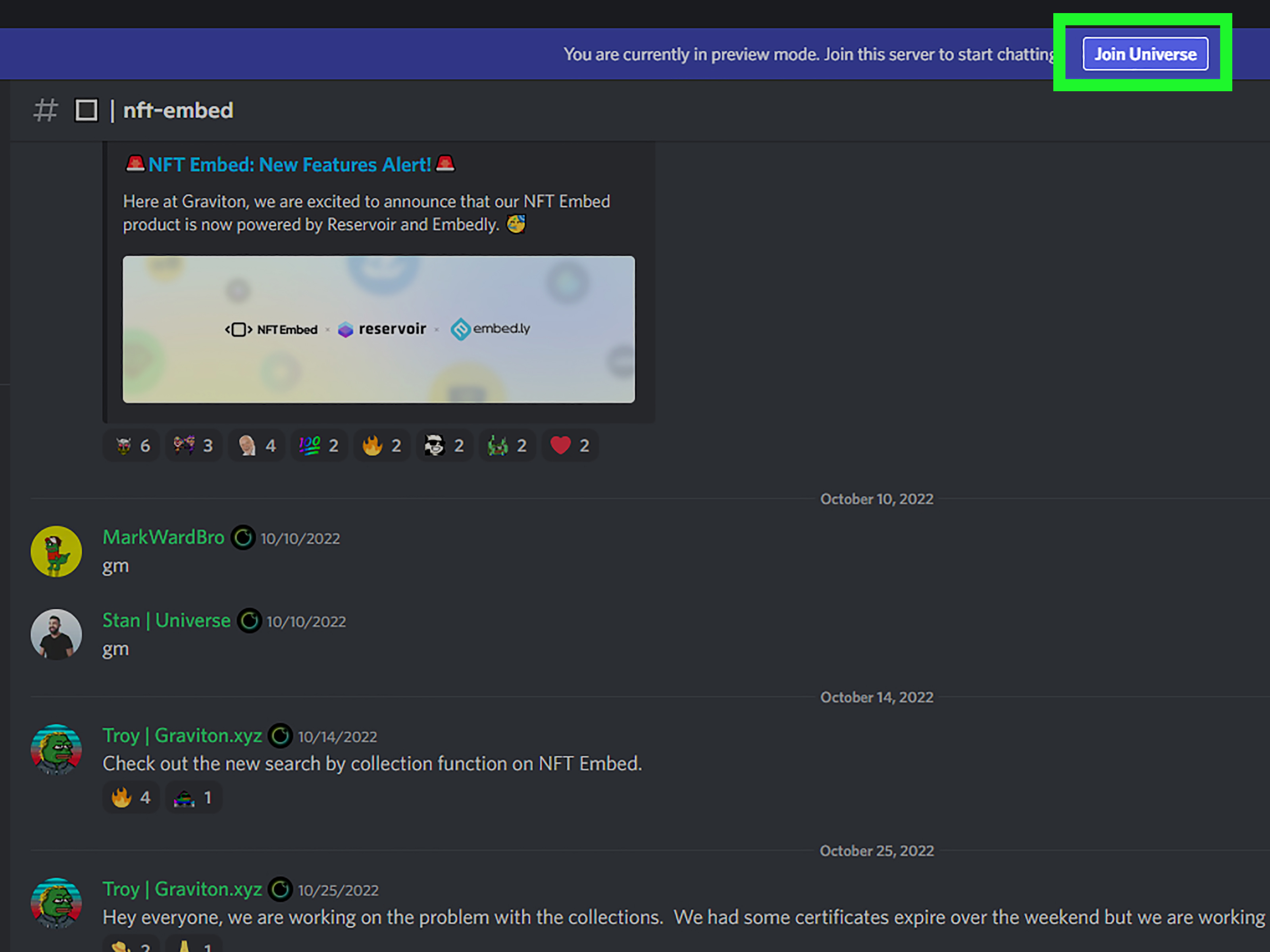
Joining a Discord server is usually as easy as clicking a link… unless it’s not. Sometimes the invite expires,
sometimes you’re on the wrong account, and sometimes Discord politely informs you: “Nice try, but no.”
The good news: there are multiple legit ways to join serverswhether you’ve got an invite in hand or you’re
starting from zero and just want to find your people.
This guide walks you through both paths (invite and no invite), on desktop and mobile, with troubleshooting,
safety tips, and real-world “here’s what actually happens” experiences at the endbecause the internet is a
wonderful place and also a little bit of a raccoon in a trench coat.
Quick Pre-Join Checklist (So You Don’t Get Stuck at the Door)
- Be signed in to the correct Discord account (desktop app, mobile app, or web).
- Verify your email if possiblemany servers require it before you can chat.
- Update the app if the interface looks different from what you see in screenshots online.
- Think safety first: don’t click random links, and don’t “verify” by running commands or downloading files.
What “Joining a Server” Actually Means
On Discord, a server is a community spacelike a group clubhousewith separate text channels
(for messages) and voice channels (for live audio/video). Servers can be private (invite-only), public
(discoverable), or somewhere in between (public-ish, but with entry rules like screening questions or verification).
Method 1: Join a Discord Server With an Invite
If someone gives you an invite link, you’re taking the “front door” route. Invite links often look like:
discord.gg/… or discord.com/invite/….
Option A: Click the Invite Link (Fastest)
- Click the invite link in your browser, email, DM, or wherever you received it.
- Discord will open (in the app or web) and show a preview screen with the server name.
- Click Join Server (or Accept Invite).
Tip: If clicking the link opens the wrong Discord account, log out of that one and log back into the correct account,
or copy the link and paste it inside the right account using the manual method below.
Option B: Paste the Invite Link Manually (Best for When Links Misbehave)
On Desktop App (Windows/Mac/Linux) or Discord Web
- Open Discord.
- Look at the left sidebar with your server icons.
- Click the + (Add a Server) button.
- Select Join a Server.
- Paste the invite link (or just the invite code at the end).
- Click Join Server.
On iPhone/Android (Mobile App)
- Open the Discord app.
- Tap the + button in the server list.
- Tap Join a Server.
- Paste the invite link (or type the invite code).
- Tap Join Server, then confirm if prompted.
Invite Links: Smart Things to Know (Before You Panic)
- Invites can expire (some are time-limited; some don’t expire).
- Invites can be capped (limited number of uses).
- Invites can be invalid if copied wrong, missing characters, or case-sensitive depending on format.
- Some servers require you to accept rules before you can see everything (this is normal).
Method 2: Join a Discord Server Without an Invite
No invite? No problem. You can still join servers in a few legitimate waysmainly through Discord’s discovery tools,
curated directories, or official community pages that publish public invites.
Option A: Use Server Discovery / Explore Public Servers (The “Browse” Route)
Discord has a discovery experience that lets you browse public communities by category and search terms.
Depending on your account and app version, you’ll typically look for a compass icon
(often described as “Server Discovery” or “Discover/Explore”).
- Open Discord (desktop or web is often easiest for browsing).
- Find the compass icon in the left sidebar (Explore/Discover).
- Browse categories (gaming, art, music, learning, tech, etc.) or search keywords.
- Open a server listing, skim the description and rules preview, then click Join.
Important: Discovery availability can vary. If you don’t see it, don’t assume you’re cursedyour interface may differ,
or the feature may not be visible for your account yet.
Option B: Use Discord’s Public Server Directory (Browser-Friendly)
Discord also has a public server browsing page that highlights communities and categories. It’s a good option if you
prefer searching in a browser and then joining through your account.
- Go to Discord’s server directory page in your browser.
- Browse categories or search by topic.
- Select a server, review the description, then join through Discord.
Option C: Find Public Invites Where Communities Live (The “Follow the Breadcrumbs” Route)
Many communities post Discord invites in places like:
- Official websites (often under “Community” or “Support”)
- Creators’ YouTube descriptions or pinned comments
- Twitch panels
- Verified social media profiles
- Event pages (hackathons, clubs, conferences)
Best practice: trust invites posted on official channels. Random “join my server” links in comment sections
are where bad decisions go to breed.
Troubleshooting: When Discord Says “No” (And What to Do Next)
Problem 1: “Invite Invalid” or “Invite Expired”
This usually means the link is no longer usable (expired, deleted, or typed wrong). Fixes:
- Ask for a new invite from the server owner/mod.
- Re-copy the link carefullyno missing characters, no extra spaces.
- Try manual paste inside Discord (Join a Server) instead of clicking the link.
- Check if you’re already in the server on another account (it happens).
Problem 2: You Hit the Server Join Limit
Discord accounts have caps on how many servers you can join. If you’re at the limit, Discord won’t let you join new ones
until you leave a few. Quick fix: identify inactive servers, leave them, then try again.
Pro tip: create a “parking lot” folder for servers you rarely open. If you haven’t clicked it since the last time your phone
updated itself at 3 a.m., it’s probably safe to let it go.
Problem 3: You’re Asked for Email/Phone Verification
Some servers have verification levels that require a verified email (and sometimes a verified phone) before you can chator even before you can fully join.
If you trust the server and it’s a legitimate community, verify through Discord’s official prompts in the app settings.
Problem 4: “Unable to Accept Invite” (But Everything Looks Fine)
This can happen for several reasons:
- Temporary app glitch (restart Discord, try web/desktop, or update the app).
- Network issues (switch Wi-Fi/mobile data).
- Server safety settings (some servers restrict who can join or require extra steps).
- Your account may need verification if Discord flags unusual activity.
Problem 5: You Were Banned (Or the Server Quietly Showed You the Exit)
If you were previously removed or banned, the same invite link won’t magically override that. Your best move is to contact a moderator
(politely) and ask if you can appeal, especially if it was a misunderstanding.
Safety Tips: Join Servers Without Getting Scammed
Most Discord servers are harmless communities. But scams do exist, and they often target new membersespecially via DMs or fake “verification” steps.
Protect yourself with these habits:
1) Treat Random Invites Like Mystery Meat
- Only join from sources you can verify (official pages, trusted friends, verified creator profiles).
- Be extra cautious with old invite links posted years ago in forgotten blog posts or abandoned forums.
2) Never “Verify” by Running Commands or Downloading Files
Legit servers may ask you to click a button to accept rules, solve a captcha inside Discord, or pick rolesnormal stuff.
Red flags include:
- “Run this command in PowerShell/Terminal to verify.”
- “Download this file to get access.”
- “Scan this random QR code from a stranger.”
- “Send your token/password to prove it’s you.” (Absolutely not.)
3) Lock Down Your Account (Two Minutes That Saves You Weeks)
- Enable two-factor authentication (2FA) if you can.
- Be careful with DMs from accounts offering free perks or “Nitro gifts.”
- If something feels off, leave the server and report suspicious behavior through Discord’s safety/reporting routes.
Once You’re In: Your First 10 Minutes in a New Server
Joining is step one. Feeling at home is step two. Here’s a simple “first 10 minutes” routine:
- Read #rules (or #start-here) so you don’t accidentally speedrun a ban.
- Complete onboarding (choose roles, agree to guidelines, set interests).
- Introduce yourself if there’s an introductions channelkeep it short and friendly.
- Adjust notifications (mute noisy channels; keep important updates on).
- Lurk responsibly for a bit to learn the vibe. “Read the room” works online too.
Real-World Experiences: What Joining a Discord Server Feels Like (And What People Learn)
Guides tell you what to click. Real life tells you what happens nextlike joining a server and immediately getting greeted by
47 channels, 12 bots, and one person arguing about whether a hot dog is a sandwich (it’s not a sandwich; it’s a hot dog; let’s all hydrate).
Below are common experiences people have when joining Discord servers, plus lessons that make the next join smoother.
Experience #1: The “I Joined… Now I’m Lost” Moment.
A lot of first-timers join a server and freeze because the channel list is massive. It’s normal. Large servers are designed like malls:
you’re not supposed to visit every store on day one. People who settle in fastest usually start with three channels:
#rules, #announcements, and one general chat channel. They mute the rest and slowly explore.
The key lesson: you don’t have to consume everything. Curate the server the same way you curate your home screen.
Experience #2: The “Why Can’t I Talk?” Confusion.
Many servers restrict messaging until you verify an email, accept rules, pick roles, or wait out an anti-spam timer.
New members sometimes assume they’re broken, but it’s usually the server protecting itself from bots. People who have a smooth time
look for channels called #start-here, #verify, #roles, or #welcome. The lesson:
if you can’t type, you’re probably missing a stepnot missing your mind.
Experience #3: The “Invite Link Failed” Spiral.
Someone shares an invite, it says expired, and suddenly everyone becomes a detective. In reality, invites expire all the time,
and some are single-use or time-limited. The calm move is to ask for a fresh invite and paste it manually inside Discord.
The lesson: expired invite links are common; it’s not personal. (Unless they sent you an expired invite on purpose,
in which case: that’s a weird hobby and they should take up knitting.)
Experience #4: The “Public Server Browsing Rabbit Hole.”
When people discover public server browsing, they often join five servers in one night because the categories are fun.
Then the next day, their notifications explode like popcorn. The experienced approach is to join one or two,
mute most channels, and spend a day deciding if it’s a fit. The lesson: Discord is better when you’re intentional.
A few high-quality communities beat a hundred silent ones.
Experience #5: The “Sketchy Verification” Red Flag.
Most legitimate servers verify you by having you click a button, accept rules, or complete an in-app step.
But some scammers imitate “verification” to trick users into clicking suspicious links or running commands.
People who stay safe adopt a simple rule: never download unknown files or run scripts to join a chat server.
If a server asks for anything extreme, they leave immediately and find a safer community. The lesson:
no Discord server is worth losing your account (or your computer) over.
Put together, these experiences point to one big truth: joining a Discord server is a skill, and like any skill,
it gets easier fast. After a few joins, you’ll recognize patternswelcome channels, onboarding steps, roles, rules,
and which servers feel like a friendly living room versus a chaotic airport terminal.
Conclusion
Whether you’re joining with an invite link or browsing without one, the process comes down to three things:
get in (invite or discovery), get oriented (rules, roles, onboarding), and stay safe
(avoid sketchy links and “verification” tricks). Once you’ve joined a few servers, you’ll move from “Where am I?” to
“Oh nice, this is the good channel” in record time.
If you want the smoothest experience: use trusted invites, paste links manually when needed, keep your account verified,
and treat any server that asks you to download or run something like it just offered you sushi from a gas station.
Technically possible. Spiritually questionable.