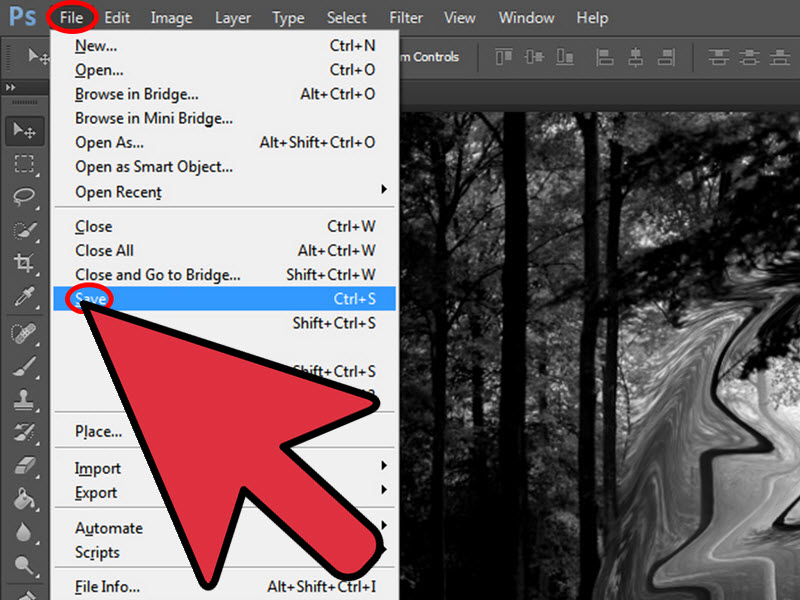
“Morphing” sounds like something you’d do to a superhero in a lab (or to your friend’s selfie right before they see it).
In Photoshop, it usually means blending two images while also warping shapes so the transition feels believable:
a face gradually becomes another face, a car turns into a spaceship, or a cat quietly evolves into… a slightly different cat.
The good news: you don’t need a secret plugin or a PhD in wizardry. You need a solid workflow:
align, mask, match color/light, then gently distort for shape continuity. The great news: once you learn it,
you’ll start noticing “morph problems” in everything (including your own reflection in a spoon).
Before You Start: What “Morphing” in Photoshop Really Is
Photoshop doesn’t have a single “Morph My Pictures” button (sadly). Instead, you build the effect using
a few core tools: Layers, Masks, Auto-Align/Auto-Blend,
Transform Warp, Liquify, and sometimes Puppet Warp.
The trick is using them in the right order, non-destructively, so you can tweak without restarting.
Best results happen when your images match
- Similar angle (front-facing with front-facing; 3/4 view with 3/4 view).
- Similar lighting (both soft daylight, or both dramatic side light).
- Similar scale (heads roughly the same size; objects shot from similar distance).
- High resolution (it’s easier to hide seams when details are clean).
Step 1: Prep Your Images Like a Pro (Not Like a Panic Clicker)
Open both images, then decide which one is your base (the “destination”) and which is your
morph layer (the “visitor”). If your goal is a smooth transformation, you want both images
in the same document as separate layers.
Quick setup workflow
- Create a new file using the larger image’s dimensions (or use the base image document).
- Drag the second image into the document so it becomes a new layer.
- Convert both image layers to Smart Objects (right-click layer → Convert to Smart Object) so scaling and filters stay editable.
- Name layers clearly: Base, Morph. Your future self will thank you.
Pro tip: If you’re combining many images (like a sequence), use
File > Scripts > Load Files into Stack to bring them in cleanly, then align them.
Step 2: Auto-Align Layers (Because Eyeballing It Is a Trap)
Even tiny misalignment makes morphing look “glitchy” in the wrong way. Photoshop’s
Auto-Align Layers can match common features automatically.
How to do it
- Select both layers in the Layers panel.
- Go to Edit > Auto-Align Layers.
- Choose Auto first. If it gets weird, try Reposition.
If you’re morphing faces, alignment matters most around the eyes, nose, and mouth.
If you’re morphing objects, pick a clear anchor point (like a logo, corner, or center line).
Step 3: Build the Blend with Layer Masks (The Secret Sauce)
Layer masks are what keep morphing from looking like you just slapped one photo on top of another and hoped
nobody would notice. With masks, you can reveal parts of the morph layer gradually and cleanly.
Masking workflow that doesn’t make you cry
- Select the Morph layer.
- Click Add Layer Mask.
- Grab a soft Brush (B). Paint with black on the mask to hide, white to reveal.
- Start with a large, soft brush at low opacity (10–30%). Build up slowly.
For clean edges: use Select Subject or Quick Selection, then open
Select and Mask to refine hair, fur, or tricky outlines before applying the mask.
Mini example: A face morph blend
Mask in the morph layer’s eyes first (because humans are basically eye-detection machines),
then blend cheeks/forehead, then fine-tune the nose and mouth. If the eyes don’t match,
nothing else will feel right.
Step 4: Match Color and Tone (So It Doesn’t Look Like Two Different Planets)
Most morph failures aren’t “bad masking.” They’re color and brightness mismatch.
One image is warm, the other cool. One is contrasty, the other flat. Your job is to make them speak the same visual language.
Fast ways to unify the look
- Match Color: Try Image > Adjustments > Match Color on the morph layer to borrow color characteristics from the base.
- Adjustment layers: Curves, Levels, Hue/Saturation, Color Balanceclip them to the morph layer so you only affect that layer.
- Camera Raw Filter: Great for global tone tweaks; works well as a Smart Filter when applied to a Smart Object.
Pro tip: Don’t chase perfection at this step. Get close. You’ll do final polish after the distortions,
because warping can shift highlights and shadows.
Step 5: Warp the Shape (Gently) with Transform Warp
Here’s where “morph” starts feeling like “morph.” You’re going to reshape the morph layer so key features line up with the base.
Photoshop’s Transform Warp is perfect for broad structural adjustments: head shape, jawline, object curvature, and perspective nudges.
How to warp without wrecking it
- Select the Morph layer (Smart Object recommended).
- Go to Edit > Transform > Warp.
- Adjust control points to match large shapes first (outline, major curves).
- Zoom out often. If you only zoom in, you’ll invent new problems.
Rule of thumb: If you find yourself pushing a point dramatically, you probably need
better alignment, better source images, or a different tool (hello, Liquify).
Step 6: Refine Details with Liquify (and Optional Puppet Warp)
Warp handles the big structure. Liquify handles the subtle, organic adjustments:
cheeks, smiles, eyelids, fabric folds, and “why does this look slightly haunted?” fixes.
If you’re morphing faces, Face-Aware Liquify can help nudge features with sliders or direct manipulation.
Liquify best practices
- Apply Liquify as a Smart Filter when possible (Smart Object first) so you can revisit it later.
- Use a brush slightly larger than the area you’re moving for smoother results.
- Make small moves. Multiple gentle nudges beat one giant shove.
- If it starts looking “plastic,” stop. Take a breath. Undo is your friend.
When to use Puppet Warp
Use Puppet Warp for bendy, joint-like movement: arms, legs, branches, cables, clothing drape,
or anything that should pivot around “pins.” It’s less ideal for squishy facial reshaping (Liquify wins there),
but great for positioning.
Step 7: Hide the Seams (Blend Modes, Blend If, Micro-Texture, and Finishing)
Now you’re in the “make it believable” phase. You’ve aligned, masked, matched tone, and warped shape.
The last 10% is the difference between “cool” and “wait… how did you do that?”
A finishing checklist that actually works
- Blend modes: Try Soft Light/Overlay for texture integration, or Luminosity/Color to separate tone vs color control.
- Opacity finesse: Sometimes 80–95% opacity looks more natural than 100%.
- Blend If: In Layer Style > Blending Options, use “Blend If” sliders to let highlights/shadows from the base show through.
- Micro blur/noise: Add a tiny Gaussian Blur to the morph layer or a touch of noise across the composite to unify texture.
- Dodge & burn (lightly): Use a 50% gray Soft Light layer to shape shadows/highlights so both images feel lit the same.
Optional: Displacement for “wrapped” realism
If you’re morphing something that must follow surface contours (like a texture on skin or a graphic on fabric),
a displacement map can make the morph layer conform to underlying shape. This is especially helpful when
the composite looks too flat.
Troubleshooting: Fix the 6 Most Common Morphing Problems
1) “The eyes don’t match and it looks cursed.”
Re-do alignment, then warp around the eye sockets, not just the eyelids. Consider blending one set of eyes more dominantly.
Humans are extremely sensitive to eye placement, so treat it like the main event.
2) “The seam is visible no matter what I do.”
Feather the mask edge, lower brush opacity, and use Blend If. Also check texture mismatchsometimes a little noise or grain unifies everything.
3) “Colors clashone layer is warmer.”
Clip a Curves or Color Balance adjustment to the morph layer. Match the black point, midtones, and highlights.
If you’re in a hurry, try Match Color, then fine-tune.
4) “The morph looks ‘stretched’ or weirdly elastic.”
You’ve probably over-warped. Undo a few steps, do broader Warp changes first, then Liquify with smaller moves.
Big distortions should be rare.
5) “Edges look cut out.”
Refine with Select and Mask, then paint on the mask with a soft brush at low flow.
Also check lightinghard edges often come from mismatched contrast, not just masking.
6) “It looks fake, but I can’t explain why.”
It’s usually inconsistent shadows. Add a subtle dodge/burn layer and shape light direction to match the base.
When shadows agree, brains relax.
FAQ: Quick Answers to Common “Wait, Which Tool?” Questions
Is morphing the same as face swapping?
Not exactly. Face swapping replaces. Morphing transitionsit blends structure, texture, and tone so the shift feels gradual.
You can use similar tools for both, but morphing demands smoother continuity.
Warp vs Liquify vs Puppet Warpwhat’s the difference?
- Transform Warp: broad, grid-based reshaping for overall structure.
- Liquify: organic push/pull for subtle facial or “squishy” adjustments.
- Puppet Warp: pin-based bending for limbs, fabric, and articulated movement.
Can I do this non-destructively?
Yesuse Smart Objects, adjustment layers, and masks. Apply Warp thoughtfully, and use Liquify as a Smart Filter when possible.
Non-destructive editing keeps you flexible when you inevitably notice something weird… five minutes before you export.
Real-World “Experience” Notes (Extra Guidance You’ll Actually Use)
If you’re learning morphing, here’s the part tutorials don’t always say out loud: your first attempts will look wrong,
and that’s not a failureit’s the normal tax you pay to develop a good eye. Most editors discover that morphing is less about “secret settings”
and more about tiny decisions repeated patiently: a softer mask edge here, a two-pixel nudge there, a small curve adjustment so shadows agree.
It’s not glamorous, but neither is brushing your teeth, and that still changes your life.
One of the biggest “aha” moments people report is realizing that alignment is everything. You can be a mask wizard,
but if the eyes or key object edges are even slightly off, the result feels jittery. Auto-Align gets you close, but manual checking matters:
toggling layer visibility, lowering opacity temporarily, and using guides can save you from chasing seams later. Think of it like building furniture:
if the legs aren’t even, you can sand forever and it’ll still wobble.
Another common experience: color mismatch hides in midtones. Beginners often match highlights (easy) and forget the middle range,
where skin, fabric, and most “realism cues” live. If your morph looks pasted-on, try this habit:
add a Curves adjustment clipped to the morph layer and gently match the base’s midtone contrast first. Then tackle color temperature.
Once midtones agree, the blend becomes dramatically easierlike suddenly discovering your puzzle pieces were from the same box.
People also learn quickly that over-warping is the fastest way to “uncanny valley”. The tools are powerful, which is great,
right up until you realize you’ve turned a face into a rubber mask. A practical strategy is to do warping in two passes:
first, use Transform Warp for big structural alignment (head shape, overall proportions). Second, use Liquify for micro adjustments (cheeks, smile lines).
Keeping those roles separate makes your edits cleaner and more believable.
A surprisingly helpful real-world trick is the “zoom out test.” When you’re zoomed in at 300%, you’ll fix details nobody will ever see
and miss problems everyone will noticelike a jawline that drifts or a shadow that points in the wrong direction. Editors often toggle between
close-up precision and zoomed-out readability every minute or two. If it looks good zoomed out, it usually reads as “real” to a viewer.
If it only looks good zoomed in, it’s probably not done yet.
Finally, there’s a classic experience: the morph looks “almost right,” but something still feels off. That’s usually when finishing moves matter:
a touch of shared grain, a subtle global color grade, or a tiny dodge/burn pass to unify lighting direction. These are not flashy steps,
but they’re the difference between “Photoshop-y” and “how is this even possible?” The funny part is that after a while, morphing becomes less intimidating
not because you memorize every feature, but because you trust your process. You’ll know exactly what to check next when something feels wrong.
And that’s the real skill: not perfection, but repeatable problem-solving.
Conclusion
Morphing in Photoshop is a blend of technique and taste: align layers, mask thoughtfully, match color and tone,
then warp and liquify with restraint. If you keep your edits non-destructive and polish the seams with smart finishing,
you’ll get morphs that look smooth, intentional, and surprisingly natural.