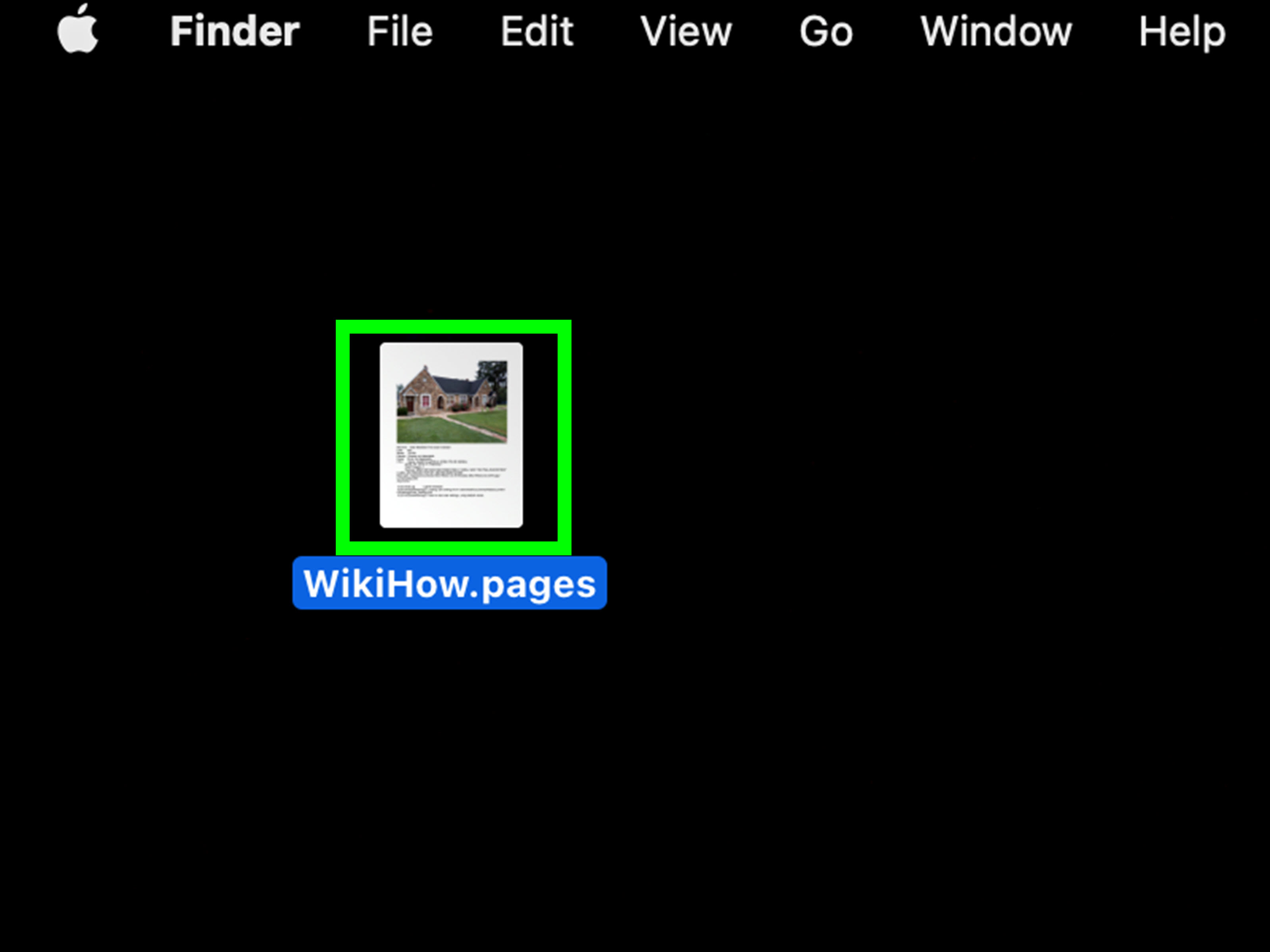
If you have ever received a .Pages file on the “wrong” computer, welcome to one of modern life’s smallest but most persistent annoyances. It usually happens like this: someone sends you a document, you double-click it, and your computer responds with the digital equivalent of a blank stare. Not helpful.
The good news is that opening a .Pages document is not hard once you know what you are dealing with. Apple Pages is Apple’s word processor, and its native file format is .pages. Macs handle it naturally. Windows machines, on the other hand, need a little encouragement. Thankfully, there are several easy ways to view, open, or convert the file without turning your afternoon into a technical support drama.
In this guide, you will learn three practical ways to open a .Pages document on Windows or Mac, when each method works best, what to do if formatting goes sideways, and how to avoid the same headache next time. We will also cover real-world scenarios so you can pick the fastest solution instead of trying random internet tricks and hoping for the best.
What Is a .Pages File, Exactly?
A .Pages file is a document created in Apple Pages, part of Apple’s iWork suite. Think of Pages as Apple’s answer to Microsoft Word. It is commonly used for essays, reports, resumes, letters, flyers, and all the other documents humans create when they are feeling ambitious and have access to a keyboard.
On a Mac, a .Pages file usually opens directly in the Pages app. On Windows, it does not open natively in Microsoft Word the way a .docx file does. That is the main reason these files confuse people: the format is legitimate, but it is not universally friendly right out of the box.
The easiest fix depends on your setup. If you are on a Mac, the answer is simple. If you are on Windows, the best route is often iCloud or conversion. Either way, you do not need to panic, install sketchy software, or write a passive-aggressive email back to the sender.
Way 1: Open the .Pages File Directly in Pages on a Mac
If you are using a Mac, this is the simplest method by a mile. Apple Pages is designed to handle .Pages documents natively, so opening the file is usually as easy as opening any other document.
How to do it
- Locate the .pages file in Finder, Downloads, or iCloud Drive.
- Double-click the file.
- If Pages is installed, the file should open automatically.
- If it does not, right-click the file, choose Open With, then select Pages.
Once the file is open, you can read it, edit it, save changes, or export it to a more universal format like Word (.docx) or PDF.
Why this method is best
This is the best option if you want the document to look the way the creator intended. Layout, fonts, images, spacing, and design elements are most likely to stay intact inside Pages. If the file includes more advanced formatting, this method gives you the smoothest experience.
When this method makes sense
- You already use a Mac
- You need to edit the document, not just view it
- You want the least amount of hassle
In short, if you are on a Mac, open it in Pages and enjoy being the person whose computer understands the assignment.
Way 2: Open the .Pages File in a Browser with iCloud on Windows or Mac
If you are on Windows, this is often the most practical solution. Apple offers Pages for iCloud, a browser-based version of Pages that lets you open, view, edit, and export documents online. No Mac required.
This method is especially useful because it does not just let you peek at the file. It lets you work with it in a way that feels much closer to a real document editor.
How to do it
- Open a modern browser such as Chrome, Edge, Firefox, or Safari.
- Go to iCloud.com and sign in with your Apple Account.
- Open Pages from the iCloud apps menu.
- Upload the .pages file.
- Click the file to open it in your browser.
From there, you can read the document, make edits, and download it in a more compatible format if needed.
Why people love this method
It works on both Windows and Mac. It does not require you to install the Pages app. And if someone keeps sending you .Pages files because they live inside the Apple ecosystem and assume the rest of the world does too, this gives you a reliable long-term solution.
Best use cases
- You are on Windows and need to open the file now
- You want to edit the file, not just view it
- You need to export it to Word or PDF afterward
The only real catch is that you need an Apple Account and an internet connection. If you have both, this is one of the easiest ways to open a .Pages document on a PC without installing extra tools.
Way 3: Convert the .Pages File to Word or PDF
If you want maximum compatibility, convert the document to a more common format. This is the “let’s make this everyone’s problem a little less” option. Once a .Pages file becomes a .docx or .pdf, it is much easier to open on almost any device.
Option A: Convert it from Pages on a Mac
If you can open the file in Pages on a Mac, do this:
- Open the document in Pages.
- Click File.
- Select Export To.
- Choose Word or PDF.
- Save the new file.
This is the cleanest conversion path because it comes straight from the app that created the file type in the first place.
Option B: Convert it from iCloud on Windows or Mac
If you opened the document through Pages for iCloud, you can usually export it there too. That means a Windows user can upload the .Pages file, open it online, and download it as a Word or PDF document. Very civilized.
Option C: Use a trusted converter for non-sensitive files
There are also file conversion tools that can turn a .Pages file into DOCX or PDF. This can be useful when you only need to read the document and do not want to sign in to iCloud. However, think twice before uploading anything private, legal, financial, or sensitive to a third-party service. Convenience is great. Data regrets are less fun.
When conversion is the smartest choice
- You need to share the file with people who use Word
- You only need to read the document and do not need native Pages features
- You want a format that is easier to archive, email, or print
For most workplaces, PDF is best for viewing and preserving layout, while DOCX is best when editing will continue in Microsoft Word.
Which of the 3 Methods Should You Choose?
Here is the simple version:
- Use Pages on Mac if you are on a Mac and want the easiest, most accurate experience.
- Use iCloud Pages if you are on Windows or need browser-based access.
- Convert to Word or PDF if you need universal compatibility or want to send the document to someone else.
If you are only reading the file, PDF is usually enough. If you need to revise, comment, or collaborate, DOCX is often the better move. If you need the original layout and features intact, Pages is still king.
Common Problems When Opening a .Pages File
Problem 1: Microsoft Word will not open it
This is normal. A .Pages file is not a native Word file. Word is not being dramatic. It simply does not speak that format fluently. Use iCloud Pages or convert the file first.
Problem 2: The formatting looks different after conversion
This can happen when fonts, templates, text wrapping, tables, or design elements do not translate perfectly between Pages and Word. If visual accuracy matters, export as PDF instead of DOCX. A PDF is usually better at preserving the original look of the document.
Problem 3: You only need to read the file once
If this is a one-time situation, the fastest route is often to open it in iCloud and export it as PDF. That way you do not need to adopt a whole new workflow just because one person sent their vacation itinerary in Apple format.
Problem 4: The file seems too large or takes forever to send
Pages documents with images, media, charts, or embedded graphics can become surprisingly large. In those cases, a PDF export may be easier to email and easier for the recipient to open. If the file still feels chunky, ask the sender to reduce image sizes before exporting again.
Tips for Sharing .Pages Files Without Causing Chaos
If you create documents in Pages and send them to other people, a little format awareness goes a long way. Before sending the file, ask yourself one question: Does the recipient actually use Pages? If the answer is “I have no idea,” export it first.
Here are a few smart habits:
- Send PDF when the document is final and should not be edited
- Send DOCX when the other person will edit it in Word
- Keep the original .pages file for your own edits and archive
- Test the export once if the document includes unusual formatting
This saves everyone time, and it also reduces the odds that your recipient will respond with, “Hey, I can’t open this,” which is rarely the emotional payoff any sender is hoping for.
Real-World Experiences: What Actually Happens When a .Pages File Lands in Your Inbox
In real life, people rarely go looking for a .Pages file. A .Pages file usually finds them. It shows up in an email from a coworker, a classmate, a client, or that one family member who owns three Apple devices and assumes the rest of us also live inside a minimalist glass ecosystem.
A common experience on Windows goes like this: you download the attachment, double-click it, and absolutely nothing useful happens. Maybe Word complains. Maybe Windows asks what app you want to use. Maybe you stare at the filename for a moment as if stronger eye contact will solve the issue. This is usually when people search, “how to open a .Pages document on Windows,” with the energy of someone trying to defuse a paper-based emergency.
What most users discover is that the fastest fix depends on what they actually need. If they only need to read the document, opening it in iCloud and exporting a PDF feels like magic. The problem goes from “I can’t open this weird file” to “Oh, it’s just a normal document now.” If they need to edit it, iCloud Pages becomes even more helpful because it avoids a lot of guesswork.
Mac users usually have a smoother ride, but even they run into issues when sharing files with Windows-heavy teams. A designer might build a beautiful Pages document on a MacBook, send it proudly, and then learn that the office accountant uses Windows and would really prefer a PDF that does not require detective work. This is why experienced users often keep a simple habit: work in Pages if you want, but export before sharing.
There is also the formatting issue, which is less dramatic but more common than people expect. A resume may look polished in Pages and then shift slightly after conversion to Word. A report with charts may survive beautifully in PDF but become a bit moody in DOCX. None of this is unusual. It is just the price of moving documents between ecosystems that were not built to be identical twins.
Over time, many people develop a practical system. On Mac, they open the original file in Pages, make any edits there, and export two versions: one PDF for clean viewing and one Word file for collaboration. On Windows, they use iCloud when they need access to the original, but store the converted version for daily work. It is not glamorous, but it works consistently.
The most useful lesson from all these experiences is simple: .Pages files are not broken, and your computer is not broken either. You are just dealing with a file format that belongs to a specific app and ecosystem. Once you know the three main ways around that limitation, the whole thing becomes much less mysterious. Slightly annoying, maybe. But mysterious? Not anymore.
Conclusion
Opening a .Pages document on Windows or Mac is easier than it first appears. On a Mac, you can open it directly in Pages. On either platform, you can use Pages for iCloud in a browser. And when compatibility matters most, you can convert the file to Word or PDF for smoother sharing and editing.
The best method depends on your goal. If you want the original document experience, stick with Pages. If you want quick access on Windows, use iCloud. If you want universal convenience, convert the file and move on with your day. No drama, no shady downloads, no ritual sacrifice to the file-format gods.
Once you know these three methods, a .Pages file stops being a roadblock and becomes just another document with slightly stronger opinions.