If you’ve ever found yourself swamped with too many open windows or overwhelmed by a cluttered desktop, you’re not alone. We all love a clean and organized workspace, but sometimes it feels like the more we try to tidy up, the messier things get. Fortunately, there’s a simple trick that can help you declutter your desktop without losing easy access to your most important documents: pinning them to your taskbar. In this article, we’ll walk you through the benefits of pinning documents to your taskbar and how to do it efficiently. Let’s dive in!
Why Pin Documents to the Taskbar?
The taskbar is one of the most useful features in Windows. It provides quick access to your most frequently used apps, files, and settings. But when it comes to documents, the taskbar can be a game changer. Pinning documents to your taskbar has a number of benefits, including:
- Quick Access: Pinning documents allows you to open them with a single click, bypassing the need to search through folders or file explorers.
- Declutter Your Desktop: By pinning files to your taskbar, you can reduce the clutter on your desktop, making it cleaner and more organized.
- Improved Workflow: Having your most-used documents just a click away can speed up your workflow, saving you time and effort.
- Stay Organized: Pinning documents helps you stay organized and prevents the endless pile of files from overwhelming your desktop.
How to Pin Documents to the Taskbar
Now that we understand why it’s a good idea to pin documents to the taskbar, let’s get into the nitty-gritty of how to do it. Whether you’re using Windows 10 or 11, the steps are straightforward and easy to follow.
Step 1: Pinning Documents in Windows 10
Follow these simple steps to pin your favorite documents to the taskbar in Windows 10:
- Open the File Explorer: Press the
Windows Key + Eto open File Explorer, or click on the File Explorer icon in your taskbar. - Find the Document You Want to Pin: Browse through your files and locate the document you want to pin to the taskbar.
- Right-Click on the Document: Once you’ve found the document, right-click on it and select Pin to Quick Access.
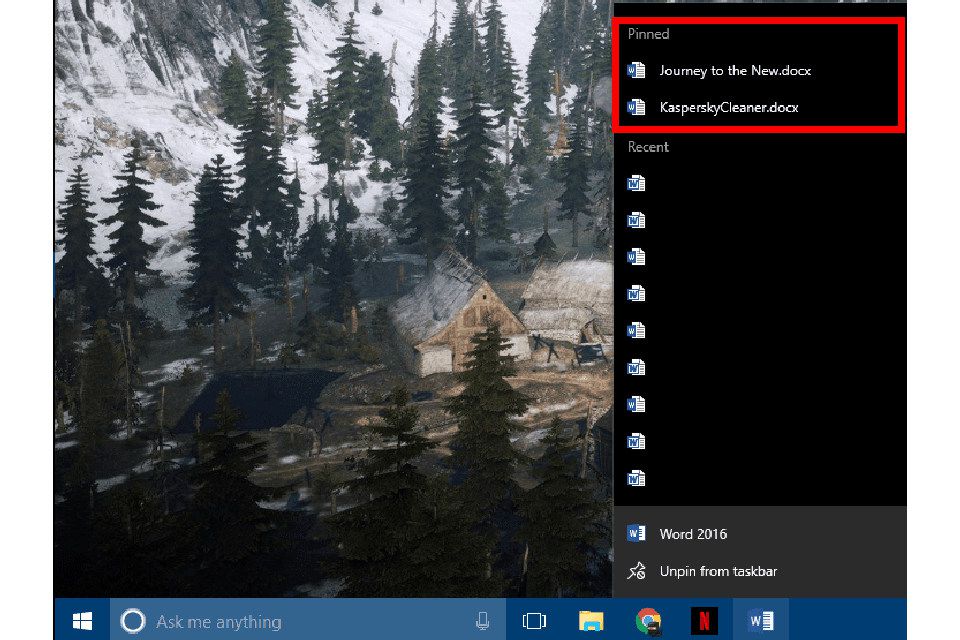
- Drag the Document to the Taskbar: While holding the document icon in the File Explorer, drag it directly to your taskbar. You’ll see a faint “pin” icon appear when it’s ready to be pinned.
- Release to Pin: Release the document onto the taskbar, and you’re done! Now you can access it directly with a single click.
Step 2: Pinning Documents in Windows 11
The process in Windows 11 is similar to Windows 10, but there are a few key differences:
- Open the File Explorer: Press the
Windows Key + Eor click the File Explorer icon from the Start Menu or Taskbar. - Locate the Document: Navigate to the document you want to pin to the taskbar.
- Right-Click and Select Pin to Taskbar: Right-click the document and from the context menu, choose Show More Options, then select Pin to Taskbar.
- Enjoy Quick Access: The document will now appear directly on your taskbar for easy access!
Pinning Multiple Documents
What if you need to pin multiple documents? Not a problem! You can pin as many documents as your taskbar space allows. Just follow the same steps for each document you want to pin. To ensure your taskbar doesn’t become overcrowded, you can group related documents into folders or even use a taskbar customization tool for a sleeker look.
Unpinning Documents
If you ever need to unpin a document, the process is just as easy:
- Right-click the pinned document: Find the document pinned to your taskbar, right-click on it.
- Select Unpin: Choose the Unpin from Taskbar option from the context menu. The document will disappear from the taskbar, but it won’t be deleted from your computer.
Tips for Organizing Your Pinned Documents
Here are some additional tips to keep your taskbar organized and decluttered:
- Group Related Documents: If you have multiple documents related to a specific project, group them together in a folder on your desktop and pin that folder to the taskbar.
- Use Document Shortcuts: If a document is stored deep within a folder, consider creating a shortcut to the document and pinning that to your taskbar.
- Minimize File Clutter: Don’t pin too many documents at oncelimit it to the ones you truly need quick access to.
- Regular Maintenance: Regularly unpin documents you no longer need immediate access to. This will help prevent your taskbar from getting bogged down with old files.
Why You Should Declutter Your Desktop
While pinning documents to the taskbar is a great first step in decluttering your workspace, there are other ways to keep your desktop neat and organized. Having a clean desktop can improve productivity and reduce stress. Here are a few other tips to help you achieve a more organized desktop:
- Use Folders: Instead of having documents scattered across your desktop, organize them into themed folders (e.g., “Work,” “Personal,” or “Projects”).
- Delete Unnecessary Files: Regularly go through your desktop and delete files you no longer need.
- Use Desktop Widgets: Some systems, like Windows 11, offer widgets for quick access to weather, news, and calendar eventshelping to declutter the visual clutter of your desktop.
- Use a Virtual Desktop: Windows allows you to use multiple virtual desktops for different tasks. Switch between desktops for work, entertainment, or personal use without cluttering your physical desktop.
Conclusion: Achieve a Cleaner, More Efficient Workspace
By pinning documents to your taskbar and decluttering your desktop, you’re taking control of your digital workspace. The taskbar acts as your command center for quick access to essential files, while keeping your desktop neat and streamlined. This not only enhances your workflow but also creates a more pleasant, organized environment to work in. Whether you’re working from home or simply trying to stay more organized, a cleaner desktop and taskbar will make a noticeable difference in your productivity.
Personal Experience: How Pinning Documents Changed My Workflow
When I first started using the taskbar to pin documents, I didn’t realize how much time I was wasting by constantly searching for files. Before, I would have to minimize windows, dig through folders, or even use the search function just to find the document I needed. Now, with a simple click on the pinned document, I have immediate access to everything I need. It has streamlined my workflow, saving me a few seconds (which really adds up over time) and cutting down on distractions. What’s more, my desktop looks much cleaner and more organized, which has helped reduce the cluttered feeling I used to experience.
By pinning documents to the taskbar, I also find that I can easily switch between work files and personal documents without feeling like my desktop is a chaotic mess. This simple organizational hack has truly transformed the way I work on a daily basis. I recommend it to anyone who wants to boost productivity and enjoy a more clutter-free workspace!
Give it a try, and you’ll soon see how much more efficient and enjoyable your computer workspace can be.
sapo: Pinning documents to your taskbar is a great way to declutter your desktop, keep files easily accessible, and improve your workflow. Learn how to do it in Windows 10 and 11.