NFC is one of those features that’s incredibly useful… right up until the moment you need it and can’t find it.
(It’s like your car keys, but in a menu.)
If you’re trying to turn on NFC for tap-to-pay, pairing headphones, scanning an NFC tag, or using a work badge, this guide will get you there fastwhether you’re on a Samsung Galaxy, Google Pixel, Motorola, or another Android phone.
We’ll cover the exact paths for the most common brands, explain why NFC sometimes “disappears,” and share practical troubleshooting tips for when your phone refuses to tap like it’s on strike.
What Is NFC, and Why Would You Turn It On?
NFC (Near Field Communication) is a short-range wireless tech that lets your phone communicate with nearby readers or tagsusually within a couple inches.
It powers things like:
- Contactless payments (Google Wallet, Samsung Wallet)
- Transit taps in supported cities
- Fast pairing with accessories (some headphones, speakers, and smart devices)
- NFC tags (tap a sticker to toggle Wi-Fi, open an app, start a routine, etc.)
- Access badges (work, campus, hotelswhen supported)
Before Anything Else: Make Sure Your Phone Actually Has NFC
This sounds obvious until it isn’t. Some budget models and Wi-Fi-only tablets don’t include NFC hardwareso Android won’t show the NFC setting at all.
Here are two quick checks:
Check #1: Use the Settings Search Bar
- Open Settings.
- Tap the search icon (usually at the top).
- Type NFC.
- If nothing appears, your device may not support NFC, or it may be restricted by software/region/model.
Check #2: Look for “Connected devices” or “Connections”
Many phones file NFC under either:
Connected devices (common on Pixel/Motorola/stock Android) or
Connections (common on Samsung).
The Fastest Way to Turn On NFC (Any Android Phone)
If you’re in a hurry (say, you’re already at the checkout counter doing the “please work, please work” dance), do this:
- Swipe down from the top of your screen to open Quick Settings.
- Swipe down again to expand it.
- Look for an NFC tile or Contactless tile.
- If you don’t see it, tap the Edit (pencil) button and check if NFC is available to add.
Not every phone includes an NFC quick tile, but many doand it’s the closest thing Android has to an “easy button.”
How to Turn On NFC on Samsung Galaxy (One UI)
On Samsung phones, NFC is typically labeled NFC and contactless payments and lives under Connections.
Steps (Most Samsung Galaxy Phones)
- Open Settings.
- Tap Connections.
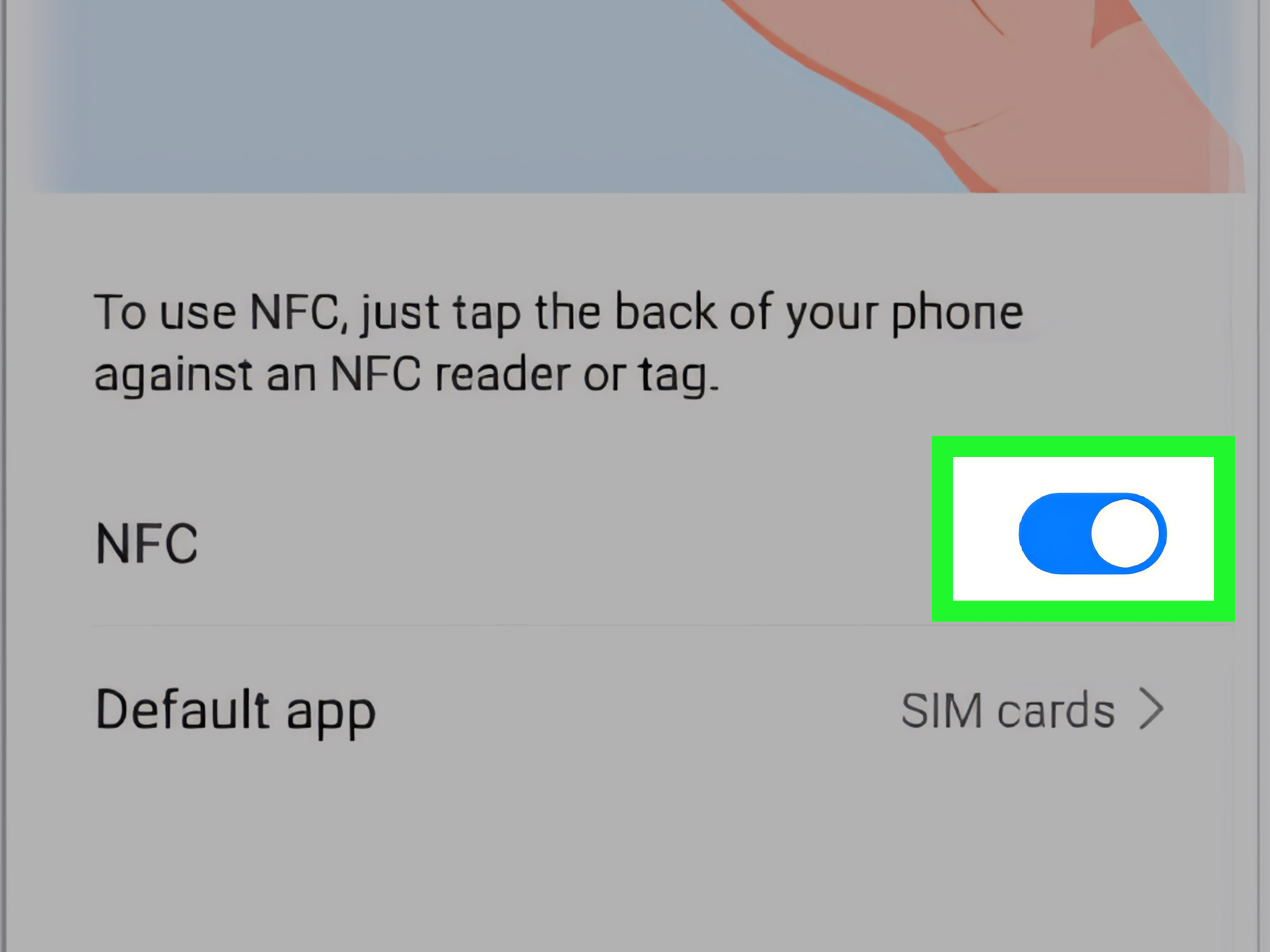
- Tap NFC and contactless payments.
- Turn on the switch to enable NFC.
Set Your Default Wallet App (So Payments Don’t Get Confused)
Turning on NFC is step one. Step two is making sure your phone knows which wallet should handle taps.
On Samsung, you’ll usually see a section like Contactless payments or Default wallet app.
- In NFC and contactless payments, find Default wallet app (or similar).
- Select Samsung Wallet, Google Wallet, or another supported payment app.
Samsung Pro Tips
- If tap-to-pay fails: confirm your default wallet app is set correctly and that your phone is unlocked.
- If NFC is missing: some Samsung models (especially older or certain budget variants) may not include NFC hardware.
- If you use a case: very thick cases or metal accessories can interfere with NFC readsespecially on readers with weaker antennas.
How to Turn On NFC on Google Pixel (Android)
On Google Pixel phones, NFC is commonly found under Connected devices → Connection preferences.
The wording can vary slightly by Android version, but the structure is usually the same.
Steps (Pixel 6, Pixel 7, Pixel 8, Pixel 9, and newer)
- Open Settings.
- Tap Connected devices.
- Tap Connection preferences.
- Tap NFC.
- Turn on Use NFC.
Pixel Pro Tips
- No NFC toggle? Use the Settings search bar for “NFC.” If it still doesn’t show, your device may not support it.
- Payments still not working? Make sure you’ve set up a screen lock and you’re verifying before transactions (more on that below).
How to Turn On NFC on Motorola (My UX)
Motorola phones often follow the “stock-ish” Android layout:
Connected devices → Connection preferences → NFC.
Steps (Most Recent Moto Models That Support NFC)
- Open Settings.
- Tap Connected devices.
- Tap Connection preferences (if you see it).
- Tap NFC.
- Turn on Use NFC.
Optional: Show the NFC Icon in the Status Bar
Some Motorola devices let you toggle an NFC icon so you can confirm NFC is on at a glance (helpful if you forget things the way most humans do).
If you see an option like NFC icon, turn it on.
How to Turn On NFC on “Other Android Phones” (OnePlus, Sony, LG, etc.)
Android manufacturers love two things: customization and hiding settings like they’re Easter eggs.
If you don’t have a Samsung, Pixel, or Motorola, use this strategy:
Method A: Search “NFC” in Settings
This is the most reliable across brands and Android versions.
Method B: Check These Common Locations
- Settings → Connected devices → Connection preferences → NFC
- Settings → Connections → NFC (or NFC and contactless payments)
- Settings → Network & Internet / More connections / Connection & sharing → NFC
If you find an NFC setting, turn it on and look for payment-related options like
Tap & pay, Contactless payments, or Default wallet.
Turning On NFC Is Only Half the Battle: Set Up Tap-to-Pay Correctly
If your goal is contactless payments, you need three things working together:
NFC enabled, a wallet app set up, and device security (screen lock) configured.
Google Wallet Basics (Pixels and Many Other Androids)
- Install/open Google Wallet.
- Add a supported payment method.
- Make sure your phone has a screen lock (PIN/pattern/password/biometric).
- When you pay, unlock your phone and hold it near the reader until you see confirmation.
Samsung Wallet Basics (Galaxy Phones)
- Open Samsung Wallet (or Samsung Pay on some devices).
- Add your card(s).
- Confirm Default wallet app is set in NFC and contactless payments.
- Unlock your phone and tap at checkout.
Troubleshooting: NFC Is On, But It Still Won’t Work
If NFC is enabled but taps are failing, don’t assume your phone is broken. Most issues are caused by one of these common culprits:
1) Your Phone Isn’t Unlocked (or Verification Timed Out)
Many wallet apps require you to verify it’s you before payments. If you verified recently, it may keep working for a short windowthen require verification again.
If a tap fails, unlock your phone and try again.
2) You’re Tapping the Wrong Spot
NFC antennas aren’t always in the same location. Some phones read best near the top, others near the center.
Try:
- Holding the phone flat against the terminal
- Moving it slightly up/down
- Holding it there for an extra second (dramatic pause optional)
3) Your Case or Accessory Is Interfering
Thick cases, wallet cases, metal plates, PopSocket-style mounts, and magnetic accessories can block or weaken NFC reads.
Remove the case and test againjust long enough to confirm the problem.
4) Wrong Default Payment App
If you have multiple wallet apps installed (Google Wallet + Samsung Wallet + a bank app), your phone may not know which one should handle taps.
Set the default wallet/contactless payment option in NFC settings.
5) NFC Is Disabled by Policy or Hardware Limits
Some devices don’t include NFC, and some work phones may restrict NFC via device management (MDM).
If the NFC setting is missing or grayed out, check for:
- Device admin restrictions (work profile)
- Regional/model limitations
- Older hardware that never included NFC
Should You Leave NFC On All the Time?
For most people: yes, it’s fine. NFC generally uses very little power when idle, and modern wallet apps add security layers like screen locks and verification.
If you rarely use NFC, turning it off is also perfectly reasonableespecially if you prefer fewer radios enabled.
Quick FAQ
Where is NFC in Android Settings?
Common paths include Settings → Connected devices → Connection preferences → NFC (Pixel/Motorola)
or Settings → Connections → NFC and contactless payments (Samsung).
If you’re unsure, use the Settings search bar.
Why can’t I find NFC on my phone?
Most often, it means your phone doesn’t have NFC hardware. It can also happen due to model restrictions or a managed work device policy.
Does NFC work without internet?
NFC itself is short-range communication and can work without internet. However, some payment features and wallet updates may require connectivity at setup or periodically.
Can I use NFC for more than payments?
Absolutely. NFC tags can trigger routines (open apps, toggle settings, share Wi-Fi info), and some devices use NFC for quick pairing or access control.
Real-World NFC Experiences (The 500-Word “Yes, This Actually Happens” Section)
NFC is one of those features that feels like magic when it worksand feels like a personal betrayal when it doesn’t.
The best way to understand NFC is to picture the moments people actually use it (and occasionally argue with it).
Scenario one: the coffee shop line. You’re feeling confident. You’ve got your phone in hand.
You tap… nothing. You tap againstill nothing. You start doing that awkward “angle adjustment” like you’re trying to find satellite signal in 2004.
The fix is usually boring: your phone wasn’t unlocked, your verification timed out, or the reader is picky about where your antenna sits.
The pro move? Unlock first, then hold the phone steady for a full second like you’re taking a very small, very important photo.
Scenario two: transit gates. NFC is at its best here because speed matters.
But transit readers can be even more finicky about placementespecially if you’re using a thick case or a wallet case with cards.
If your phone has trouble at gates, try removing the case once to test.
If that magically fixes it, congrats: your case is now the villain in this story.
Scenario three: the “two wallets enter, one wallet leaves” situation.
Lots of Android users install multiple payment appsGoogle Wallet, Samsung Wallet, maybe their bank’s tap-to-pay app.
Then NFC works… inconsistently.
One day it taps with Google Wallet, the next day Samsung Wallet pops up, and your bank app appears like an uninvited party guest.
This is why setting a default wallet/contactless payment app is so important.
NFC isn’t confused because it’s dumb; it’s confused because it’s trying to be polite.
Scenario four: NFC tags at home. This is where NFC gets fun.
People stick an NFC tag on a nightstand to trigger a bedtime routine (silent mode, low brightness, open a meditation app).
Others put one near the front door to toggle Wi-Fi or open a smart lock app.
The “aha” moment is realizing NFC tags don’t have to be complicated.
Start with one simple tag that opens a specific app or shortcut, and build from there.
Scenario five: “My phone doesn’t even have NFC.”
This one sneaks up on people who upgrade to a budget model expecting the same features.
When you search Settings for “NFC” and get nothing, it’s not a prank.
Some phones simply don’t include the chip.
It’s frustrating, but it’s also a good reminder to check specs before buying if tap-to-pay is a must-have.
Finally, the quiet victory: the day you set it all up once, and NFC becomes invisiblein the best way.
You walk up, unlock, tap, and go.
No fumbling. No “why is it not working” spiral.
NFC is at its best when it disappears into your routine, like a light switch you don’t think about until the power goes out.
Conclusion
Turning on NFC on Android is usually quick once you know where your phone hides it.
Samsung Galaxy phones typically place NFC under Connections as NFC and contactless payments.
Google Pixel and many others tuck it under Connected devices → Connection preferences.
After enabling NFC, set your default wallet app, make sure your screen lock and verification are configured, and you’ll be ready for tap-to-pay and beyond.