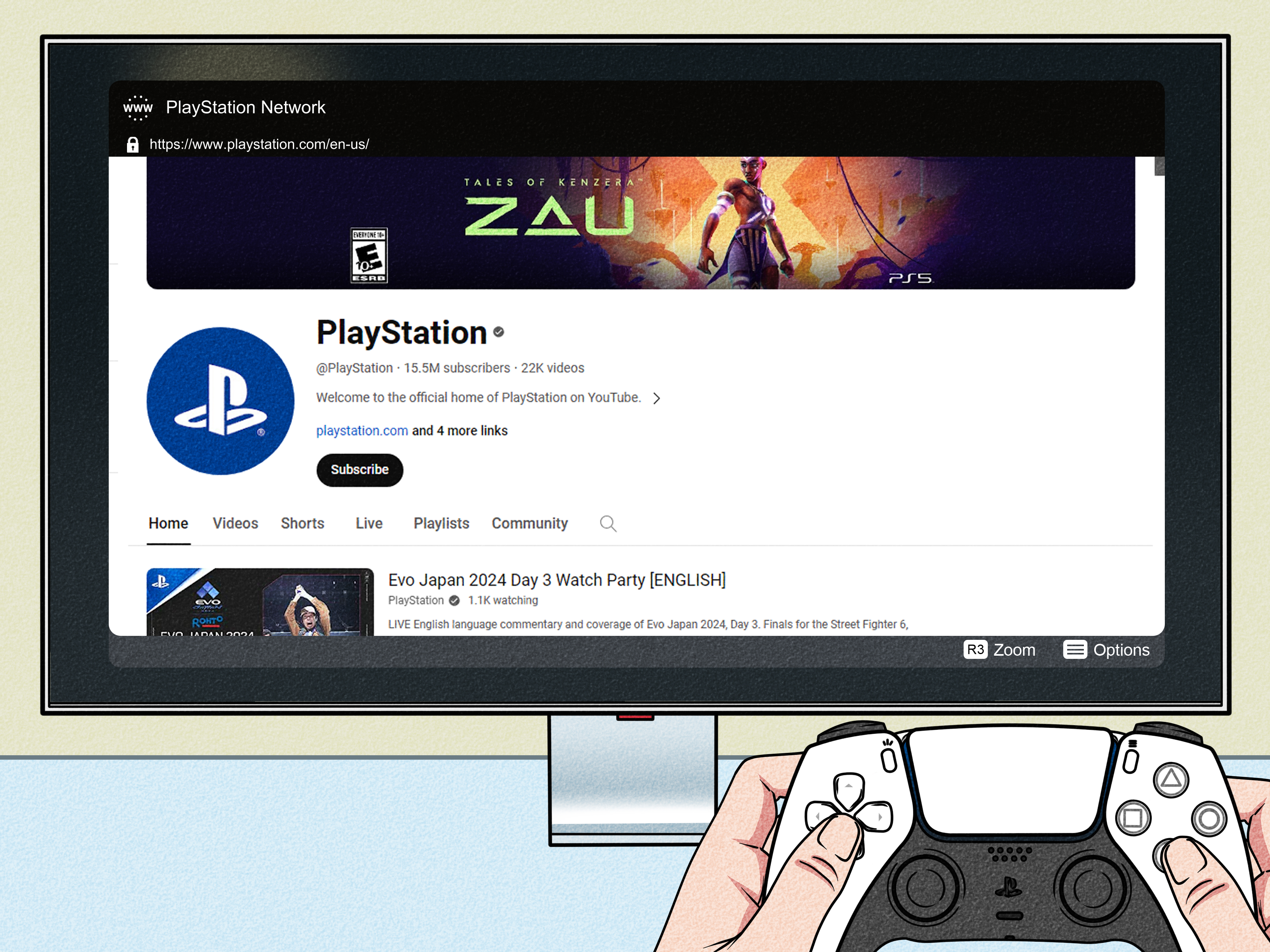
The PlayStation 5 is many things: a 4K gaming beast, a streaming machine, a trophy-chasing time vortex… and (surprise!)
a sort-of web browser. Not the “open an app and type any URL” kind like PS4 had, but a hidden, built-in web view
Sony keeps tucked behind menus like it’s a spare key under the world’s least suspicious doormat.
If you’ve ever needed to look up a walkthrough mid-boss-fight, check a game’s patch notes, sign into a service, or pull up a support page
without grabbing your phone, the PS5’s browser tricks can be genuinely handyjust don’t expect it to replace Chrome on your laptop.
Below are two easy ways to access the PS5 web browser (and actually use it), with practical tips and common fixes.
Quick reality check: Does PS5 have a “real” web browser?
There’s no dedicated “Internet Browser” app on the PS5 home screen. Instead, the system uses a built-in browser-like web view for things like
account linking, sign-ins, and official help content. That means you can browsebut it’s intentionally limited, and getting to it is
more “secret passage behind the bookshelf” than “tap an icon.”
Before you start: What the PS5 web browser can (and can’t) do
Knowing the limits up front saves you from shouting “WHY WON’T YOU JUST GO FULL SCREEN?!” at your TV like it personally offended you.
Here’s what to expect:
What it’s good for
- Reading text-heavy pages (guides, FAQs, patch notes, forum threads, basic articles).
- Opening official PlayStation help content inside the User’s Guide.
- Quick searches when you’re too comfy to reach for another device.
- Signing into services (the browser view appears during account linking).
What it struggles with
- No traditional address bar (you generally can’t just type a URL and go).
- Limited “browser features” (tabs, extensions, advanced settingsnope).
- Video/audio can be hit-or-miss and often worse than using dedicated PS5 apps.
- Navigation is clunky with a controller on sites not designed for TV browsing.
The best mindset: treat the PS5 browser as a convenience tool, not your daily driver.
When you need smooth video, use the YouTube/Netflix/streaming apps. When you need fast typing, use your phone or a keyboard.
And when you need a quick answer while you’re already on the couch? That’s where this shines.
Way #1: Open the hidden browser through Linked Services (best for general browsing)
This is the most reliable “I actually want to browse the web” method. You intentionally trigger a sign-in page by linking a service (commonly YouTube),
then use a link on that page to jump to a search engine.
Step-by-step: Use Linked Services (YouTube method)
- From the PS5 home screen, open Settings (the gear icon).
- Go to Users and Accounts.
- Select Linked Services.
- Choose YouTube (or another service listed there).
- Select Link / Link Account.
-
When you see a screen with a QR code, look for and select Use Browser.
(Yes, you’re allowed to ignore the QR code. This is one of those rare life moments where ignoring a QR code is a power move.) - On the sign-in page, find and select Terms (usually near the bottom).
- Scroll to the very bottom of the Terms page and select the Google link in the footer.
- You’ll land on a Google search page. Search for what you need and open results like you normally would.
What if YouTube is already linked?
Depending on your PS5 menus and region, you may need to unlink YouTube first to see the same linking flow again.
If you’d rather not mess with your YouTube link, try another option in Linked Services (for example, Spotify or Twitch if they appear).
The idea is the same: trigger a web sign-in flow, then use an on-page link to move outward.
Tips to make browsing less painful
- Use zoom: Many PS5 web views support zoom in/out (often mapped to stick clicks on DualSense). If text looks tiny, zoom is your best friend.
-
Use a keyboard if you can: A USB or compatible Bluetooth keyboard makes searching dramatically faster than the on-screen keyboard.
If you’re typing more than two words, your thumbs will thank you. - Prefer simple sites: Wikipedia-style pages, official help pages, and lightweight guides tend to load smoother than modern, ad-heavy sites.
- Use dedicated apps for media: If your goal is “watch a video,” the YouTube app will usually beat the browser every time.
Example: Looking up a walkthrough without leaving your game vibe
Say you’re stuck on a puzzle and want a hint, not a full spoiler. Open the browser via Linked Services, search
“[Game Name] Chapter 6 puzzle hint,” and look for results that include the words hint, tips, or non-spoiler.
Skim the relevant paragraph, then hop back into the game before the next loading screen finishes judging you.
Way #2: Use the PS5 User’s Guide web view (best for official help and quick lookups)
The PS5 includes a built-in User’s Guide that opens in a web-style viewer. This is the “official” web browsing experience Sony clearly intends:
manuals, tips, and console help content. It’s not meant to be a full internet portal, but it’s still a browser viewuseful when you want
accurate, PlayStation-specific info without hunting around online.
Step-by-step: Open the User’s Guide
- From the PS5 home screen, open Settings.
- Go to User’s Guide, Health and Safety, and Other Information.
- Select User’s Guide.
How to navigate inside the User’s Guide
The User’s Guide behaves like a web page. If you’ve ever tried to browse a website with a controller,
you already know the vibe: it works, but it’s not winning any speed medals.
- L1: Back
- R1: Forward
- D-pad: Move focus
- Left stick: Move pointer
- Right stick: Scroll
- X (Cross): Select
- O (Circle): Back
- Options: Close the guide (look for “Close”)
When this method is actually useful
- Learning PS5 features: storage management, captures, audio settings, accessibility options, parental controls, and more.
- Troubleshooting: quick checks for common issues (controller behavior, network basics, system settings).
- Finding official manuals: it can point you toward PlayStation manuals and support resources.
Think of Way #2 as your “built-in help browser.” It’s not the wild open internetmore like a well-lit, supervised hallway in the PlayStation building.
But it’s still a quick way to pull up accurate info on your console without switching devices.
Common PS5 browser problems (and the fixes that usually work)
“I don’t see ‘Use Browser.’ I only see a QR code.”
First, scroll carefully“Use Browser” can be easy to miss. If it still isn’t there, try these:
- Try a different service under Linked Services (if available in your region).
- Unlink the service (if it’s already linked) and start the linking flow again.
- Check for system updates: menu layouts and linking flows can change after updates.
- Consider account type limits: child accounts and family management settings can restrict linking and web features.
“Web pages load, but video or audio is broken.”
That’s normal-ish. The PS5 browser view isn’t optimized as a full media browser. Use these workarounds:
- Use the official app (YouTube, Twitch, Netflix, etc.) instead of the browser for media.
- Stick to lightweight pages if your goal is reading, not streaming.
- Restart the console if pages begin failing repeatedly (a simple refresh isn’t always enough).
Typing is slow and the cursor feels like it’s skating on ice
- Connect a keyboard for faster searches and logins.
- Zoom in so buttons and links are easier to hit.
- Use shorter searches: search “Elden Ring fire giant weak to” instead of writing a full sentence.
Privacy and safety tips (because yes, it still matters on a console)
- Avoid logging into sensitive accounts (banking, email, anything with your whole life attached).
- Log out of services when you’re done linking or signing in.
- Be cautious with “clever” URL tricks that involve messaging linkssome users have reported automated warnings tied to certain URL behaviors.
If you want the safest path, stick to built-in linking and official guide pages.
Pro tip: Alternatives that often beat the PS5 browser
If your goal is convenience, sometimes the “best PS5 browser tip” is… not using it. Here are smarter options depending on what you’re trying to do:
- Need a guide fast? Use your phone for searching and keep the PS5 for playing. (This is the universe’s intended design.)
- Need patch notes? Check the game hub on PS5 and the developer’s official channels.
- Need a video tutorial? Use the YouTube app directlybetter controls and better playback.
- Need to type a lot? Use a computer/tablet, or at least pair a keyboard to your PS5.
Conclusion
The PS5 web browser exists… just not in a loud, obvious “here’s an app icon” kind of way. If you want the most practical browsing experience,
Way #1 (Linked Services) is your go-to for quick Google searches and basic site visits. If you mainly want official help, settings guidance,
and console manuals, Way #2 (User’s Guide) is the cleanest, most “Sony-approved” route.
Either way, keep expectations realistic: it’s a helpful tool for quick lookups, not a replacement for a phone or computer.
Use it when it saves time, ditch it when it starts acting like a stubborn NPC.
Real-World Experiences: What Using the PS5 Browser Feels Like (and why you’ll still use it)
In real life, the PS5 web browser is less “welcome to the future” and more “I found a secret door behind the vending machine.”
When you first open it, there’s usually a tiny moment of triumphbecause you’re doing something the console doesn’t advertise.
Then reality kicks in: you’re steering a cursor with a thumbstick, and suddenly you miss your phone’s touchscreen like it’s a long-lost friend.
The best experiences tend to be the simple ones. A quick search for a boss weakness? Great. Checking a crafting recipe in an RPG? Perfect.
Pulling up a list of collectibles so you can stop running in circles? Absolutely worth it. The browser shines when you need one fact and you need it
nowespecially when your phone is charging across the room and you refuse to stand up because your blanket has officially become part of your identity.
Where things get frustrating is modern websites that assume you’re using a mouse, a keyboard, and a screen two feet from your face.
On a TV from across the room, tiny text and microscopic buttons become a mini-game of their own. You’ll scroll, overshoot the link, scroll back,
accidentally open something else, and briefly wonder if the website’s real purpose is to train patience. (Spoiler: it’s ads. It’s always ads.)
That’s why many PS5 owners end up building a “browser survival strategy.” They stick to lightweight pages, use Google to find the exact page
they need, and avoid anything that looks like it will autoplay a dozen videos at once. Some people keep a keyboard nearby for those moments
when searching with the on-screen keyboard feels like writing a novel one letter at a time. Others treat the PS5 browser like an emergency kit:
you don’t pull it out every day, but when you need it, you’re glad it’s there.
And honestly, the weirdest part is that you’ll probably keep using it even if you complain the whole time. Because it’s convenient in a very specific way:
you’re already on the console, already on the couch, already in the gaming zoneand the PS5 browser lets you stay there. It’s not elegant,
but it’s functional. Like eating cereal out of a mug because all the bowls are in the dishwasher. Is it ideal? No. Does it work? Yes.
Will you do it again? Also yes.