You sit down, crack your knuckles, and hit the PS buttononly to get the gaming equivalent of a “loading…” spinner:
a blinking blue light on your PS5 controller that refuses to settle down and connect.
Annoying? Absolutely. Mysterious? Not really.
In most cases, a PS5 DualSense controller blinking blue is simply saying:
“I’m trying to pair… and failing.” The good news is that this is usually fixable in minutesno sacrifices to the
console gods required.
This guide breaks down what the blinking blue light means, the fastest fixes that work most often, and a few deeper
troubleshooting steps when your controller is being extra dramatic.
What Does a PS5 Controller Blinking Blue Mean?
On a DualSense controller, a blinking blue light typically indicates one of these situations:
- Pairing mode: The controller is actively trying to connect to a console or another device.
- Connection trouble: The controller “sees” something it wants to connect to, but the handshake isn’t completing.
- It’s paired to something else: Your controller may still be linked to a PC, phone, tablet, or a different PS5.
If you intentionally put the controller in pairing mode (often by holding Create + PS),
the blinking blue light is normal. If it’s blinking blue when you’re just trying to play on your own PS5, it’s a sign
something is blocking the connection.
One modern curveball: newer DualSense features allow multi-device pairing and easier switching between devices.
That’s convenientuntil your controller is “politely” trying to connect to the wrong device slot.
(Translation: your PS5 is in the room, but your controller is flirting with your laptop.)
Before You Fix Anything: Confirm What’s Actually Blinking Blue
Quick sanity check: is it the controller blinking blue… or the PS5 console showing a blue light?
Those are different problems.
- Controller blinking blue: Usually a pairing/connection issue (this article).
- Console light staying blue: That’s more of a system hang/troubleshooting situation and may require Safe Mode steps.
If your PS5 seems frozen or won’t display normally, handle that first. But if your console looks fine and the controller
is doing the blue blink dance, keep going.
Fast Fix Checklist (Start Here)
These are the highest-success steps, in the right order. Don’t skip ahead unless you’ve already tried the easy wins.
1) Charge the Controller (Yes, Really)
A low battery can cause weird behavior, including a controller that tries to connect but can’t finish the job.
Plug the controller in and let it charge for at least 10–15 minutes before you try again.
Tip: on PS5, the controller light often blinks orange while charging in Rest Mode, then turns off when it’s fully charged.
If you never see a charging indicator, that can point to a cable or port issue (we’ll cover that next).
2) Use a USB Cable That Supports Data (Not Just Charging)
Here’s a sneaky one: many USB-C cables are “charge-only.” They’ll power the controller, but they won’t transmit dataso
the PS5 never completes pairing.
Try this:
- Turn on your PS5 (fully on, not mid-boot confusion).
- Plug the controller into the PS5 with a known good data-capable USB-C cable (the original cable is ideal).
- Press the PS button and wait a few seconds.
If it connects via cable but not wirelessly, you’ve narrowed the issue to Bluetooth pairing/interference (and you’re already winning).
3) Power Cycle the PS5 (Full Shutdown, Not Rest Mode)
Rest Mode is great… until it isn’t. Do a full power cycle:
- Turn off the PS5 completely (not Rest Mode).
- Unplug the power cable from the console.
- Wait about 2–3 minutes (yes, the waiting matters).
- Plug it back in, turn the PS5 on, and connect the controller with USB again.
This clears temporary “handshake” glitches that can cause repeated blue blinking.
4) Forget and Re-Pair the Controller (Bluetooth Refresh)
If you have any controller that still works (or you can connect this one temporarily by USB), do this:
- Go to Settings > Accessories > General > Bluetooth Accessories.
- Select your DualSense controller and choose Delete (or “Forget”).
- Put the controller into pairing mode: hold Create + PS until the light bar flashes.
- Select the controller on-screen to pair again.
This resolves issues where the controller is “stuck” believing it’s paired, while the console disagrees.
(Relationships are complicated.)
Deeper Fixes for Stubborn Blinking Blue Lights
5) Reset the DualSense Controller (The Pinhole Reset)
If your controller keeps blinking blue no matter what, do a hardware reset:
- Turn off the PS5.
- Flip the controller over and find the small reset hole on the back.
- Use a paperclip/pin and press-and-hold the reset button for about 5 seconds.
- Reconnect the controller to the PS5 with a USB cable.
- Press the PS button to pair again.
This is one of the most effective fixes because it forces the controller to stop clinging to old pairing info.
6) Force Wired Mode (Helpful for Weak Signals)
If your controller works wired but keeps blinking blue when wireless, force the PS5 to use USB communication:
- On PS5, go to Settings > Accessories > Controller (General).
- Find Communication Method.
- Select Use USB Cable.
This is a great workaround if you suspect interference, distance issues, or a temporarily flaky Bluetooth connection.
You can switch back to Bluetooth later once things stabilize.
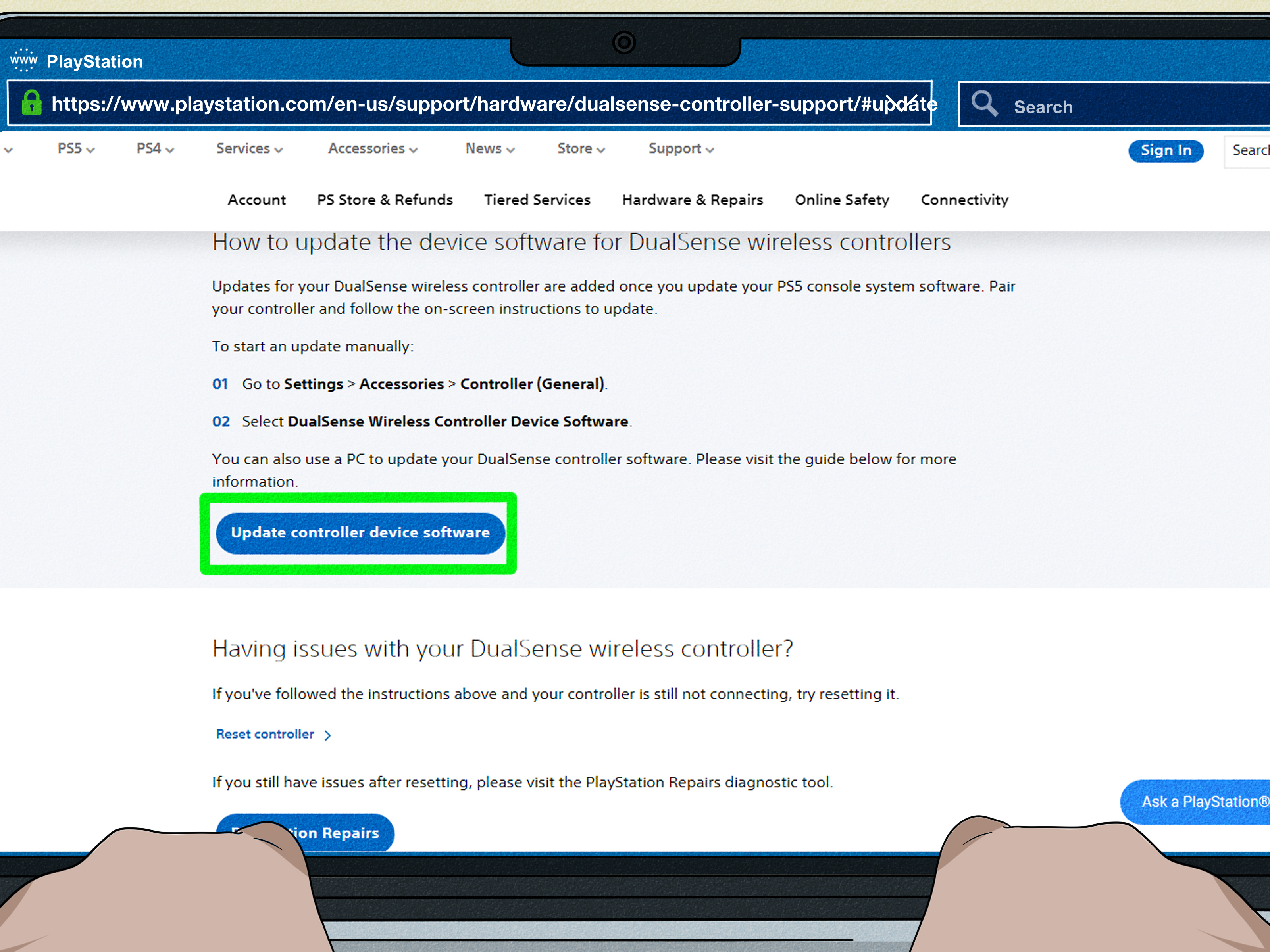
7) Update Your PS5 and Controller Firmware
Firmware updates can quietly fix controller connection bugs. Make sure your PS5 system software is current, then check the controller:
- Go to Settings > Accessories > Controller (General).
- Select DualSense Wireless Controller Device Software (wording may vary slightly).
- Follow prompts to update (you may need the controller connected via USB during the update).
If you game on PC too, Sony also provides a Windows app that can update controller firmware.
That can be especially helpful if your PS5 pairing is currently a mess and you want to refresh the controller from another device.
8) Clear Cache / Rebuild Database in Safe Mode (When PS5 Is Acting Weird)
If your controller issue started right after a crash, power outage, or a “why is everything slow?” week, your PS5 may benefit
from a Safe Mode cleanup. This doesn’t delete your games or saves, but it can fix system-level hiccups that affect accessories.
In Safe Mode, look for options like Clear System Software Cache and Rebuild Database.
Rebuild Database basically re-indexes your system contentthink of it like tidying up the PS5’s internal “filing cabinet.”
To use Safe Mode, you’ll typically:
- Turn off the PS5 completely.
- Press and hold the power button until you hear the second beep.
- Connect the controller via USB and press the PS button.
- Select the cache/database options.
If you’re seeing repeated system oddities, this step is worth it.
9) Reduce Wireless Conflicts (The “Unplug the Chaos” Method)
Bluetooth can be sensitive to interference. If your controller keeps blinking blue:
- Move closer to the PS5 (a few feet away for testing).
- Remove nearby Bluetooth pairings you don’t need (phones/tablets can compete).
- Disconnect non-essential USB accessories temporarily (external drives, adapters, hubs).
- Try a different USB port when pairing by cable (front vs. back ports).
This is especially useful if the controller connects sometimes, but randomly drops and returns to blinking blue.
10) Last Resorts: Reset PS5 or Repair the Controller
If none of the above works, you’re likely dealing with either:
- Corrupted pairing state that won’t clear normally, or
- Hardware trouble (Bluetooth module, battery, internal board issues, or port damage).
At this point, consider:
- Resetting the PS5 (Safe Mode options include reset choicesback up saves first).
- Testing the controller on another device to see if it pairs elsewhere.
- Contacting Sony support or using official repair/replacement if it’s under warranty.
Common Scenarios (So You Can Spot the Culprit Faster)
Scenario A: “It Worked Yesterday, Now It Just Blinks Blue”
Most often: the controller is paired, but the console didn’t “wake” cleanly. Try a full power cycle of the PS5, then connect by USB and press PS.
If it pairs by cable, delete it from Bluetooth Accessories and re-pair.
Scenario B: “I Used It on My PC/Phone and Now My PS5 Won’t Recognize It”
Most often: the controller is still trying to connect to the other device. Turn Bluetooth off on the other device, then re-pair to the PS5 using USB.
If you’re using multi-device slots, make sure you’re switching to the correct slot instead of accidentally calling your laptop again.
Scenario C: “It Charges, But Won’t Sync”
Most often: you’re using a charge-only cable. Swap the cable for a known data cable and try again.
How to Prevent the Blue Blink Problem in the Future
- Label a “data cable” and keep it near your PS5. Future-you will be grateful.
- Keep firmware updated (PS5 system updates often include controller-related improvements).
- Don’t pair the controller to everything at once unless you actively use multi-device switching.
- Enable charging in Rest Mode so you don’t start sessions with a near-dead controller.
- Consider USB communication if you’re in a high-interference setup (lots of wireless devices nearby).
Conclusion
A PS5 controller blinking blue usually isn’t a sign of doomit’s a sign of a pairing problem.
In many cases, the fix is as simple as using the right USB cable, power cycling your console, and re-pairing the controller.
If it’s still blinking blue after that, the pinhole reset and firmware updates typically bring it back to life.
If you’ve tried everything and the controller refuses to connect anywhere, that’s when it’s reasonable to suspect hardware trouble
and explore repair options. Until then: don’t panic. Your controller is probably just having a Bluetooth tantrum.
Real-World Experiences: What People Commonly Run Into (And What Works)
When players talk about the “blinking blue” issue, the stories tend to cluster into a few familiar patterns. And honestly,
that’s helpfulbecause once you recognize the pattern, you can skip a bunch of random guesswork and go straight to the fix.
Experience #1: The Rest Mode Trap. A super common complaint is: “My PS5 was in Rest Mode, I hit the PS button,
and now the controller is blinking blue forever.” In many setups, Rest Mode is perfectly fineuntil a power hiccup, an update,
or a small system crash makes the console wake up in a weird half-state. Players often report that a full shutdown fixes it,
especially when they unplug the console for a minute or two. The key detail is that Rest Mode isn’t the same thing as “fresh start,”
so when the connection handshake gets stuck, the PS5 sometimes needs the equivalent of a hard reboot to remember how to speak fluent DualSense again.
Experience #2: The Cable That Lies. Another classic: “My controller charges, but it won’t sync.”
This one drives people bananas because it feels like proof that the connection should workthere’s power, the controller lights up,
life is happening! But if the cable is charge-only, it’s basically a straw that delivers water but refuses to carry any messages.
People who swap to the original PS5 cable (or any verified data cable) often fix the problem instantly. The moral: charging is not syncing,
and a glowing controller is not a guarantee of data transfer.
Experience #3: The Controller That Got “Adopted” by Another Device. A lot of players use the DualSense on PC, Mac,
phones, tablets, remote play setups, and sometimes a friend’s PS5. Then they come home, press the PS button, and the controller blinks blue like it’s
searching for its “other family.” In these cases, turning off Bluetooth on the other device (or forgetting the controller in that device’s settings)
can help. The more reliable fix is usually to connect the controller to the PS5 with USB and re-pair, because that forces a clear “you live here now”
moment for the controller.
Experience #4: “It Works Wired, Not Wireless.” This is surprisingly common and often points to signal issues or interference.
Some players fix it by moving closer to the console or removing extra wireless clutter (Bluetooth headsets, nearby devices, etc.).
Others just flip the PS5’s communication method to USB for a while and treat it as a temporary truce: play wired today, revisit wireless tomorrow.
If wired works consistently, it’s a strong clue that the controller itself isn’t deadit just can’t maintain a clean wireless handshake.
Experience #5: The “Nothing Works… Until the Reset Hole.” Finally, there’s the group who tries everything and gets nowhere until
they do the pinhole reset. It’s not flashy, it doesn’t feel magical, and it’s easy to underestimateyet it often works because it clears stubborn
pairing memory that normal re-pairing can’t fully overwrite. The pattern here is pretty consistent: if your controller is trapped in an endless blue
blink loop, the reset hole is the fastest way to break the loop.
The big takeaway from all these experiences is that the blinking blue light is rarely random. It’s a symptom of a small set of repeatable situations:
a cable mismatch, a stale connection state, a device switch, or a console that needs a clean reboot. Once you identify which bucket you’re in,
you can fix it without turning your living room into a troubleshooting laboratory.