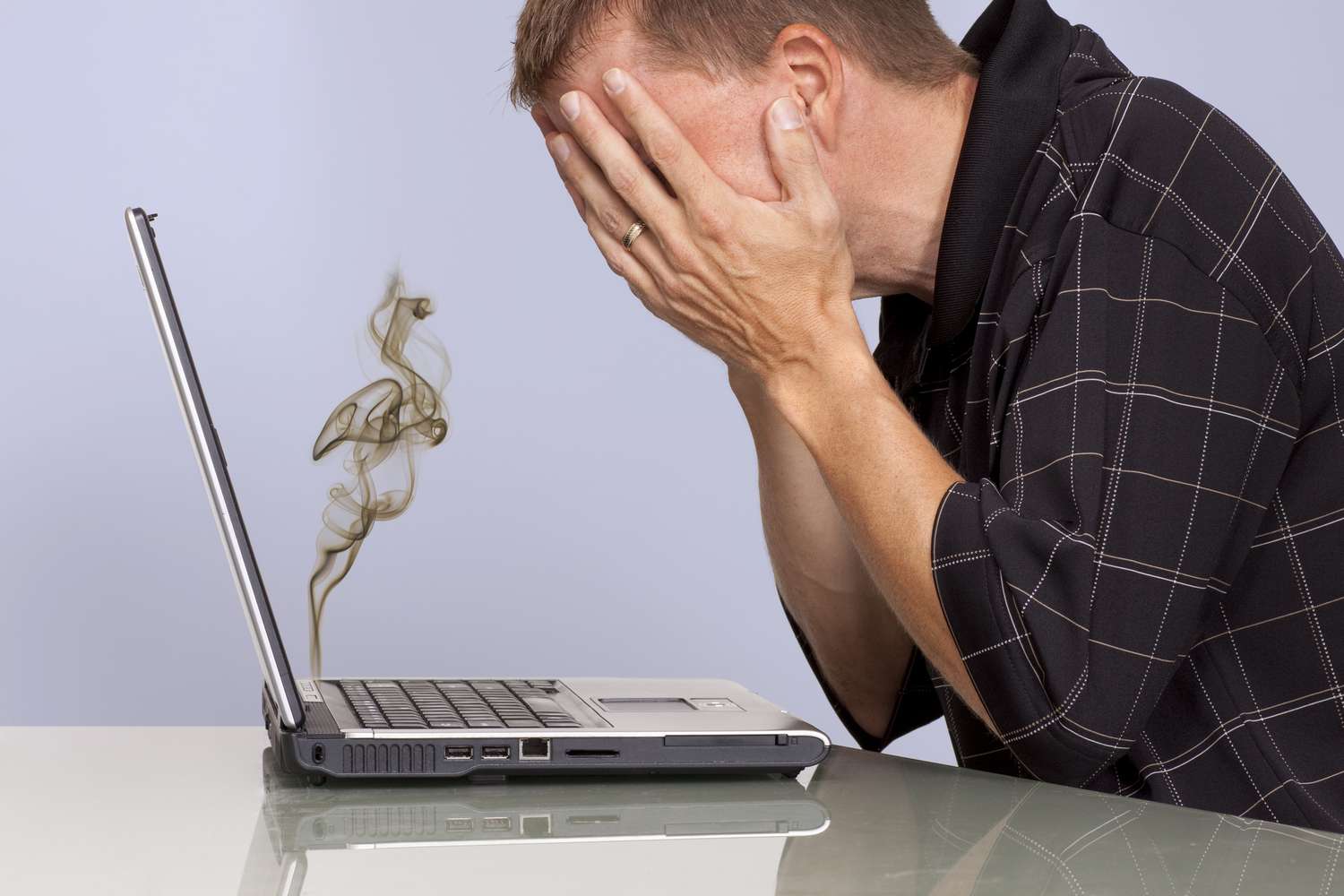
Your laptop should help you finish homework, edit videos, game, or run a businessnot double as a tiny space heater.
But laptop overheating is incredibly common, and it rarely starts with dramatic smoke and alarms. It usually begins with
subtle clues: the fan suddenly sounds like it’s preparing for takeoff, your computer slows down for “no reason,” and your
palm rest feels like a warmed-up skillet.
In this guide, you’ll learn the most reliable signs of laptop overheating, why it happens, what overheating can damage,
and how to respond quickly (without turning your desk into a science experiment). We’ll keep it practical, specific, and
a little funnybecause if your laptop is going to roast, at least the writing doesn’t have to.
First: Is Your Laptop Overheating, or Just… Being a Laptop?
Laptops naturally run warm. They’re thin, tightly packed, and full of components that turn electricity into heat. During
normal usevideo calls, lots of browser tabs, gaming, compiling codeit’s normal to feel warmth near the keyboard, underside,
or where air vents push out hot air.
Overheating is different: it’s when the laptop can’t get rid of heat fast enough. That’s when performance drops, stability
gets weird, or the system forces a shutdown to protect itself. Think of “warm” as your laptop jogging, and “overheating” as
your laptop sprinting in a winter coat while carrying groceries.
Clear Signs of Laptop Overheating
1) The fan gets loudand stays loud
One of the earliest overheating symptoms is fan behavior changing from “occasionally audible” to “tiny jet engine.”
Fans spin faster when internal temperatures rise, so a sudden increase in fan noise often means the laptop is working hard
to dump heat.
What’s more telling is constant loud fan noise during light tasks (email, a few tabs, basic documents). If your fan
is screaming while you’re doing the digital equivalent of walking to the fridge, something is off.
2) The chassis is hot to the touch in specific zones
A warm laptop is common. A laptop that feels uncomfortably hotespecially near the exhaust vent, under the CPU/GPU area,
or around the keyboardcan be a warning sign. Some models run hottest on the underside; others concentrate heat above the keyboard.
Pay attention to “hot spots” that feel new or hotter than usual. That change matters more than the exact sensation.
3) Sudden slowdowns (even when nothing “big” is happening)
This is the classic “my laptop is possessed” moment: you click, it thinks, it hesitates, it moves like it’s dragging a couch
behind it. Often, that’s thermal throttlingyour CPU or GPU intentionally lowering speed to reduce heat and avoid damage.
Real-world clue: if performance returns after you stop heavy apps or let the system cool down, heat is a prime suspect.
4) Stuttering, freezing, crashes, or random reboots
Excess heat can cause instability: apps crash more often, the system freezes, you get unexpected restarts, or you see errors
that didn’t exist last month. Overheating doesn’t just reduce speedit can push components into unstable territory.
5) Unexpected shutdowns (the laptop just… quits)
If your laptop turns off suddenlyespecially during gaming, rendering, or chargingit may be triggering thermal protection.
Some devices display a temperature warning icon or message; others simply shut down to prevent further heat buildup.
6) Battery life gets worse (and charging behavior gets odd)
Heat and batteries are not friends. Overheating can make battery performance degrade faster over time, and in the short term
you may notice faster drain, inconsistent charge percentage, or charging that slows down.
7) The trackpad or keyboard seems “different” physically
This is subtle but important: if your trackpad starts clicking differently, feels raised, or the bottom case seems slightly
warped, it can indicate internal pressuresometimes from a swollen battery. Battery swelling is a safety red flag, not a
“wait and see” situation.
8) Strange smells, discoloration, or electrical “weirdness”
A faint hot-plastic smell, discoloration around ports, or the charger/charging area getting excessively hot can signal
overheating or power-related trouble. Smell is one of those “trust your instincts” signsif something seems wrong, treat it as real.
Why Laptops Overheat: The Most Common Causes
Blocked airflow (the #1 culprit)
Laptops cool themselves by pulling in air and pushing out warm air. If intake or exhaust vents are blockedby dust, pet hair,
a blanket, a couch cushion, or even a laptop sleeveheat gets trapped inside. Soft surfaces are especially good at quietly
smothering vents.
Dust buildup inside vents and fans
Dust acts like a heat blanket. It reduces airflow and can insulate heat-producing components. Over time, dust buildup can make
a laptop run hotter, louder, and slowersometimes gradually, sometimes suddenly (like when a dust clump shifts and blocks airflow).
Heavy workloads and background “tab monsters”
Gaming, video editing, 3D work, large spreadsheets, and even too many browser tabs can spike CPU/GPU usage. More usage means more
heat. And background taskscloud sync, updates, malware, runaway browser processescan keep the system hot even when you’re “not doing anything.”
High room temperature or poor ventilation
Your laptop can’t cool below the surrounding air. If you’re using it in a hot room, direct sunlight, or a cramped space with
poor airflow, the cooling system has less “temperature headroom” to work with.
Failing fan or degraded cooling performance
Fans wear out. Heat pipes and thermal materials can also become less effective over years of use. If your laptop is older and
overheating is new, you may be seeing aging hardware meet modern workloads.
What’s Dangerous About Laptop Overheating?
Overheating isn’t just annoying noise and slow performance. It can cause real harmsometimes immediately, often slowly over time.
1) Performance loss that looks like “my laptop is getting old”
Thermal throttling reduces speed on purpose. That means lower frame rates, slower exports, laggy multitasking, and longer load times.
If you rely on your laptop for school, work, or content creation, overheating quietly steals time.
2) Random shutdowns can cause data loss
When a system shuts down suddenly to protect itself, unsaved work is the first victim. In worst cases, repeated hard shutdowns can
corrupt files or cause software to behave unpredictably.
3) Long-term wear on internal components
Heat accelerates aging. Running hot for long periods can reduce the lifespan of components like the CPU, GPU, battery, and even
storageespecially if heat is constant rather than occasional.
4) Battery safety risks
Lithium-ion batteries are designed with safety systems, but heat stress is still a risk factor for battery failure over time.
Swelling, warping, or “bulging” is a serious warning sign. If you suspect battery swelling, stop using the device and get it checked
by a qualified repair shop or the manufacturer’s service channel.
5) Skin discomfort or minor injury
Extended skin contact with warm surfaces can cause discomfort, especially on the lap. A laptop should not be a “space heater you cuddle.”
If it’s too hot for comfortable use, treat that as actionable feedback, not a personality trait.
What to Do Right Now (Safe Overheating Triage)
If your laptop is overheating, the goal is simple: reduce heat generation and improve heat escapewithout risky DIY moves.
Step 1: Improve airflow immediately
- Move the laptop to a hard, flat surface (desk/table).
- Keep vents cleardon’t press the back/side vents against a wall or pillow.
- If possible, slightly elevate the rear (even a stable stand helps).
Step 2: Reduce workload fast
- Close heavy apps you’re not using (games, editors, virtual machines).
- Trim browser tabs (yes, all 47 of themyou can do it).
- Restart if the system seems stuck in “fan panic mode.”
Step 3: Check for runaway processes
Use Task Manager (Windows) or Activity Monitor (Mac) to see what’s using the most CPU. If one app is pegged at high usage
while you’re doing light work, that’s a heat trigger. Updating, reinstalling, or changing settings for that app may help.
Step 4: Let it cool down if you see temperature warnings
If the laptop shows a temperature warning or feels extremely hot, power it down and let it cool in a well-ventilated area.
Don’t keep pushing it “just to finish one more thing.” Overheating protection exists for a reason.
Step 5: Clean only what’s safe to clean
You can gently wipe exterior vents and surfaces to remove dust. Avoid opening the laptop unless you know what you’re doing
(and if you’re a teen, it’s smart to ask a parent/guardian or a professional for help). Internal cleaning and thermal paste
work can be effective, but it’s not a beginner task.
When Overheating Means “Stop and Get Help”
Some overheating signs are strong indicators that you should contact the manufacturer, a repair shop, or a trusted adult if you’re not
comfortable handling it:
- Repeated thermal shutdowns or temperature warnings during normal use
- Grinding/buzzing fan noises (possible fan damage)
- Burning smell, melting plastic smell, or visible discoloration
- Bulging case, trackpad lifting, wobble, or signs of battery swelling
- Device becomes too hot to safely touch
How to Prevent Laptop Overheating (Without Living in Fear)
Make airflow non-negotiable
- Avoid using your laptop on blankets, couches, or beds for long sessions.
- Use a stable stand or lap desk if you need couch comfort.
- Don’t block exhaust vents with books, walls, or clutter.
Keep your software “heat-efficient”
- Update your OS and drivers (updates often include thermal/power improvements).
- Scan for malware if CPU usage is suspiciously high.
- Use balanced/efficient power modes when you don’t need full performance.
Be mindful during charging and heavy tasks
- Heavy gaming + charging in a hot room = a heat sandwich.
- Give the laptop extra ventilation during long exports or gaming sessions.
- A quality cooling pad or stand can help in hot climates.
Don’t store it in hot places
Cars and direct sun can raise temperatures quickly. Heat soak (the laptop absorbing heat while idle) can make the next session start hot
before you even open an app.
FAQ: Quick Answers People Actually Want
Is it normal for my laptop to get warm?
Yesespecially with streaming, gaming, video calls, or charging. The key is whether warmth turns into performance issues, loud fans nonstop,
warnings, or shutdowns.
Does overheating always mean the laptop is “dying”?
Not always. Many overheating cases are airflow issues (blocked vents, dust) or workload-related (heavy apps, too many background tasks).
But repeated overheating can accelerate wear, so it’s worth fixing early.
Why does my laptop overheat more in certain apps?
Some apps hammer the CPU/GPU hardergames, editing tools, browsers with heavy extensions, or anything doing real-time rendering.
That heat is expected; what matters is whether your cooling system can keep up.
Is a loud fan automatically bad?
Not automatically. Loud fans during heavy tasks can be normal. Loud fans during light tasks, all the time, is the red flag.
Experiences That Make Laptop Overheating Feel Very Real (And Fixable)
If laptop overheating had a personality, it would be the friend who never texts back… until they show up at your door at 2 a.m.
asking to crash on your couch. People often don’t notice the early signs because they’re busy, the laptop still “works,” and the fan noise
becomes background music. Then one day it shuts down in the middle of something important, and suddenly overheating becomes a main character.
One of the most common real-world patterns is the “soft surface trap.” Someone studies on a bed or couch for weeks. The laptop feels warm, sure,
but it’s fine. Then assignments get heavier: more tabs, more video, maybe a Zoom call. The vents are partially blocked by fabric, the fan ramps up,
and the system starts throttling. The user thinks the Wi-Fi is slow or the laptop is “getting old,” but the real culprit is airflow. The moment they
switch to a hard surface (or use a lap desk), the laptop suddenly behaves like it got a free personality upgrade.
Another classic scenario: “It only happens when I game.” Gaming laptops are designed to run hot, but they still have limits. Many gamers describe a
predictable cycle: smooth performance for 10–20 minutes, then frame drops, then the fan goes full hurricane, then the laptop stutters. That’s often
thermal throttling kicking in. The lesson people learn is surprisingly simple: if you want stable performance, you need stable cooling. A stand, a cooler room,
clean vents, and reasonable graphics settings can matter more than chasing one more ultra setting.
Then there’s the “dust + pets + time” experience. A laptop might run perfectly for a year, then slowly becomes louder, hotter, and less reliable.
Users often blame updates or “bloat,” but the inside of the laptop can tell a different story: fans and vents collecting dust and pet hair like they’re
building a tiny sweater. People who get a professional cleaning are often shocked by how much quieter and faster the same laptop feels afterwardbecause the
cooling system finally gets to do its job again.
More serious experiences tend to involve warning signs people wish they hadn’t ignored: a trackpad that starts clicking oddly, the case that doesn’t sit flat,
a slight bulge, or a device that becomes uncomfortable to touch. Those symptoms can be linked to battery issues, and they’re the kind of “don’t wait” moments
that repair technicians talk about. The takeaway is not to panicit’s to act early. Overheating is easiest to fix when it’s still “annoying,” not when it’s
“shutting down daily.”
The most useful mindset shift people report is this: treat heat like a diagnostic clue, not a mystery. Loud fan + slow performance + hot chassis isn’t a random
personality change. It’s a system telling you it needs better airflow, less workload, or maintenance. Once you start noticing patternslike heat spikes during
charging, or when the laptop is on fabric, or after opening a specific appyou can make simple changes that prevent bigger problems later.
Conclusion
Laptop overheating is one of those problems that can be mildly annoyingor genuinely dangerousdepending on how long it goes unaddressed.
The good news is that the early signs are usually obvious once you know what to watch for: loud fans, hot surfaces, sudden slowdowns, crashes, and shutdowns.
Fixing overheating often starts with basics: airflow, workload, cleaning, and smart power settings. And if you see serious red flags like repeated thermal shutdowns
or signs of battery swelling, treat it like a “stop and get help” moment.
Your laptop doesn’t need to be icy-cold. It just needs to stay in the safe zoneso it can do its job without cooking itself in the process.