If the internet is your digital highway, your router is the tiny traffic cop sitting in the corner of your house, pointing data in the right direction so Netflix doesn’t fight with your Zoom call.
You don’t see it working, but without that little box, your “high-speed” internet would be a lonely cable connected to absolutely nothing.
In this guide, we’ll break down what a router is, how it works, how it’s different from a modem, what modern Wi-Fi routers can do, and how to keep yours secure.
We’ll keep the jargon light, the explanations practical, and throw in real-life examples so everything actually makes sense.
What Exactly Is a Router?
A router is a networking device that connects two or more networks together and forwards data between them.
In a home or small office, the router usually connects your local network (your phones, laptops, smart TVs, and smart gadgets) to the wider internet.
Every time you open a website, stream a video, or refresh social media, your device sends tiny chunks of data called packets.
The router reads the destination information on each packet and decides where it needs to go next. Think of it as scanning the address on every digital envelope and choosing the best path.
In simple terms:
- Your devices talk to the router.
- The router talks to the modem or fiber ONT (the box from your Internet Service Provider).
- The modem talks to your ISP and the rest of the internet.
Router as the “Network Hub”
In many homes, the router is also the central hub that lets devices talk to each other: your laptop streaming videos from a home server, your phone sending files to a shared drive, or your printer being accessible over Wi-Fi.
The router helps all those devices find each other on the same local network.
Router vs. Modem vs. Switch: What’s the Difference?
People often confuse routers with modems, and switches just add to the chaos. Here’s the quick, real-world breakdown:
- Modem: Brings the internet signal from your ISP into your home. It translates the signal from your provider’s network into something your home network can use.
- Router: Takes that internet connection from the modem and “routes” it to your devices, usually via Wi-Fi and Ethernet cables.
- Switch: Adds more wired ports so you can plug in more devices on the same local network (common in offices or homes with many wired devices).
Sometimes, your ISP gives you a combination modem/router, which puts both functions in one box.
That’s convenient, but power users often prefer a separate modem plus a dedicated Wi-Fi router for better performance and features.
How Does a Router Actually Work?
Under the hood, routers do much more than just “share Wi-Fi.” They make a series of fast decisions every time a packet arrives.
1. Reading IP Addresses and Routing Tables
Every device on your network has an IP address, which is like a street address for data. When your router receives a packet, it:
- Reads the destination IP address on the packet.
- Looks up that address in its routing tablean internal list of where to send different kinds of traffic.
- Forwards the packet to the correct “next hop” (another router, your modem, or a local device).
On the wider internet, routers pass packets from one network to another until they eventually reach the destination server (like a website).
At home, your router mostly decides whether traffic stays inside your local network or goes out to the internet.
2. NAT: Sharing One Internet Address
At home, your ISP usually gives you one public IP address. But you have many devices. How does that work?
That’s where Network Address Translation (NAT) comes in. Your router:
- Gives each device a private IP address (like 192.168.0.10).
- Tracks which private device requested what.
- Rewrites the packets so they appear to come from your one public IP when going out to the internet.
- Rewrites incoming packets back to the correct device on your local network.
NAT is like a receptionist who sends outgoing mail from one company address but still knows which employee should receive each reply.
3. DHCP: Automatically Handing Out Addresses
Your router also usually runs a DHCP server (Dynamic Host Configuration Protocol). Instead of you manually configuring IP addresses, the router:
- Assigns each device an IP address, default gateway, and DNS settings automatically.
- Keeps track of which device has which address.
- Renews addresses periodically so there are no conflicts.
You connect a new phone to Wi-Fi, and it “just works” thanks to DHCP doing the behind-the-scenes paperwork.
Types of Routers You’ll See at Home
Not all routers look or behave the same. Here are the most common types:
- Wired router: Connects devices mainly over Ethernet. Once common in offices, now less popular for home-only use.
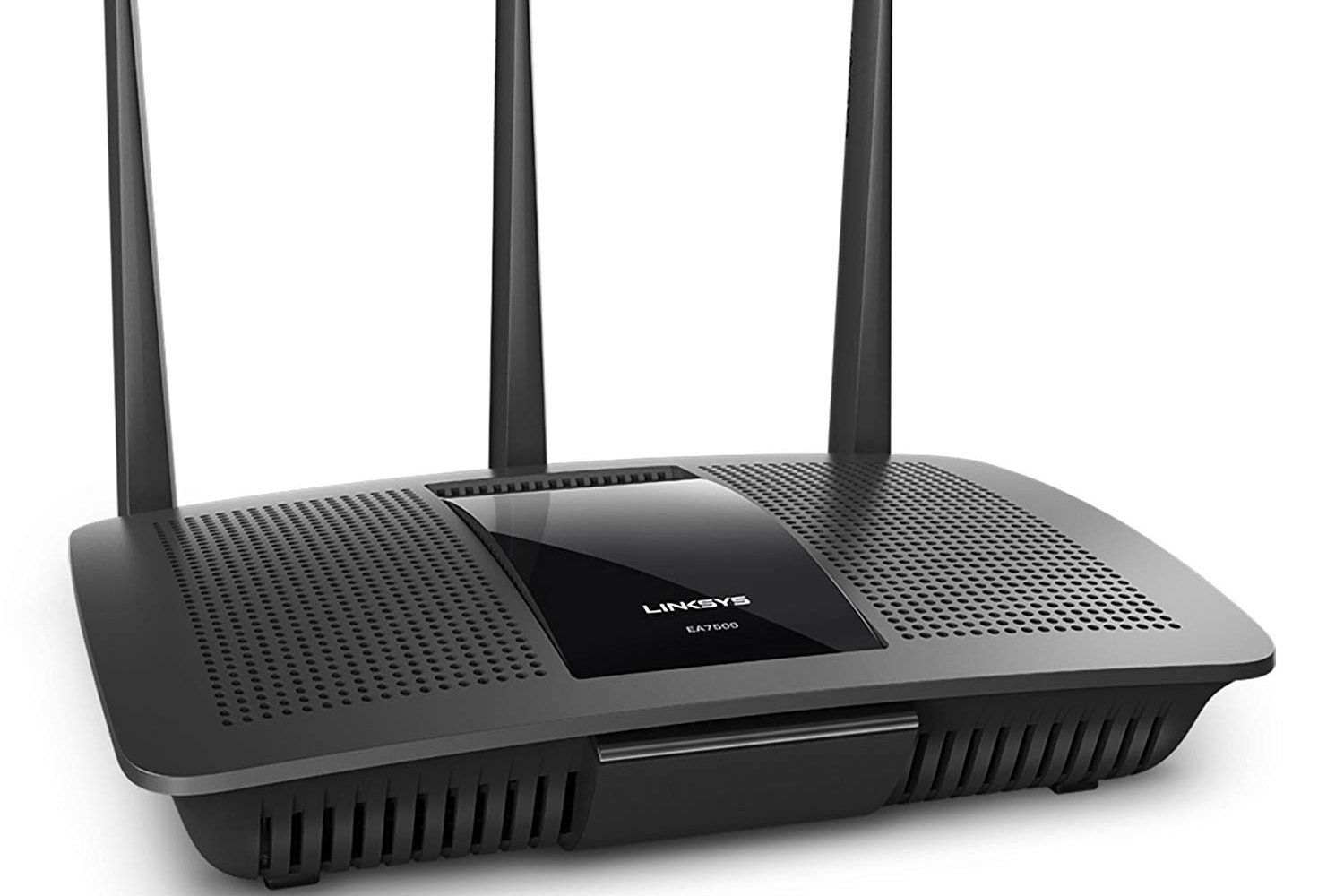
- Wireless (Wi-Fi) router: The classic home router with antennas, broadcasting Wi-Fi so laptops, phones, and smart devices can connect without cables.
- Mesh Wi-Fi system: A main router plus satellite nodes placed around your home. They create a single, seamless Wi-Fi network, great for large or multi-story houses.
- Modem-router combo: A single device from your ISP that combines the modem and router in one box.
Wi-Fi Router Tech: Bands, Standards, and Fancy Acronyms
Modern wireless routers do a lot more than just broadcast a signal. They use different frequency bands, standards, and technologies to improve speed and reliability.
Wi-Fi Bands: 2.4 GHz, 5 GHz, and 6 GHz
- 2.4 GHz: Slower but better range and wall penetration. Great for basic browsing and smart-home devices.
- 5 GHz: Faster but shorter range. Better for gaming, 4K streaming, and laptops near the router.
- 6 GHz (Wi-Fi 6E/7): Newer, very fast, less crowded spectrum. Excellent for high-performance devices if you’re in range.
Dual-band routers support 2.4 GHz and 5 GHz. Tri-band routers add an extra 5 GHz or 6 GHz band to reduce congestion when many devices are online at once.
MIMO and MU-MIMO
Many routers support MIMO (Multiple Input, Multiple Output) and MU-MIMO (Multi-User MIMO).
Instead of talking to one device at a time, MU-MIMO lets the router send data to multiple devices simultaneously using multiple antennas.
That helps keep performance higher when you have lots of gadgets online.
Beamforming
With beamforming, the router doesn’t just blast Wi-Fi equally in all directions like a lightbulb.
Instead, it “shapes” the signal more toward specific devices, improving speed and reliability where you actually arelike focusing a flashlight beam instead of lighting the entire room evenly.
How Routers Help Protect Your Network
Your router is also your first line of defense between your home and the wider internet. Even basic routers include several security features:
- Built-in firewall: Filters unwanted inbound traffic and blocks many basic attacks automatically.
- Wi-Fi encryption: Standards like WPA2 and WPA3 encrypt wireless traffic so neighbors (and attackers) can’t easily snoop.
- Guest networks: Let visitors connect to the internet without getting access to your main devices or shared files.
- Parental controls / content filters: Some routers let you restrict content or schedule internet access by device.
Of course, these protections only help if your router is set up correctly. That’s where a few simple best practices come in.
Essential Security Tips for Your Router
- Change the default admin username and password. Never leave it as “admin / password.”
- Use strong Wi-Fi passwords. Mix letters, numbers, and symbols; avoid your name or street address.
- Enable WPA3 (or at least WPA2-AES). Skip open networks or outdated WEP/WPA.
- Update your router firmware regularly. Manufacturers patch bugs and security issues via firmware updates.
- Turn off WPS (Wi-Fi Protected Setup) if you don’t need it. It can be a security weak point.
- Use a guest network for visitors and smart-home devices. Keeps your main devices more isolated.
How to Choose the Right Router
If you’re shopping for a router, the spec sheet can look like alphabet soup. Here are the key things that actually matter for a home user:
- Internet speed: Match or exceed the speed you pay your ISP for. There’s no point buying a 10 Gbps router for a 100 Mbps connection.
- Wi-Fi standard: Look for at least Wi-Fi 5 (802.11ac) or Wi-Fi 6/6E if you want future-proof performance.
- Coverage area: Larger homes or homes with thick walls may need stronger antennas or a mesh Wi-Fi system.
- Number of devices: If you have dozens of devices (smart TV, consoles, cameras, IoT), choose a router designed for high device counts.
- Ports: Check how many Ethernet ports you need for PCs, consoles, or network storage.
- Features: Consider extras like parental controls, QoS (to prioritize gaming or work apps), and easy app-based management.
For most people, a mid-range Wi-Fi 6 router with decent range and a simple management app hits the sweet spot between performance, price, and ease of use.
Everyday Examples: Where Routers Matter Most
Still wondering if the router really makes that big a difference? Think about these everyday scenarios:
- Streaming: 4K video from Netflix or YouTube requires stable bandwidth. A weak router can mean endless buffering.
- Online gaming: Latency-sensitive games rely on fast, consistent packet delivery. Good routers with QoS can prioritize game traffic.
- Work-from-home: Video calls, cloud apps, and VPN connections all depend on a solid router and Wi-Fi signal.
- Smart homes: Cameras, doorbells, thermostats, lights, and sensors all add load to your Wi-Fi. A strong router keeps them behaving.
When your router is undersized, misconfigured, or outdated, you’ll feel it everywhere: jittery calls, slow downloads, “Why is the Wi-Fi so bad in the bedroom?” complaints, and constant reconnecting.
500+ Words of Real-World Experience with Routers
Let’s step away from theory and talk about what living with a router actually feels like.
If you’ve ever walked around your house holding your phone up like a Wi-Fi divining rod, you already know that routers live in the real world, not in perfect diagrams.
Placement Matters More Than People Think
One of the biggest “aha” moments people have is when they move the router.
That little box tucked behind the TV stand, stuffed in a closet, or buried next to metal shelving is fighting an uphill battle.
Wi-Fi signals don’t love concrete, brick, metal, mirrors, or large appliances.
Putting the router in a more central, open spoteven just a few feet higher on a shelfcan feel like you’ve upgraded your internet plan.
In practice, that often means:
- Moving the router away from the floor and off the ground.
- Avoiding tucking it behind the TV, inside cabinets, or behind big metal objects.
- Placing it roughly central to where people actually use devices, not where the ISP’s installer found the nearest outlet.
Dealing with “Dead Zones”
Every home has that one room where Wi-Fi goes to diemaybe the back bedroom, the garage, or a corner office.
That’s where understanding routers helps you choose the right fix:
- Mesh Wi-Fi: Best option for whole-home coverage. Nodes talk to each other and to the main router, creating a unified network.
- Wired access point: If you can run an Ethernet cable, adding a second access point gives rock-solid coverage.
- Wi-Fi extender: A cheaper, quick fix, though it can introduce extra latency and lower speed.
Once people see that upgrading or extending the routernot the ISP planis what fixes the problem, they stop overpaying for speed they can’t actually use in half the house.
When Everyone Is Online at Once
Picture a typical evening: one person streaming 4K video, another gaming online, someone else in a video meeting, kids scrolling short-form video, and a handful of smart devices quietly syncing in the background.
All of that traffic goes through your router.
On older or low-end routers, this can feel like a digital traffic jam:
videos buffer, games lag, and calls stutter.
With a more capable routerespecially one with Wi-Fi 6, MU-MIMO, and Quality of Servicethose same activities often become smooth and predictable.
A bit of tuning helps too:
- Putting gaming consoles or PCs on Ethernet where possible.
- Using QoS to prioritize work apps or gaming.
- Separating 2.4 GHz devices (like smart plugs) from high-bandwidth 5 GHz clients.
Security Habits That Stick
Another real-world lesson: people often set up their router once and never log in again, sometimes for years.
That’s like installing a lock on your front door and never checking if it still works.
Developing simple router habits pays off:
- Check for firmware updates every few months.
- Rotate your Wi-Fi password occasionally, especially if many guests have used it.
- Use a guest network for visitors and for random IoT gadgets you don’t entirely trust.
You don’t need to be a network engineer to manage a router anymore; many modern devices have mobile apps with clear dashboards and one-tap updates.
Spending 10 minutes there can prevent hours of frustration down the line.
When to Replace Your Router
Finally, routers don’t last forever.
If yours is more than five to seven years old, only supports very old Wi-Fi standards, or constantly needs rebooting, it’s probably time to upgrade.
Newer routers tend to offer:
- Better security (like WPA3 support).
- Faster speeds and more efficient use of your connection.
- Improved ability to handle many devices at once.
- Easier management tools and mobile apps.
The day you replace an aging router and suddenly your home internet “feels” brand new is the day you realize how central this small device is to modern life.
Understanding what a router is and how it works turns it from a mysterious blinking box into a tool you can control, optimize, and upgrade with confidence.
Conclusion
A router is much more than a Wi-Fi box with antennas.
It’s the traffic director of your home network, the translator between your local devices and the global internet, and a frontline security device that helps keep your data safe.
When you understand how routers workIP addresses, NAT, Wi-Fi bands, security, and everyday behaviorit becomes much easier to fix problems, choose the right hardware, and get the performance you’re actually paying for.
SEO Summary
sapo:
A router is the quiet hero of your home network, directing traffic between your devices and the internet so everything from streaming movies to video calls just works.
This in-depth guide breaks down what a router is, how it works behind the scenes, the difference between a modem and a router, the Wi-Fi technologies that keep your connection fast, and the security settings you should never ignore.
You’ll also get real-world tips on placement, dealing with dead zones, handling multiple users at once, and knowing when it’s time for an upgradeso you can finally take control of your Wi-Fi instead of letting it control you.