You press the power button. Fans spin. Lights blink. A logo flashes. And in that split-second before your computer
remembers who it is, it runs a quick “pre-flight checklist” called POST.
POST stands for Power On Self Test. It’s the built-in startup diagnostic your computer runs
before it loads your operating system. Think of it as the bouncer at the club: if the essentials don’t check out,
nobody gets in (and Windows definitely isn’t getting past the velvet rope).
This guide breaks down what POST does, what it checks, what those mysterious beeps mean, and how to troubleshoot a PC
that won’t POSTwithout turning your desk into a pile of “extra” screws.
POST (Power On Self Test) in Plain English
POST is a sequence of tests and hardware initialization steps performed by your computer’s firmware
(traditionally BIOS, now often UEFI) immediately after power-on. The goal is simple:
confirm the system’s essential hardware is present and working well enough to continue booting.
If POST succeeds, your firmware moves on to the next step: finding a bootable device and handing off control to the
bootloader (and then your operating system). If POST fails, your computer may:
- show an on-screen error message (if video initializes),
- play a pattern of beeps through the internal speaker,
- flash diagnostic LEDs (common on laptops and many desktops), or
- sit there silently like it’s thinking about its life choices.
Where POST Lives: BIOS, UEFI, and “The Stuff Before Windows”
POST is not a Windows feature. It’s not macOS doing a vibe check. It’s not your SSD “booting faster” because it drank
an energy drink. POST happens before the operating system is in control.
On most PCs, POST is managed by BIOS or UEFI firmware stored on the motherboard. During POST,
firmware initializes and verifies core componentsCPU, memory, chipset, basic input devicesand it may also run
specialized initialization routines for certain add-in hardware (for example, a graphics card’s firmware).
The important takeaway: POST is your “hardware baseline” check. If your system can’t reliably talk to its CPU
and RAM, it can’t reliably do… anything.
What Does POST Actually Check?
The exact checklist varies by manufacturer, firmware version, and device type (desktop vs. laptop vs. server). But most
POST routines focus on “must-have” components needed to continue:
Common POST checks (typical PC)
- CPU initialization: confirms the processor can execute firmware instructions.
- RAM detection and basic memory test: identifies installed memory and verifies it’s usable.
- Chipset and motherboard basics: timers, controllers, and core motherboard functions.
- Graphics initialization: enough video support to show a logo or text screen (if applicable).
- Keyboard / input devices: basic input availability (especially for entering setup).
- Storage/controller discovery: detects storage interfaces and devices so boot can proceed.
- Firmware integrity / settings: validates firmware environment and stored configuration.
A fun modern twist: many systems run a “quick” POST by default. Instead of thoroughly testing everything every time,
they do just enough to boot quickly (because nobody wants to watch a memory test crawl through 64GB like it’s counting
rice grains one by one).
What You See During POST
If everything is working, POST can be easy to missespecially on modern machines that show a manufacturer logo.
Here are the most common POST “clues” you’ll notice:
- Manufacturer splash screen (logo) and a brief pause.
-
Setup prompt like “Press DEL to enter Setup” or “F2 for BIOS/UEFI.”
(Translation: “If you need to change settings, do it now. We’re leaving soon.”) - Brief text screen listing memory, CPU, or detected drives (often hidden by “Quiet Boot”).
- One short beep on some systems, signaling “POST passed” (not universal).
What if you see nothing?
“No display” doesn’t automatically mean “no POST.” Sometimes video initializes late, the monitor is on the wrong input,
or a cable is loose. But if you also have no beeps, no diagnostic lights, and no visible progress, then yesPOST is a top
suspect.
POST Codes, Beep Codes, and Blink Codes: Your PC’s Secret Language
When POST detects a failure, the system still wants to tell you what went wrongeven if the screen never turns on.
That’s where beep codes, LED blink patterns, and POST codes come in.
Beep codes
Many motherboards (especially desktops) use audible beep patterns during POST. The patternshort beeps, long beeps,
repeating beepscan point toward a hardware category like memory or graphics.
The catch: beep codes are not universal. The meaning depends on your firmware vendor and system model.
“Three beeps” might mean memory on one system, but something else on another. Always match the pattern to your specific
manufacturer’s documentation when possible.
LED blink codes (especially laptops)
Many laptops and branded desktops use diagnostic LEDs: power lights, Caps Lock/Num Lock blinks, or dedicated status LEDs.
These blink patterns often map to major/minor error categories, letting you troubleshoot even without a screen.
POST codes (debug displays and “POST cards”)
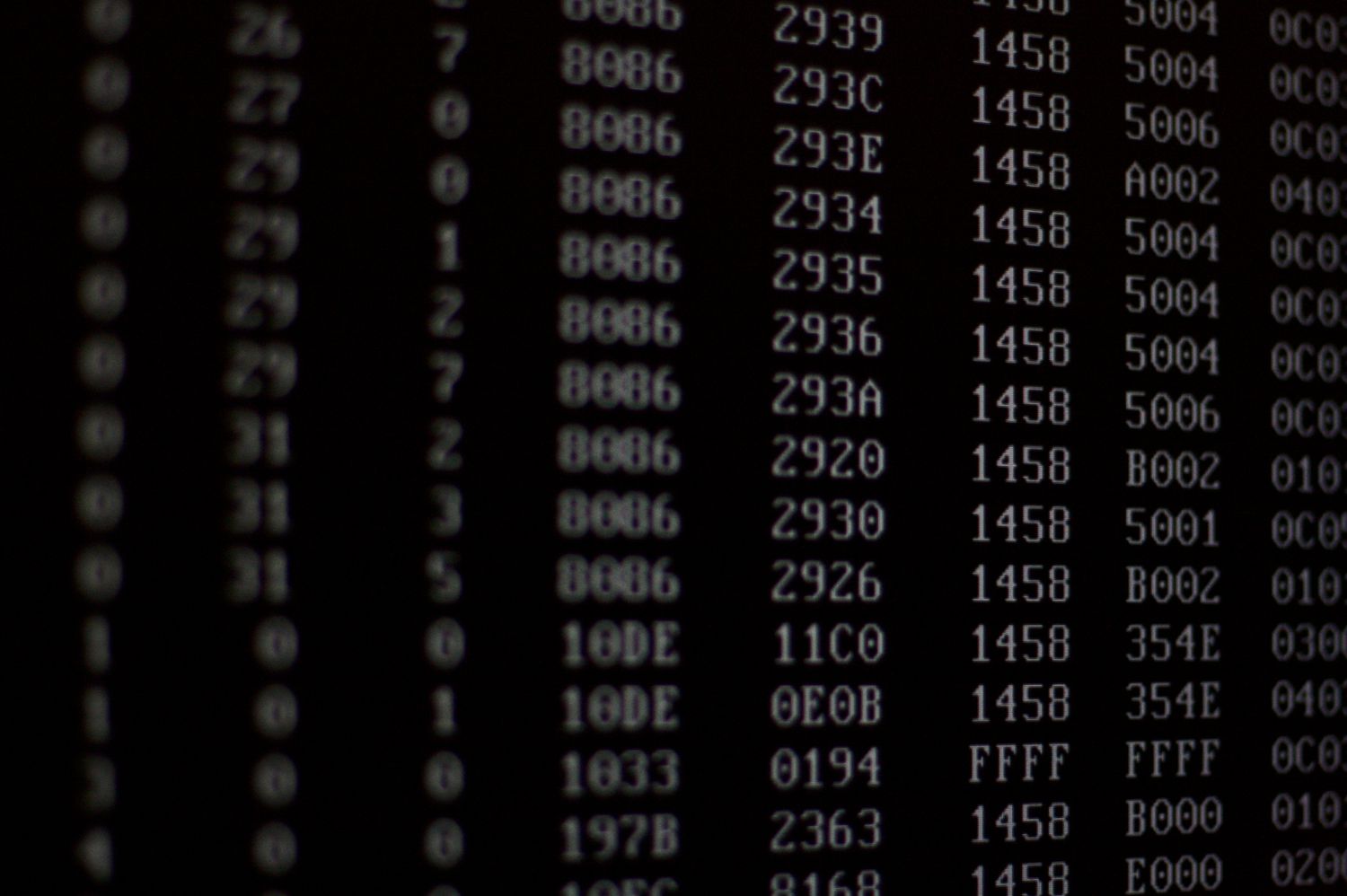
Higher-end motherboards and many servers include a small two-digit (or four-digit) display that shows a
hexadecimal POST code during startup. Some systems output progress codes that technicians can read using
specialized tools (often called “POST cards”).
If your motherboard has a debug display, it’s basically giving you a live play-by-play of the startup sequence. If it
stops at a code, that code can point to the stage where things went sideways.
Common POST Failure Symptoms (and What They Usually Suggest)
POST failures can look dramatic (“black screen forever!”) or annoyingly subtle (“it restarts every 12 seconds like a
very confused hummingbird”). Here are common symptoms and the usual suspects:
1) Fans spin, lights turn on, but no display
- Monitor/cable/input issue (surprisingly common).
- GPU not seated or wrong video port used (especially with a dedicated graphics card).
- RAM seating/config issue (one stick not fully clicked in can derail everything).
- CPU power connector not plugged in (classic build mistake).
2) Beeping pattern repeats
- Memory problem (bad stick, wrong slot, not seated, incompatible speed/profile).
- Graphics issue (no GPU detected, GPU memory error, or display adapter failure).
- CPU or motherboard fault (less common, but possible).
3) System turns on, then immediately shuts off or boot-loops
- Power delivery issue (PSU problem, loose connectors, or protection kicking in).
- Short circuit (standoff problem in a desktop build, or a stray screw living its best life).
- Overheating / fan detection (some systems halt if CPU fan isn’t detected).
4) You get a clear on-screen POST error message
This is the “best” kind of failure because the system can still talk to you. Common categories include time/date or
CMOS-related errors, keyboard detection issues, fan errors, or warnings about configuration changes.
How to Troubleshoot a Computer That Won’t POST
First rule of POST troubleshooting: start simple. The goal is to reduce variables until the system can pass
POST with the bare minimum hardware.
Safety and sanity first
- Turn the system off and unplug it before touching internal parts.
- Avoid working on carpet, and touch a metal part of the case to reduce static.
- Never open a power supply (PSU). If you suspect the PSU is bad, replace it or have it tested.
Step-by-step “minimal boot” checklist
-
Check the obvious: monitor power, correct input source, cable seated, try another cable or port.
(Yes, this fixes more “dead PCs” than anyone wants to admit.) -
Disconnect everything external: USB devices, external drives, docks, and even extra monitors.
Leave only power, keyboard, and display. - Power cycle: unplug, hold the power button for ~10 seconds (to discharge), then reconnect and try again.
- Listen and look for diagnostics: beep patterns, blinking LEDs, motherboard debug codes, or error messages.
-
Reseat RAM: remove and firmly reinstall memory modules until the latches click. If multiple sticks exist,
try booting with one stick at a time in the recommended slot. -
Reseat GPU (if applicable): ensure it’s fully seated and any power connectors are attached. If your CPU has
integrated graphics, try booting without the dedicated GPU (and use the motherboard video output). -
Check power connectors: motherboard main power and CPU power connectors must be fully inserted.
Many POST failures in new builds are “everything is plugged in… except the CPU power.” -
Clear CMOS / reset firmware settings: this can fix misconfigured memory settings, unstable overclocks,
or corrupted configuration. Use your motherboard/laptop manufacturer’s recommended method. -
Reduce to essentials (desktop): motherboard + CPU + one RAM stick + basic graphics (integrated or GPU).
Disconnect extra drives and expansion cards until POST works. -
If it still won’t POST: consider hardware failure (RAM, GPU, motherboard, PSU, CPU) and consult
manufacturer diagnostics/support documentation for model-specific interpretation.
Notice what we didn’t do: immediately blame Windows. If your PC can’t pass POST, the operating system hasn’t even
entered the room yet.
POST vs. Boot: What Happens After POST?
POST is only the opening act. A simplified startup timeline looks like this:
- Power on
- Firmware starts (BIOS/UEFI)
- POST runs (hardware checks + initialization)
- Boot device selection (based on firmware settings/boot order)
- Bootloader runs (from a drive/EFI partition)
- Operating system loads (Windows, Linux, etc.)
If your system passes POST but fails later (for example, you see “no boot device” or Windows won’t load), your problem
may be storage, boot configuration, or OS-levelnot POST.
BIOS vs. UEFI: Does POST Change?
POST exists in both BIOS and UEFI systems, but modern UEFI firmware often:
- boots faster by skipping or shortening certain tests,
- uses a graphical interface and branded splash screens, and
- integrates more advanced security features (like Secure Boot) into the overall boot flow.
The mission stays the same: get hardware into a known-good state and confirm the machine is ready to continue.
POST vs. HTTP POST (Yes, People Confuse These)
If you’ve ever Googled “what is POST” and landed in a web development rabbit hole, you’re not alone.
- POST (Power On Self Test): a hardware startup diagnostic performed by BIOS/UEFI.
- POST (HTTP method): a way browsers and apps send data to a web server.
Same acronym, totally different universe. One happens when you turn on your computer; the other happens when you click
“Submit” on a form and hope the internet behaves.
Why POST Is Often Invisible on Modern PCs
Many systems enable “Quiet Boot” (logo instead of text) and “Fast Boot” (reduced checks) by default. That’s great when
everything works. It’s less great when you’re troubleshooting and the system gives you approximately zero clues.
If you’re diagnosing a flaky startup, turning off fast boot options in firmware (when possible) can make POST more
talkativemore text output, more time to press setup keys, and clearer error reporting.
Why Understanding POST Still Matters
POST is one of the fastest ways to answer the most important troubleshooting question:
“Is this a hardware-level issue, or did the operating system trip on something later?”
If you build PCs, upgrade RAM, swap GPUs, replace a laptop battery, or even just want to interpret a mysterious beep
pattern without panic-Googling in all caps, POST knowledge pays off.
Conclusion
POST (Power On Self Test) is your computer’s early startup diagnostic run by BIOS/UEFI firmware. It checks
and initializes essential hardwareespecially CPU, RAM, and basic videobefore the system attempts to boot the operating
system. When POST fails, beep codes, blink patterns, debug LEDs, and error messages help narrow the cause.
The practical win: knowing where POST fits in the boot sequence helps you troubleshoot faster, avoid blaming the wrong
component, and get from “black screen panic” to “okay, it’s the RAM stick in slot B2” with a lot less drama.
Real-World Experiences With POST (The 500-Word “Been There” Section)
POST is one of those behind-the-scenes processes you barely noticeuntil it becomes the main character. Ask anyone who’s
built or repaired computers long enough, and you’ll hear the same kinds of stories pop up again and again.
One classic scenario: a brand-new desktop build that “powers on” but never shows a picture. The fans spin confidently,
the RGB lights glow like a tiny nightclub, and the builder’s confidence evaporates. In many cases, the fix isn’t exotic.
It’s something like a memory module that didn’t fully click into place. RAM can look seated while still being slightly
offjust enough to fail POST. The moment the stick is reinstalled properly (with the latches snapping into place), the
system suddenly springs to life. The emotional arc is always the same: “It was broken.” → “I’m broken.” → “Oh, it was
one millimeter.”
Another common experience is the “mystery beep symphony.” People describe turning on an older PC and hearing a pattern of
beeps that sounds like the machine is trying to communicate in Morse code. Once someone realizes those are POST beep
codes, the beeps stop being scary and start being useful. Even if you don’t know the exact manufacturer mapping, you can
learn a lot from context: a repeated pattern often points to something essential like memory or graphics. It’s not the
computer “dying,” it’s the computer “complaining with structure.”
Laptop owners frequently run into the blink-code version of the same thingCaps Lock or Num Lock flashing in a pattern
while the screen stays dark. The experience feels frustrating because there’s no helpful text, just lights. But once
users learn those blinks are a POST-era diagnostic system, they often go from random guessing to targeted troubleshooting
(like reseating memory in serviceable models, removing a dock, or checking for power issues).
Then there’s the humble monitor mistakean experience so common it’s practically a rite of passage. People report hours
of troubleshooting “no POST” only to realize the display was on the wrong input, the cable was loose, or the monitor
wasn’t powered on. It’s embarrassing, sure, but it’s also a great reminder of why POST troubleshooting starts with the
basics. The simplest explanation really does win more often than we’d like.
In workplaces, POST shows up as the “early warning system.” A system that used to boot silently might suddenly pause with
a message about a fan, a configuration change, or a hardware error. IT teams often treat those POST warnings like the
check-engine light: you can ignore it for a while, but it’s usually cheaper (and less chaotic) to deal with it before the
machine fails completely.
The shared lesson across all these experiences is that POST isn’t just trivia. It’s a practical framework for thinking
about startup problems. When you understand POST, you stop guessing randomly and start asking smarter questions:
“Do I have signs of video initialization?” “What do the beeps or blinks suggest?” “Can the system pass POST with minimal
hardware?” That shiftfrom panic to processis what turns POST from a definition into a skill.