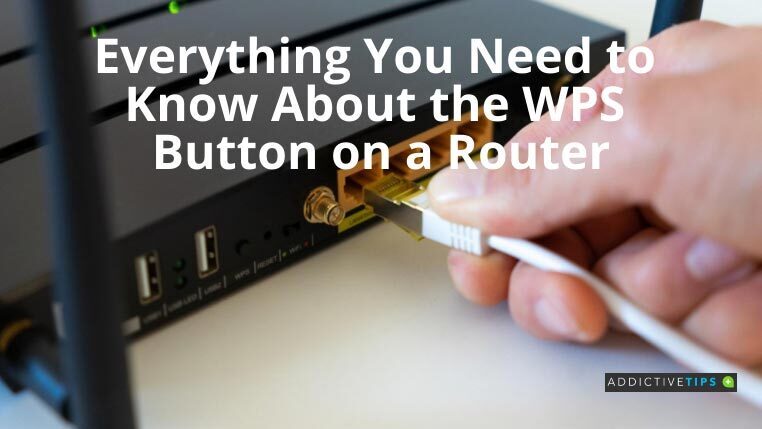
If you’ve ever stared at your router and wondered what that mysterious little button labeled “WPS” does, you’re not alone. A lot of people have it sitting there blinking occasionally, like a tiny sci-fi beacon, and never touch it. The truth is, the WPS button on your router can make connecting devices much easierbut it also comes with some important security trade-offs you should understand before you start pressing buttons at random.
In this guide, we’ll break down what the WPS button is, how it works, where to find it, how to use it to connect your devices, and when you might want to leave it turned off for better security.
What Is the WPS Button on a Router?
WPS stands for Wi-Fi Protected Setup. It’s a standard created by the Wi-Fi Alliance to make it easier for everyday users to connect devices to a secure Wi-Fi network without manually typing long passwords every time. Instead of entering your complex WPA2 or WPA3 passphrase, you can use the WPS feature to quickly authorize a device.
On many home routers, WPS shows up as a physical button labeled “WPS,” sometimes with a circular arrow or padlock icon. When you press it, the router briefly enters a special mode where it will accept connection requests from WPS-compatible devices. If a device “knocks” during that short window, it gets the Wi-Fi details automatically and joins your network.
WPS was designed for convenience: think printers, smart TVs, Wi-Fi extenders, or security camerasdevices that can be annoying to set up on small screens or without keyboards.
How WPS Works Behind the Scenes
While you just see a button and a blinking light, there’s a bit more going on under the hood. WPS supports several connection methods:
- Push Button Configuration (PBC): You press the WPS button on the router and then activate WPS on the device. The two “shake hands” and exchange the Wi-Fi name (SSID) and password automatically.
- PIN method: Either the router or device shows an eight-digit PIN. You enter that PIN into the other device to authorize the connection.
- Out-of-band methods (less common now): Older implementations could use USB drives or NFC tags to transfer settings.
Most modern home users only ever see the push-button method, which is why the physical WPS button is so prominent on many routers.
Where to Find the WPS Button on Your Router
The WPS button is usually easy to spot, once you know what to look for. Common locations include:
- The top or front panel of the router, near the indicator LEDs
- The back panel near the Ethernet ports and power connector
- On some mesh systems, part of a multi-function button used for both WPS and pairing nodes
It’s often labeled “WPS,” but you might also see an icon that looks like two curved arrows or a padlock with radio waves. Some brands (like NETGEAR, D-Link, ASUS, and others) may give it a branded name, but it still performs the same Wi-Fi Protected Setup function.
On a few routers, there is no physical button at all. Instead, WPS is enabled from the web interface or router app. In those cases, you’ll see a “Start WPS” or “Add device” button in the wireless settings.
How to Use the WPS Button to Connect a Device
Using WPS is usually a two-step process: enable WPS on the router, then on the device. Exact wording and menus differ by brand, but the basic flow is similar.
Step-by-Step: Using the WPS Button
- Check that your device supports WPS. Look for a WPS button or WPS option in its network settings. Common on printers, smart TVs, network extenders, and some older laptops and phones.
- Press the WPS button on your router. Hold it for about 1–3 seconds (avoid long presses that may factory-reset the routercheck the label or manual). A WPS or Wi-Fi light should start blinking.
- Within about 2 minutes, start WPS on your device. For example:
- On a printer: go to Network > Wi-Fi > WPS (Push Button) and confirm.
- On a TV: navigate to Settings > Network > Wireless > WPS (Push Button) and select it.
- On a Wi-Fi extender: press its own WPS button.
- Wait for the connection. The device and router exchange credentials. LEDs usually stop blinking and turn solid when they’re done. Your device should show as connected to your Wi-Fi network.
If the connection fails, you can repeat the steps. Sometimes you need to stand a bit closer to the router during the initial pairing, especially for devices with weak antennas.
Using the WPS PIN Method (Not Recommended)
Some routers and devices offer a WPS PIN option, where you type an eight-digit PIN into the router or device web interface. While it works, the PIN system has known security weaknesses and can be brute-forced in a relatively short time. Because of that, security experts often recommend avoiding the PIN method entirely and disabling it if possible.
Is the WPS Button Safe to Use?
This is where things get interesting. The WPS button is convenient, but from a security perspective, it’s a bit of a headache.
The biggest issues are:
- PIN vulnerability: The eight-digit WPS PIN is poorly designed. Because of how routers validate it in two halves, an attacker can guess it in far fewer attempts than you’d expect, potentially in a few hours with the right tools.
- Physical access risk: If someone can physically reach your router (e.g., in a public lobby or shared building), they could press WPS and connect a device without knowing your Wi-Fi password.
- Sometimes still on even when “disabled”: Older or poorly designed routers have had bugs where WPS remained partially active even after you disabled it in the interface.
Because of these issues, many security professionals say the safest option is to turn WPS off entirely, especially the PIN mode, and connect devices using your regular Wi-Fi password instead. Modern devices handle passwords pretty well, and password managers or QR codes make the process a lot easier than it used to be.
That said, if you’re in a private home, with the router in a secure spot and you only use the push-button method occasionally, the real-world risk may be lower for many usersespecially if you use strong admin passwords and keep your firmware updated.
Pros and Cons of Using the WPS Button
Advantages
- Convenience: Quickly connects devices without typing long passwords.
- Accessibility: Helpful for people who find navigating Wi-Fi settings or typing on small screens difficult.
- Speed for “dumb” devices: Particularly useful for gadgets like printers, IP cameras, and extenders that don’t have great input options.
Disadvantages
- Security risks, especially with PIN: WPS has known vulnerabilities that make it easier for attackers to get into your network if they target it.
- Physical access risk: Anyone who can press the button during the WPS window can potentially connect.
- Not necessary: Most modern devices handle passwords just fine, and many routers now support safer, easier methods like sharing QR codes.
How to Turn WPS Off on Your Router
If you decide the WPS button on your router isn’t worth the risk, you can usually disable it in your router’s admin interface. The exact steps differ by brand, but the general process looks like this:
- Connect to your router. Use a computer or phone already on your Wi-Fi.
- Open the router’s web interface or app. Typically, you enter something like
192.168.0.1or192.168.1.1in a browser, or open the manufacturer’s app. - Log in with your router admin username and password. This is not the same as your Wi-Fi password (unless you never changed defaultsif so, fix that immediately).
- Find the WPS or Wireless settings. Look under sections like “Wireless,” “Advanced,” “Wi-Fi Protected Setup,” or “WPS.”
- Disable WPS. You’ll usually see a checkbox or toggle to turn it off. If there are options for both push-button and PIN, disable the PIN at minimumideally disable WPS entirely.
- Save and reboot if required. Some routers apply changes immediately; others might require a restart.
If you can’t find a WPS option at all, it may already be disabled by default or not supported. On some newer, security-focused routers, WPS simply isn’t offered anymore.
Tips for Using the WPS Button Safely (If You Keep It Enabled)
If you decide you still want the convenience of WPS, you can minimize risks by following a few best practices:
- Use WPS only when needed. Press the button to connect a device, then leave it alone. The pairing window usually closes after 1–2 minutes.
- Disable the PIN method. If your router allows you to turn off PIN-based WPS but keep the push-button method, do that.
- Physically protect your router. Keep it in a private or locked area, not in a public hallway or shared lobby.
- Change the admin password. Make sure your router’s admin login is strong and unique so no one can turn WPS back on or abuse other settings.
- Keep firmware updated. Updates often patch WPS and other security issues behind the scenes.
Common WPS Problems and How to Fix Them
Problem 1: The Device Won’t Connect via WPS
If your device fails to connect during WPS:
- Make sure both the router and the device support WPS.
- Check that WPS is enabled in the router settings.
- Try moving closer to the router for the initial pairing.
- Restart both the router and the device and try again.
Problem 2: The WPS Light Never Blinks
This usually means WPS is disabled or the button has another function when held too long.
- Tap the WPS button brieflydon’t hold it for 10+ seconds (that might trigger a reset).
- Check the router interface to see if WPS is turned off by default.
- Consult the router manual for what the LEDs mean, as they vary by brand.
Problem 3: The Device Supports Wi-Fi but Not WPS
Newer phones, laptops, and some smart devices may skip WPS entirely for security reasons. In that case, you’ll need to:
- Select your Wi-Fi network from the device’s list of available networks.
- Manually enter the Wi-Fi password.
- Consider using QR codes or password managers to make entry easier.
Real-World Experiences with the WPS Button
On paper, the WPS button on a router sounds like a dream: press a button, connect your device, and you’re done. In practice, people’s experiences fall into three main categories“lifesaver,” “mildly helpful,” and “why is this even here?”
When WPS Feels Like Magic
Imagine you’re helping a less tech-savvy relative set up a new wireless printer. They don’t remember their Wi-Fi password, they’re not sure where the router is, and their eyes glaze over the moment you say “network settings.” If their router has WPS and the printer supports it, you can:
- Press the WPS button on the router.
- Press the WPS button or menu option on the printer.
- Watch the printer automatically connect and start printing test pages like it’s no big deal.
In moments like that, WPS feels like pure magic. No password hunting. No caps lock drama. No explaining that a “zero” is different from the letter “O.” For many users, that one successful experience justifies the feature’s existence.
When WPS Is Just… Fine
For a lot of people, WPS is a nice-to-have, but not something they rely on every day. They might use it to connect a Wi-Fi extender in a tricky corner of the house, or a smart TV that doesn’t like their password keyboard. After the initial setup, they forget about the button for months or years.
In these cases, the security risk is still there, but their usage is minimal: one quick button press during setup, then no further interaction. If the router lives in a private home office and no one else can reach it, the practical risk might feel acceptableespecially if the owner keeps their network otherwise secure.
When WPS Becomes a Headache
On the flip side, there are plenty of stories of WPS causing confusion:
- Someone presses the WPS button and nothing happens because the feature is disabled in the firmware.
- Holding the button too long accidentally resets the router to factory defaults, wiping all custom settings.
- Devices refuse to connect via WPS but work instantly once the Wi-Fi password is entered manually.
There are also more technical stories, especially from tech forums and security circles, where WPS is seen as a built-in vulnerability. Network enthusiasts routinely recommend turning it off immediately, especially on routers placed in shared or semi-public spaces. For them, the small convenience of not typing a password simply doesn’t outweigh the potential for brute-force attacks against the WPS PIN or abuse by anyone who can reach the button.
What These Experiences Suggest for You
Putting all of this together, a practical approach looks like this:
- If you’re comfortable with Wi-Fi passwords and your devices have decent on-screen keyboards, you can disable WPS entirely and never miss it.
- If you have older or hard-to-configure devices and really appreciate the convenience, you might keep WPS push-button enabled but:
- Disable the WPS PIN mode.
- Use the button only during setup.
- Keep your router physically secure and your firmware up to date.
Think of the WPS button as a power tool: handy when used correctly, but not something you leave running all the time. Once you understand what it does and what its limits are, you can decide whether it belongs in your network toolbox or deserves a quiet retirement in the settings menu.
Final Thoughts
The WPS button on your router is a classic trade-off between convenience and security. It can make connecting Wi-Fi devices almost effortless, especially in households where long passwords are a hassle. But it also introduces vulnerabilities, particularly through the WPS PIN system and the risk of unauthorized access if someone can physically reach your router.
If you’re aiming for a more secure, modern home network, disabling WPS (or at least the PIN method) and relying on strong Wi-Fi passwords is the safest path. If you decide to keep WPS, use it thoughtfully, treat the button with respect, and don’t forget to lock down the rest of your router settings.