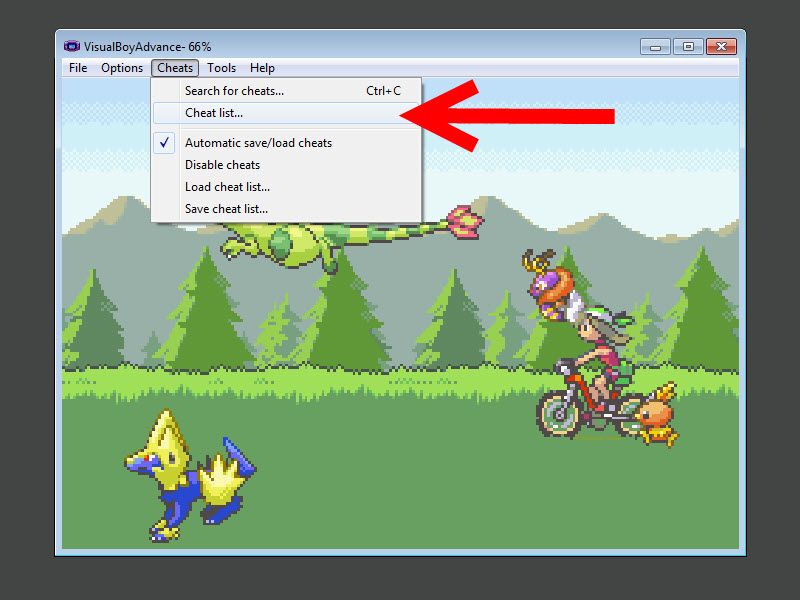
So, you want to play Pokémon Emerald on an emulator. Excellent choice. Emerald is the kind of Game Boy Advance classic that still has people arguing about starter picks, Battle Frontier strategies, and whether they really needed to spend 45 minutes hunting for one stubborn Pokémon in tall grass. The good news is that getting Emerald running on an emulator is usually pretty simple. The less-good news is that a lot of guides online either skip the legal basics, bury the useful settings, or act like every user was born knowing what a save state is.
This guide fixes that. Below, you’ll learn how to get Emerald on an emulator in six quick and easy steps, including how to choose the right emulator, import your game properly, set up saves, avoid common mistakes, and actually start playing without turning your desktop into a digital archaeology site.
One important note before we begin: when people say “get Emerald on an emulator,” the lawful version of that sentence means using a backup copy from a cartridge you own. This article does not cover pirated ROM downloads. Instead, it shows you how to set things up cleanly, safely, and like a person who enjoys games but would also prefer not to annoy copyright law.
Why Play Pokémon Emerald on an Emulator?
There are plenty of reasons people emulate Pokémon Emerald today, and not all of them involve nostalgia wearing a green hat. For starters, emulators make the game easier to access on modern devices. You can play on a Windows PC, Android phone, iPhone, iPad, Mac, or even certain handheld setups. You also get quality-of-life features that the original Game Boy Advance never dreamed of, such as controller remapping, quick save states, fast-forward, display filters, and cloud sync in some apps.
That said, convenience can create bad habits. Many players rely too heavily on save states, scatter files across random folders, or use the wrong save setting and then wonder why Emerald behaves like it woke up on the wrong side of Route 101. A clean setup solves most of that.
Step 1: Choose the Right Emulator for Your Device
Your first job is picking a Game Boy Advance emulator that matches your device and your patience level.
Best options for PC
If you’re on Windows, macOS, or Linux, mGBA is one of the easiest and most reliable choices. It has a strong reputation for accuracy, it runs well on typical hardware, and it doesn’t feel like software from a mysterious treasure chest found in 2007. RetroArch is also popular if you like having one app for many systems, but it has more menus than a diner that serves breakfast all day.
Best options for iPhone or iPad
On iOS, Delta is a top pick because it has a polished interface, controller support, save states, and an easy import process. It’s a friendly option for people who want results more than they want to spend Saturday afternoon in settings menus.
Best options for Android
Android users have several solid choices, including RetroArch, John GBAC, and other well-known GBA emulators. The exact best option depends on whether you want simplicity, customization, or the ability to tweak every setting until your phone thinks it works in a repair shop.
Tip: If you are brand-new to emulation, choose the emulator with the cleanest interface, not the one with the most dramatic forum fan base. Pokémon Emerald does not become better because your setup looks like aircraft navigation software.
Step 2: Prepare a Legal Pokémon Emerald Game File
Once you’ve chosen your emulator, you need the game file. This is the part many articles treat like a wink and a nudge. Let’s be clearer than that.
To play Emerald on an emulator, you need a backup of Pokémon Emerald from a cartridge you own. That backup is commonly stored as a ROM file. Some emulators will open the file directly, while others let you import it into a game library.
As a practical matter, the cleanest approach is to keep your game file in a dedicated folder named something like:
This helps you keep the ROM, save file, screenshots, and save states in one place. Future-you will appreciate this. Future-you is already tired.
What file types should you expect?
Most GBA game backups use familiar extensions such as .gba. Save files often appear as .sav. Save states may use emulator-specific formats depending on the app you use.
The main goal here is organization. Put the game in one tidy folder before you open it. If you toss files into random download locations, your emulator may still work, but your saves may later hide in odd places like a squirrel with trust issues.
Step 3: Install the Emulator and Set Up Your Game Folder
Now install your emulator and point it toward the folder where your Emerald backup lives.
On mGBA
Install the app, open it, and use the menu to load your game file. If possible, store your files somewhere simple, such as Documents or another user folder. Avoid placing your game in protected system locations like Program Files, because save-file behavior can become confusing on Windows.
On RetroArch
Install the app, add a GBA core, then load your content. It’s a good idea to check your save file directory and save state directory in the settings so you know exactly where your progress is being stored.
On Delta
Tap the import button, choose your Pokémon Emerald file, and add it to your library. Delta is especially nice for beginners because it feels more like using a modern app and less like opening a control panel built by owls.
Before moving on, launch the game once just to confirm that it opens. If you see a title screen, hear the opening music, and feel at least slightly transported back to the GBA era, you’re on the right track.
Step 4: Configure Controls, Display, and Save Settings
This is where a good setup becomes a great one. Most players rush through this step and then complain later when the controls feel awkward or the game doesn’t save properly.
Adjust your controls
Whether you use keyboard, touchscreen, or a Bluetooth controller, set your buttons before starting a real play session. For Pokémon Emerald, the controls are simple, but comfort matters. If your fast-forward button sits where your confirm button should be, you will eventually blast past dialogue, menus, and perhaps your own dignity.
Use in-game saves first
Yes, save states are convenient. Yes, they feel magical. No, they should not be your only plan. For long-term progress, always make regular in-game saves through Emerald’s normal save menu. Save states are best used as a convenience feature, not as the sole foundation of your adventure.
Check save type if needed
Pokémon Emerald uses a save structure that can be picky in older or heavily customized emulator setups. If you are using an emulator that exposes manual save-type settings, make sure it is configured correctly for Emerald. Many players run into trouble because the save type is set wrong, which can lead to corrupted or missing progress. In older VBA-style setups, the commonly recommended value for Emerald is Flash 128K.
If your emulator handles save type automatically, great. Don’t fix what isn’t broken. But if you notice save problems, this is one of the first things to check.
Step 5: Import Emerald and Start a Test Save
At this point, you’re ready to actually play. Open Pokémon Emerald, start a new game, and go far enough to make your first in-game save. This is your test run. Think of it like checking the parachute before jumping out of the plane, except with fewer clouds and more Professor Birch.
Your five-minute test checklist
- Can the game boot normally?
- Do the controls respond the way you expect?
- Can you create an in-game save?
- Does the save still exist after closing and reopening the emulator?
- Can you create a save state without replacing your regular save?
If the answer is yes across the board, congratulations. You have Emerald running properly on an emulator, and you are now free to spend an unreasonable amount of time deciding whether Treecko, Torchic, or Mudkip best reflects your personality.
Step 6: Avoid the Most Common Emerald Emulator Problems
Most setup issues come from a short list of mistakes. The good news is that they’re usually easy to fix once you know what to look for.
Problem: The game won’t save
First, confirm that the emulator has permission to write files to the folder where the game is stored. Next, check whether the save type is correct. If you’re using an older emulator or an emulator fork with manual settings, verify that Emerald is using the proper flash save configuration.
Problem: Save states work, but the in-game save disappears
This usually means your save file path is messy, the emulator lacks write access, or the save settings are wrong. Recheck your directories and move the game to a normal user folder if necessary.
Problem: Save files don’t transfer between emulators
Not every save state format is portable. Save files are more flexible than save states, which is another reason to make regular in-game saves. If you plan to switch from one emulator to another, your best friend is usually the .sav file, not a quick state from six months ago named final_final_REAL.savestate.
Problem: The game runs too fast or too slow
Turn off fast-forward if it is stuck on, lower unnecessary enhancements, and check your audio and sync settings. Pokémon Emerald is a turn-based RPG, not a drag race. If the opening scene sounds like it’s being narrated by a caffeinated auctioneer, something is off.
Best Practices for Playing Pokémon Emerald on an Emulator
Once your game is working, a few habits will save you major headaches later.
- Keep one dedicated folder for Emerald and its saves.
- Use in-game saves regularly, especially before closing the emulator.
- Use save states as backup convenience, not your only safety net.
- Name backup files clearly if your emulator allows exports.
- Test your saves early instead of after ten gym badges and a mild emotional attachment to your team.
- Back up your save file occasionally to cloud storage or another device.
Is Playing Emerald on an Emulator Worth It?
For many players, absolutely. Pokémon Emerald is still one of the most beloved games in the series, and emulation makes it easier to revisit without hunting down aging hardware every time you want to explore Hoenn. Emulators also make the experience more convenient for adults who now have jobs, alarms, taxes, and suspiciously strong opinions about USB cables.
The key is to do it correctly. A good emulator, a properly organized folder, correct save handling, and a lawful game backup will give you a far smoother experience than most chaotic “just download something and hope” guides online.
Final Thoughts
If you’ve been wondering how to get Emerald on an emulator, the process is not complicated once you strip away the noise. Choose a reliable emulator, use a lawful backup from a cartridge you own, organize your files, confirm your save setup, and test everything before diving into a long play session. That’s really it.
The six-step version looks like this: pick your emulator, prepare your Emerald file, install and organize, configure controls and save settings, test a real save, and fix common issues before they become dramatic. Follow those steps, and you’ll be catching Pokémon instead of troubleshooting folders at midnight.
And honestly, that is the dream.
Extra Experience: What Playing Emerald on an Emulator Actually Feels Like
The funny thing about setting up Pokémon Emerald on an emulator is that the technical part often takes less time than choosing your starter. Once the game is running, the whole experience feels like opening a time capsule that somehow learned a few modern tricks. You still get the classic Hoenn map, the cheerful sprite work, and that familiar sense that every patch of grass might contain either adventure or mild disappointment. But now it’s wrapped in conveniences the original hardware never had.
For many players, the first big surprise is how comfortable Emerald feels on modern devices. On a laptop, it becomes the perfect “play for twenty minutes” game that somehow steals ninety. On a phone, it turns into a sneaky little companion for downtime, lunch breaks, or that suspiciously long wait before an appointment. On a tablet with a controller, it can feel shockingly close to a dedicated handheld setup. Suddenly, an old GBA title starts acting like it belongs in your everyday routine.
The second surprise is how useful fast-forward can be. It sounds like a small feature until you realize it smooths out grinding, backtracking, and those moments when you know exactly where you’re going but the game insists on making you walk there like a dramatic stage actor. Used lightly, it makes Emerald feel brisk without ruining its rhythm. Used recklessly, it turns every route into a blur and every conversation into speed-reading punishment. Balance is key.
Save states are another modern luxury that can feel incredible at first. They are handy before a tough battle, during a break, or when life interrupts your gaming session with the classic move known as “responsibility.” But experienced emulator players usually learn the same lesson: save states are the sidekick, not the hero. The real peace of mind comes from proper in-game saves, backed up by a tidy file structure. Once you adopt that habit, the whole experience becomes much less fragile.
There’s also something charming about how personal emulator setups become. Some players prefer pixel-perfect scaling. Others want screen filters that mimic old displays. Some connect a controller and turn the whole thing into a mini retro station. Others keep it simple and just want Emerald to boot fast and save reliably. There isn’t one perfect setup. The best setup is the one that lets you forget about the emulator and just enjoy the game.
And that, really, is the point. A good emulator should disappear into the background. Once everything is configured properly, you stop thinking about folders, save paths, and file extensions. You start thinking about your team, your next badge, your move set, and whether you are emotionally prepared to spend an evening organizing a Pokémon box like it’s a corporate spreadsheet. That is when you know the setup was successful: the technology gets out of the way, and the adventure takes over.