If you have ever watched a tiny looping image explain a recipe, show off a product, or turn an ordinary reaction into internet gold, you have already seen the power of a good GIF. It is short, punchy, and oddly satisfying. And when you want more control than a one-click app can offer, Photoshop is still one of the best places to build one.
This tutorial walks you through exactly how to make an animated GIF in Photoshop, whether you are starting with still images or a short video clip. We will cover the step-by-step workflow, the best export settings, common mistakes, and a few file-size-saving tricks that can keep your masterpiece from becoming a gigantic digital potato. By the end, you will know how to create a GIF that looks clean, loops smoothly, and does not take three business days to load.
Why Use Photoshop to Make an Animated GIF?
Photoshop gives you more control than most lightweight GIF makers. You can edit each frame, adjust timing, clean up colors, add text, move objects, crop distractions, and fine-tune the final export. In other words, it is not just a GIF generator. It is a full creative workshop where you can tell your pixels to behave.
That control matters because animated GIFs are deceptively simple. A loop may only last two seconds, but it still needs clear visuals, smart pacing, and a small enough file size to work well on websites, emails, blogs, and social posts. Photoshop helps you balance all three.
What You Need Before You Start
Before you open Photoshop, gather your source material. You can create an animated GIF from a sequence of still images, illustrated layers, or a short video clip. If you are using photos, make sure they are in the correct order. If you are using a video, keep it short. A five-second clip is much easier to manage than a dramatic forty-second slow-motion masterpiece featuring your coffee mug.
It also helps to decide on the purpose of your GIF ahead of time. Are you making a tutorial, a product demo, a reaction image, a before-and-after effect, or a social media teaser? Your goal affects everything from frame count to dimensions to how quickly the loop should play.
Method 1: How to Make an Animated GIF in Photoshop From Images
Step 1: Open Your Images as Layers
Start by loading your images into one Photoshop document. If each image is separate, create a new file and place each image on its own layer. Keep the order logical from bottom to top or top to bottom, depending on how you prefer to organize your Layers panel. Naming layers also helps, especially if you do not want to spend the next ten minutes guessing whether “Layer 17 copy 3” is the one with the waving hand.
If needed, resize or crop the canvas before animating. It is always easier to shrink a project early than to realize at export time that your GIF is large enough to qualify as furniture.
Step 2: Open the Timeline Panel
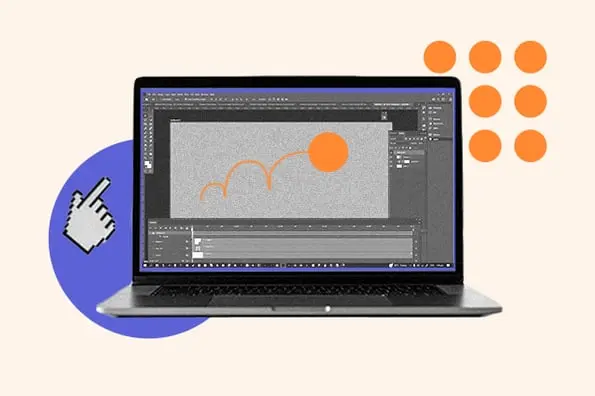
Go to Window > Timeline. This opens the animation workspace in Photoshop. When the Timeline panel appears, click Create Frame Animation. This tells Photoshop you want to build the animation frame by frame rather than as a traditional video timeline.
This panel is where the magic happens. Or, more honestly, where the magic happens after a few minutes of clicking around and wondering why nothing is moving yet.
Step 3: Convert Layers Into Frames
In the Timeline panel menu, choose Make Frames From Layers. Photoshop will turn each visible layer into its own frame. If your layers are arranged correctly, you will instantly see the sequence appear in the Timeline.
If the order looks backward, reverse the frames. This is a common beginner moment, and there is no shame in it. The first version of almost every new GIF looks like time itself has become confused.
Step 4: Set the Frame Timing
Below each frame, Photoshop lets you choose how long it appears on screen. Common timing options include 0.1 seconds, 0.2 seconds, 0.5 seconds, or custom values. Faster timing creates snappier motion, while slower timing works better for tutorials, text reveals, or step-by-step demonstrations.
There is no perfect universal speed. A reaction GIF may need a quick rhythm, while an instructional GIF should give viewers time to understand each step. If the animation feels chaotic, slow it down. If it feels like it is taking a nap, speed it up.
Step 5: Choose the Looping Option
At the bottom of the Timeline panel, set the looping option. Most animated GIFs are set to Forever so they repeat continuously. That is what gives GIFs their familiar looping behavior. If you only want the animation to play once or a few times, you can change it here.
For most web uses, “Forever” is the safest choice. People expect GIFs to loop, and a non-looping GIF can feel like a sneeze that never quite happened.
Step 6: Preview the Animation
Press the play button in the Timeline panel to preview your GIF. Watch for awkward jumps, uneven pacing, alignment issues, or frames that flash by too quickly. This is the time to fix problems, not after you proudly upload it and discover the second frame looks like it escaped from another dimension.
If needed, duplicate frames, remove weak ones, reorder the sequence, or adjust the timing of individual frames. Small changes can make a huge difference in how polished the final result feels.
Step 7: Export the GIF
When everything looks good, go to File > Export > Save for Web (Legacy). Choose GIF as the export format. This is where you control color count, dithering, looping, and image size.
For many projects, a preset like GIF 128 Dithered or a full 256-color GIF is a solid starting point. If your animation includes gradients or soft transitions, dithering may help reduce harsh banding. If your file is too heavy, lowering the number of colors can shrink it, though it may also make the image look rougher.
Method 2: How to Make an Animated GIF in Photoshop From Video
If you are starting with a short video clip, Photoshop can convert it into animation frames for you. Go to File > Import > Video Frames to Layers. Select your video and choose whether to import the full clip or only a selected range.
This is especially useful when you want to turn a product demo, screen recording, short reaction, or moving detail into a GIF. Importing every frame from a long clip can create a giant file, so keep it short and focused.
Once the video frames are imported, Photoshop creates a layer for each frame and builds the animation in the Timeline. From there, you can edit the frames the same way you would with still images. Remove unnecessary frames, shorten the canvas, or simplify areas that do not need motion.
Best Photoshop Settings for a Clean Animated GIF
Dimensions
Smaller dimensions usually mean smaller file sizes. If your GIF will live inside a blog post, email, or landing page, you probably do not need a giant canvas. Resize it to fit its actual use. A tutorial GIF can still look sharp without taking over the entire screen like it pays rent.
Colors
GIF files support a maximum of 256 colors. That is one reason GIFs work best for simple motion, graphics, text animations, or short loops instead of rich, cinematic video scenes. If your GIF uses too many subtle gradients, color limitations can make it look less polished. In those cases, simplify the scene or reduce expectations. Pixels have feelings too, but only 256 of them get invited to the party.
Dithering
Dithering helps blend colors by simulating gradients with patterns of dots. It can improve appearance, but it can also increase file size. Use it when it visibly helps. Skip it when it does not. This is a quality-versus-weight decision, not a moral one.
Looping
For most animated GIFs, use Forever. If you are building a visual explanation or social asset, seamless looping feels more natural and keeps the animation working even if a viewer looks away and glances back.
How to Reduce GIF File Size Without Ruining It
One of the biggest headaches in any Photoshop GIF tutorial is export size. A GIF that looks wonderful inside Photoshop can suddenly become massive when exported. Here are the easiest ways to cut it down:
1. Crop Aggressively
Do not animate empty space. If the action is happening in one corner, crop tighter. Smaller canvas, smaller file. Your GIF does not need a scenic view of unnecessary background drama.
2. Reduce Dimensions
Even a moderate size reduction can make a big difference. Scale down to the size you truly need for the web page, email, or post where it will appear.
3. Remove Extra Frames
Not every frame earns its paycheck. Delete repetitive or unnecessary frames, especially in clips with subtle movement. Fewer frames often mean a much lighter GIF.
4. Lower the Color Count
If the image still looks good at 128 colors or even 64 colors, you can save a lot of space. Test different options in the export preview before choosing the final setting.
5. Animate Only What Matters
Sometimes the smartest move is to animate just one section while leaving the rest visually simple. This technique keeps the eye focused and helps control file size. It is also more elegant than making every pixel do cardio.
Common Mistakes to Avoid
Making the GIF too long: Shorter loops usually perform better and are easier to optimize.
Using dimensions that are too large: Bigger is not always better, especially online.
Ignoring frame timing: Bad pacing can make even a great concept feel clumsy.
Overusing color-heavy scenes: GIFs are limited in color, so not every image translates beautifully.
Forgetting accessibility: Avoid rapid flashing and make sure text in the GIF remains readable long enough for viewers to process it.
Where Animated GIFs Work Best
Once you know how to make an animated GIF in Photoshop, you can use the skill almost anywhere. GIFs work especially well in blog tutorials, email campaigns, social media content, onboarding sequences, product explainers, and simple before-and-after visuals. They are excellent when you want to show motion quickly without asking someone to click play on a full video.
That said, not every situation needs a GIF. If you need higher color quality, longer motion, audio, or better compression, a short video may be the smarter format. A GIF is fantastic for concise visual storytelling. It is less fantastic for recreating a feature-length film one grainy loop at a time.
Common Real-World Experiences When Learning to Make GIFs in Photoshop
One of the most relatable experiences people have when learning how to make an animated GIF in Photoshop is the moment they first open the Timeline panel and immediately feel like they have wandered into the wrong room. Photoshop is powerful, but it does not always feel welcoming in a “come in, sit down, and let me make this obvious” kind of way. It often feels more like a talented friend who helps you brilliantly after judging your life choices for a minute.
At first, many beginners expect the process to be instant. Import images, click a button, done. Then the real adventure begins. The layers are out of order. The animation plays backward. One frame lasts three full seconds while another disappears like it owes money. This is normal. In fact, this awkward stage is almost a rite of passage. The good news is that once people understand the relationship between layers, frames, timing, and export settings, the whole process gets dramatically easier.
Another common experience is discovering that the GIF looked fantastic inside Photoshop and then somehow emerged from export looking slightly different. Maybe the colors flattened out. Maybe the file became much larger than expected. Maybe the smooth gradient in the background suddenly looked like a staircase built by stressed-out pixels. This is where most people learn the hard but useful lesson that creating the animation and optimizing the animation are two separate jobs. Making a GIF move is step one. Making it look good and load quickly is step two.
There is also the surprisingly satisfying moment when timing finally clicks. People often underestimate how much rhythm affects a GIF. A difference between 0.1 seconds and 0.3 seconds can completely change the mood. A tutorial becomes readable. A reaction becomes funnier. A product demo becomes clearer. Once users start experimenting with timing, they usually realize that animation is less about throwing frames together and more about guiding attention. In a way, it is editing, storytelling, and design all crammed into a tiny looping rectangle.
Many creators also discover that restraint is their best friend. Early GIF attempts often try to do too much. Too many moving parts, too many colors, too much canvas, too much ambition packed into a format that prefers simplicity. With experience, people tend to make cleaner choices. They crop tighter. They shorten loops. They animate the detail that matters instead of the whole scene. The result usually looks more professional, not less. A good GIF often succeeds because it is focused.
There is also a practical side to the experience. Designers, marketers, bloggers, and content creators often end up using Photoshop GIFs as workhorse assets. They explain a feature, highlight a step in a process, show a before-and-after result, or add motion to an email without requiring video playback. In real publishing environments, that flexibility matters. A GIF can teach quickly, sell softly, and keep a page lively without asking much from the audience.
Perhaps the most encouraging experience is that improvement happens fast. The first GIF may feel clunky. The second may still be a little chunky. By the third or fourth, most people start developing instincts: keep clips short, preview often, export smaller, simplify colors, watch the loop point, and never trust the first draft just because it moved. That learning curve is part of the fun. Photoshop can feel intimidating on day one, but GIF-making becomes much more intuitive once you understand the workflow.
So if your first attempt is imperfect, welcome to the club. That is not failure. That is the beginning of having taste. And taste, unlike a bad export setting, is always worth keeping.
Final Thoughts
Learning how to make an animated GIF in Photoshop is one of those skills that sounds niche until you realize how often it comes in handy. It is useful for content marketing, blogging, teaching, social media, product education, and plain old internet fun. Once you understand how to build frames, control timing, preview your loop, and export intelligently, you can create GIFs that look polished instead of painfully homemade.
Keep your animation focused, keep your file size under control, and keep testing until the loop feels smooth. That is really the secret. A great GIF is not just animated. It is intentional.