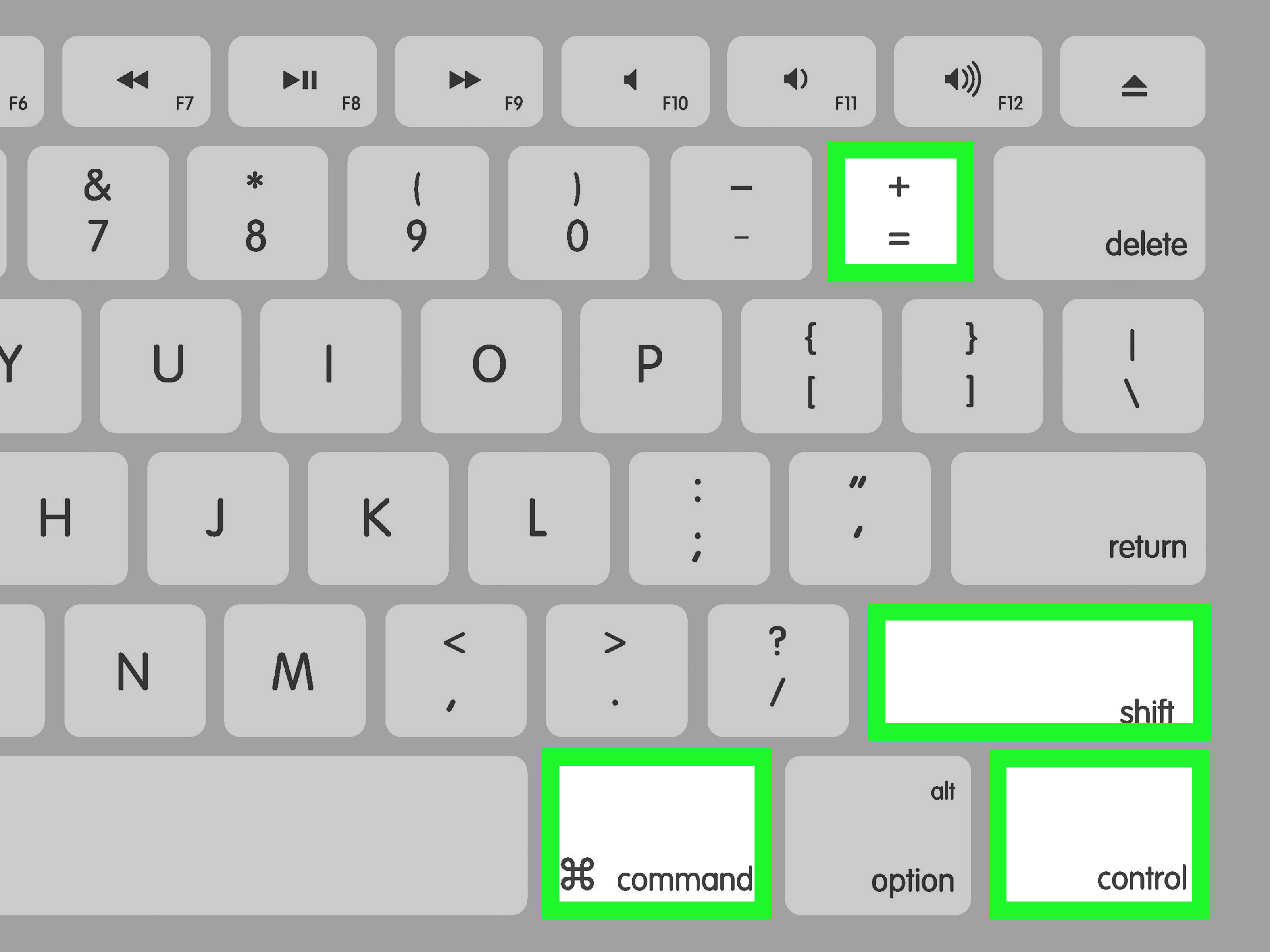
Typing exponents on a Mac should not feel like solving a secret math puzzle guarded by a tiny keyboard dragon. Yet the moment you need to write x², 10³, E=mc², or a citation-style superscript, the keyboard suddenly looks suspiciously unhelpful. Where is the exponent key? Why does the number 2 refuse to float politely above the line? And why does every app seem to have its own opinion?
The good news: learning how to type exponents on your Mac is easier than it looks. macOS gives you several dependable options, and popular apps like Pages, Microsoft Word, Google Docs, and LibreOffice have their own shortcuts or formatting tools. The best method depends on where you are typing. A quick text message may only need the ² symbol. A school paper may need proper superscript formatting. A website may need HTML. A math-heavy document may call for equation tools.
This guide walks through the easiest ways to type exponents on Mac, from quick copy-and-paste shortcuts to professional formatting. We will keep it practical, friendly, and blessedly free of “just use Windows” comments from your cousin who still thinks the Caps Lock key is a productivity tool.
What Is an Exponent?
An exponent is the small raised number or symbol that shows how many times a base number is multiplied by itself. For example, in 5², the 2 means “5 multiplied by itself,” or 25. In x³, the 3 means x multiplied by x multiplied by x. Exponents are common in math, science, engineering, finance, chemistry, and physics. They also appear in famous expressions like E=mc², which is probably the most stylish use of a tiny raised number in human history.
On a Mac, exponents usually appear in one of two forms:
- Superscript characters: actual Unicode characters such as ², ³, ⁴, or ⁿ.
- Superscript formatting: regular text that an app raises and shrinks, such as turning the 2 in x2 into x2.
That difference matters. Superscript characters are convenient for plain text, messages, filenames, and quick notes. Superscript formatting is better for documents, reports, essays, presentations, and anything that needs consistent typography.
Quick Answer: The Easiest Ways to Type Exponents on Mac
Here are the fastest choices before we get into the full tutorial:
| Where You Are Typing | Best Method | Example |
|---|---|---|
| Messages, Notes, plain text, social posts | Use Character Viewer or copy superscript numbers | x², x³, 10⁴ |
| Apple Pages | Select text, then apply Superscript from the Format sidebar | x2 |
| Google Docs | Press Command + Period after selecting text | x2 |
| Microsoft Word for Mac | Use the Superscript button or Command + Shift + Plus | x2 |
| HTML or website editing | Use the <sup> tag | x<sup>2</sup> |
Method 1: Use Character Viewer on Mac
The Mac Character Viewer is the easiest built-in tool for inserting special characters, including superscript numbers and symbols. Think of it as the keyboard’s attic: everything useful is in there, but you have to know where to look.
Steps to Use Character Viewer
- Place your cursor where you want the exponent to appear.
- Press Control + Command + Space, or choose Edit > Emoji & Symbols from the menu bar.
- In the search field, type superscript, superscript two, or the symbol you need.
- Double-click the character to insert it.
You can use this method to insert common superscript characters such as ², ³, ⁴, ⁵, ⁶, ⁷, ⁸, ⁹, ⁰, ⁺, ⁻, ⁽, ⁾, and ⁿ. For example, you can type x and then insert ² to create x².
When This Method Works Best
Character Viewer is ideal when you need a quick exponent in Notes, Messages, Mail, a social media caption, a spreadsheet label, or a plain text field. It is not always perfect for long equations, because searching and inserting each symbol can become slow. If you are writing half a page of algebra, Character Viewer will begin to feel like typing through molasses.
Method 2: Copy and Paste Superscript Numbers
The simplest method is also the most shamelessly practical: copy the exponent you need and paste it where you want it. No one will know. The keyboard police are busy elsewhere.
Common Superscript Characters to Copy
Use these whenever you need quick exponents:
⁰ ¹ ² ³ ⁴ ⁵ ⁶ ⁷ ⁸ ⁹ ⁺ ⁻ ⁼ ⁽ ⁾ ⁿ
Examples:
- x²
- 10³
- m⁴
- E=mc²
- aⁿ
This method is perfect for quick writing, but it has one limitation: not every superscript letter exists as a common Unicode character. Superscript numbers are widely available, but superscript versions of every alphabet letter are not as consistent. For full words, variables, or longer expressions, app-based superscript formatting is the cleaner choice.
Method 3: Type Exponents in Apple Pages
If you are using Apple Pages, you can apply true superscript formatting. This is the best option for essays, worksheets, academic notes, business documents, and polished writing. It keeps your document looking intentional instead of “I found this tiny number in a digital junk drawer.”
Steps in Pages
- Type the base and exponent normally. For example, type x2.
- Select only the exponent character, such as the 2.
- Open the Format sidebar.
- Choose the Style tab.
- In the Font section, open the advanced options.
- Choose Baseline > Superscript.
Your x2 becomes x2. To keep typing normal text afterward, make sure the cursor is placed after the superscript and return the baseline to Default if Pages continues typing in superscript. Apps love being helpful, and sometimes they are aggressively helpful.
Pages Shortcut Tip
Pages also supports keyboard shortcuts for superscript and subscript. In many current Mac setups, the superscript shortcut is Control + Command + Plus. If your shortcut does not work, use the menu method above because keyboard shortcuts can vary by app version, keyboard layout, or system settings.
Method 4: Type Exponents in TextEdit, Mail, and Other Mac Apps
Many Mac apps that support rich text formatting offer a baseline or superscript option. This can include TextEdit, Mail, and other writing apps. The exact menu may vary, but the general process is usually similar.
General Rich Text Steps
- Type the number or expression normally, such as CO2 or x2.
- Select the character you want to raise.
- Look for Format, Font, Baseline, or Superscript.
- Apply superscript formatting.
If the option is missing, the field may be plain text. Plain text does not store formatting. In that case, use Unicode superscript characters such as ² or ³ instead.
Method 5: Type Exponents in Google Docs on Mac
Google Docs has one of the fastest Mac shortcuts for superscript formatting. This is especially useful for students, teachers, editors, and anyone who lives inside browser tabs like a responsible modern goblin.
Google Docs Shortcut for Superscript
- Type your expression normally, such as x2.
- Select the exponent character.
- Press Command + Period.
To turn off superscript, press Command + Period again or choose Format > Text > Superscript. For subscript, Google Docs uses Command + Comma. That is helpful for chemistry formulas like H2O, although today we are focusing on exponents, not making water look fancy.
Method 6: Type Exponents in Microsoft Word for Mac
Microsoft Word is a strong choice for documents with equations, citations, and academic formatting. On Word for Mac, you can use either the Superscript button or a keyboard shortcut.
Steps in Word for Mac
- Type the expression, such as y3.
- Select the exponent character.
- Click the Superscript button on the Home tab, usually shown as x².
You can also try the shortcut Command + Shift + Plus. To remove superscript formatting, select the raised character and press the shortcut again, or click the Superscript button again.
Method 7: Type Exponents in LibreOffice Writer on Mac
LibreOffice Writer is popular with people who like free office software, open file formats, and not being asked to sign into seven things before writing a paragraph. It also supports superscript formatting.
Steps in LibreOffice Writer
- Select the character you want to turn into an exponent.
- Choose Format > Character > Position.
- Select Superscript.
The common shortcut for superscript in LibreOffice Writer on Mac is Command + Shift + P. For subscript, it is often Command + Shift + B. These are useful if you regularly type formulas and want to avoid menu hunting.
Method 8: Use HTML Superscript for Websites
If you are writing for a website, blog post, CMS editor, or HTML file, use the <sup> element. It tells browsers to display the content as superscript.
HTML Example
This displays as: The formula is E=mc2.
HTML superscript is especially useful for exponents, footnote markers, ordinal abbreviations, and mathematical expressions. For complex math, however, consider a proper equation tool or MathML, especially if accessibility and technical accuracy matter.
Method 9: Use Equation Tools for Complex Math
For simple expressions like x², superscript formatting is enough. But if you need fractions, roots, integrals, matrices, or stacked equations, use an equation editor. Pages, Word, Google Docs, and many note-taking apps include equation features. In LaTeX-style writing, the caret symbol is commonly used for exponents, such as x^2. Some equation tools automatically convert that into a formatted exponent.
For example:
In an equation editor, this can become x2 + y2 = z2. The caret method is excellent for technical writing because it is fast, readable, and widely understood by people who work with math.
Which Method Should You Use?
Here is the simple rule: use the method that matches your destination.
- For quick notes: use Character Viewer or copy-paste superscript numbers.
- For polished documents: use the app’s Superscript formatting.
- For Google Docs: use Command + Period.
- For Word: use the x² button or Command + Shift + Plus.
- For websites: use the <sup> HTML tag.
- For advanced math: use an equation editor.
If you only remember one thing, remember this: plain text needs special characters; rich text needs formatting. That one distinction solves most exponent confusion on a Mac.
Common Problems and Easy Fixes
The Superscript Shortcut Does Not Work
Keyboard shortcuts can conflict with browser extensions, app shortcuts, keyboard layouts, or macOS settings. Try the menu option instead. In Google Docs, use Format > Text > Superscript. In Pages, use the Format sidebar. In Word, use the x² button.
The Exponent Looks Different After Pasting
If you paste formatted superscript into a plain text field, the formatting may disappear. Use Unicode characters like ² and ³ for plain text. Use formatted superscript only in apps that preserve rich text.
The Font Makes Superscript Look Weird
Some fonts handle superscript better than others. If your exponent looks too high, too low, too small, or like it is trying to escape the sentence, switch to a common font such as Helvetica, Arial, Times New Roman, or Georgia.
You Need a Superscript Letter, Not a Number
Unicode includes some superscript letters, such as ⁿ, but not every letter is available in a consistent, universal way. For superscript letters or full terms, app-based formatting is better than hunting for special characters.
Practical Examples
Example 1: Write “x squared” in Notes
Type x, open Character Viewer with Control + Command + Space, search for superscript two, and insert ². Result: x².
Example 2: Write “E=mc squared” in Pages
Type E=mc2, select the 2, then apply Superscript from the Format sidebar. Result: E=mc2.
Example 3: Write an Exponent in Google Docs
Type 10 6 or 106, select the exponent number, and press Command + Period. Result: 106.
Example 4: Add an Exponent in HTML
Type:
Result: 106.
Extra Experience: Real-Life Tips for Typing Exponents on a Mac
After typing exponents across school assignments, blog posts, spreadsheets, technical notes, and the occasional “why does my document look haunted?” formatting emergency, one lesson becomes clear: the best exponent method is not always the fanciest one. It is the one that survives the place where you paste it.
For everyday Mac users, the most reliable habit is keeping a small “superscript toolkit” somewhere easy to reach. A note containing ⁰ ¹ ² ³ ⁴ ⁵ ⁶ ⁷ ⁸ ⁹ can save a surprising amount of time. When writing quick messages, filenames, social captions, or labels, copying from that tiny toolkit is faster than opening menus. It feels low-tech, but so does using a spoon, and nobody complains when soup arrives efficiently.
For longer documents, though, formatted superscript is worth the extra click. If you are creating a report in Pages or Word, use the built-in superscript command instead of pasting Unicode characters everywhere. Formatted superscript scales better with font changes, looks more consistent, and behaves more professionally when the document is exported to PDF. This matters in academic writing, business proposals, worksheets, and anything your boss, professor, client, or very judgmental future self may read later.
Google Docs deserves special mention because its Command + Period shortcut is genuinely fast. Once it becomes muscle memory, typing exponents feels almost automatic. Type the expression, highlight the exponent, tap the shortcut, move on. The only catch is that browser extensions or custom shortcuts can occasionally interfere. If the shortcut stops working, do not immediately blame your Mac, your Wi-Fi, or Mercury in retrograde. Check the Format menu first, then test the shortcut in another browser or disable conflicting extensions.
Another useful habit is deciding whether you are writing math for humans or writing code for a webpage. In a document, x2 is visual formatting. In HTML, <sup>2</sup> gives the browser meaningful instructions. If you publish online, using the proper HTML tag is cleaner than pasting a raised Unicode number in every situation. It can also help maintain consistency across devices and screen sizes.
For students and teachers, equation editors are often the better long-term solution. Superscript formatting works fine for x², but it becomes clumsy when expressions grow into fractions, roots, powers inside powers, or formulas with multiple variables. If your work involves regular algebra, calculus, physics, or chemistry, learning the equation tool in Pages, Word, or Google Docs is time well spent. It is like upgrading from a bicycle to a small but respectable scooter.
Finally, remember that exponents are small, but readability is not. Make sure your exponent is clearly visible, especially in presentations or printed worksheets. A tiny superscript may look elegant on your MacBook screen but become microscopic when projected in a classroom or pasted into a slide. When clarity matters, increase the font size or use an equation editor that handles spacing properly.
The real trick is not memorizing every possible Mac shortcut. It is knowing which tool fits the job: Character Viewer for quick symbols, formatting commands for documents, shortcuts for speed, HTML for websites, and equation tools for serious math. Once you understand that, typing exponents on your Mac stops feeling like a hidden feature and starts feeling like a normal part of writing. Tiny numbers, big victory.
Conclusion
Typing exponents on a Mac is simple once you know which method to use. For quick writing, use Character Viewer or copy common superscript numbers like ² and ³. For polished documents, apply superscript formatting in Pages, Word, Google Docs, or LibreOffice. For web content, use the HTML <sup> tag. And for advanced math, let an equation editor do the heavy lifting.
The fastest method is not always the best method. A pasted superscript character is great for a quick note, but proper superscript formatting is better for professional documents. HTML is best for websites, while equation tools are best for complex formulas. Choose the right tool, and your exponents will rise above the line exactly where they belongunlike your coffee mug, which is still dangerously close to your keyboard.
SEO Tags
Note: This body-only HTML article is written for web publishing and excludes source-link clutter, citation placeholders, and unnecessary non-body elements.