If you have ever sat in front of Microsoft Word trying to type an arrow and somehow ended up opening menus, clicking random symbols, and questioning your life choices, welcome. You are among friends. Typing an arrow in Word sounds ridiculously simple until you actually need one for homework, instructions, flowcharts, keyboard guides, or a document that must look cleaner than plain old hyphens and greater-than signs.
The good news is that Word gives you several easy ways to insert arrow symbols on a computer. The even better news is that once you learn the right method, you can stop hunting through menus like you are on a digital scavenger hunt. In this guide, you will learn six practical steps to type an arrow in Word on Windows or Mac, plus a few time-saving tricks that make the whole process faster.
Whether you need a right arrow, left arrow, up arrow, down arrow, or a fancier double-headed symbol, this article covers the simplest ways to get it done without turning your document into a weird font experiment.
Why Arrows Matter in Word Documents
Arrow symbols are tiny, but they do a lot of heavy lifting. They help show direction, point to the next step, connect ideas, explain movement, and make instructions easier to scan. In school papers, arrows can appear in math or science notes. In business documents, they show process flow. In casual writing, they make shortcuts and examples easier to read, such as this:
- Settings → Privacy → Security
- Press Alt + X → get the symbol
- Before ↑ After
In short, an arrow symbol can make a document look smarter, cleaner, and more polished. And no, typing “–>” every time is not always the elegant answer.
6 Easy Steps to Type an Arrow in Word on a Computer
Step 1: Open the Symbol Menu in Word
The easiest place to start is Word’s built-in Symbol tool. This method is perfect if you only need an arrow once in a while and do not feel like memorizing codes.
Here is how to do it:
- Open your Word document.
- Click where you want the arrow to appear.
- Go to the Insert tab.
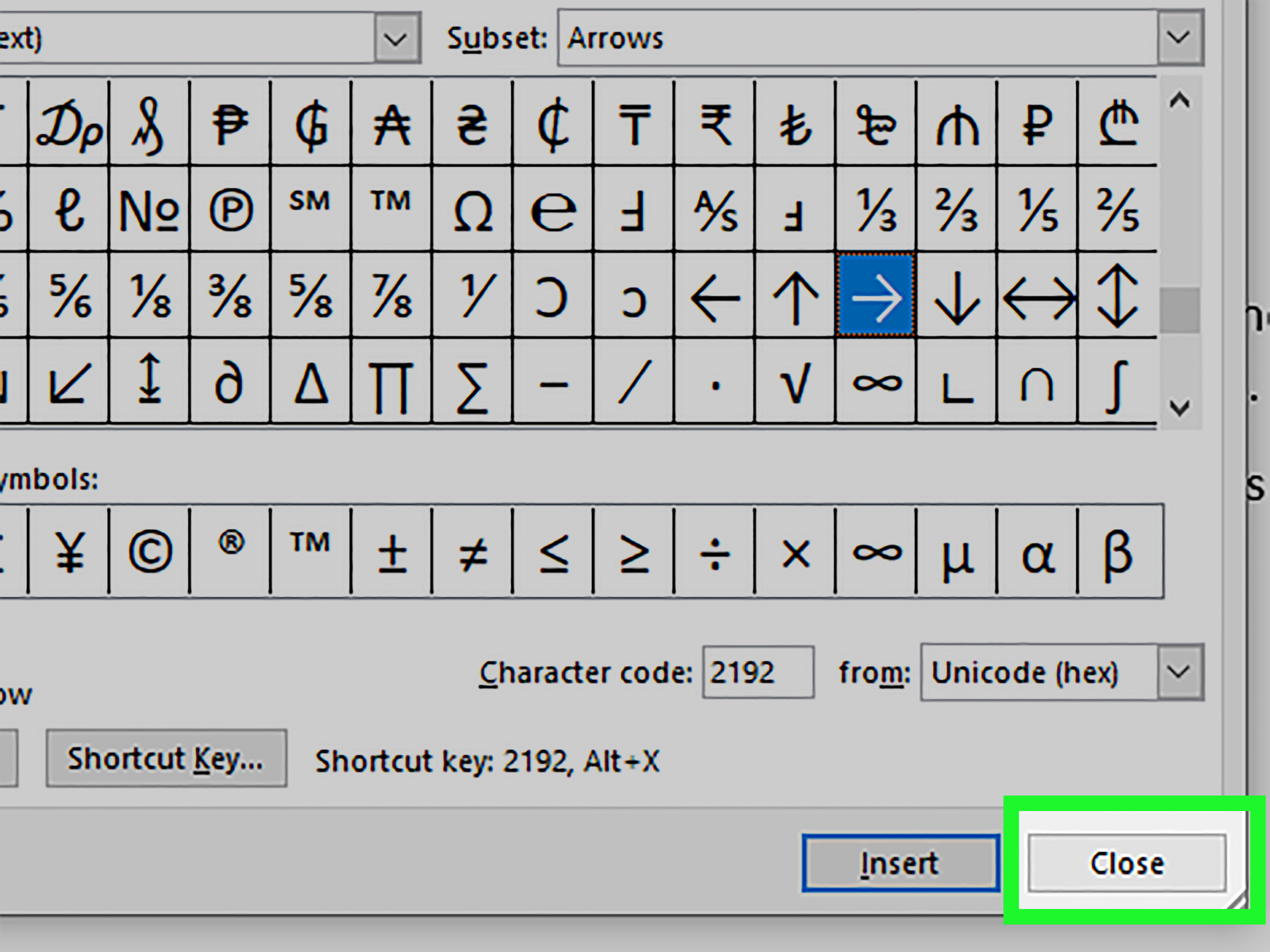
- Click Symbol, then choose More Symbols.
A dialog box will open with a huge list of symbols. This is where Word keeps all the fun stuff: math marks, currency symbols, accents, and yes, arrows. Think of it as the slightly chaotic closet of Word. Everything is in there, but sometimes you need a second to find it.
Step 2: Choose the Arrow Symbol You Want
Once the Symbol window is open, scroll through the list or change the subset to find arrow symbols faster. Common options include:
- → right arrow
- ← left arrow
- ↑ up arrow
- ↓ down arrow
- ↔ left-right arrow
- ⇒ double right arrow
Click the symbol, then click Insert. Word will drop it right into your document where your cursor is waiting patiently. If you use the same arrow often, look at the bottom of the dialog box. Word shows the character code there, which becomes useful in the next steps.
Best for: beginners, occasional arrow use, and anyone who prefers clicking over memorizing.
Step 3: Use Unicode Codes for Faster Arrow Typing
If you want to look like the person in the office who “just knows things,” Unicode plus Alt + X is a great shortcut in Word for Windows. Instead of opening menus, you type the code, then convert it into a symbol.
Here are some useful arrow codes:
- 2192 + Alt + X = →
- 2190 + Alt + X = ←
- 2191 + Alt + X = ↑
- 2193 + Alt + X = ↓
- 2194 + Alt + X = ↔
- 21D2 + Alt + X = ⇒
Here is an example. Type 2192 in Word, then press Alt + X. Word converts the code into a right arrow. It feels a little like magic, but with fewer sparkles and more keyboard confidence.
This method is especially useful when you need arrow symbols repeatedly in notes, technical documentation, or tutorials. It is fast, clean, and more reliable than manually searching every single time.
Tip: If it does not convert, make sure the code is right next to the cursor and that you are using Word on Windows.
Step 4: Try Alt Codes on a Windows Computer
If your keyboard has a numeric keypad, classic Alt codes can also help you type basic arrow symbols. These shortcuts are old-school, but they still have fans because they are quick once you memorize them.
Common arrow Alt codes include:
- Alt + 26 = →
- Alt + 27 = ←
- Alt + 24 = ↑
- Alt + 25 = ↓
To use them:
- Turn on Num Lock if needed.
- Hold down the Alt key.
- Type the number on the numeric keypad.
- Release Alt.
This method is handy on desktop keyboards, but it can be annoying on compact laptops without a true numeric keypad. If your laptop keyboard makes you perform finger yoga just to find the numbers, use the Unicode or Symbol method instead.
Best for: Windows desktop users and people who already love keyboard shortcuts.
Step 5: Use Equation Shortcuts for Math-Style Arrows
If you work in Word with equations, science notes, or logic notation, the Equation feature is a secret weapon. Word supports math-style shortcuts that turn typed commands into arrows.
Here is how:
- Press Alt + = to open an equation field in Word.
- Type a command such as \rightarrow, \leftarrow, \uparrow, or \downarrow.
- Press the spacebar.
Word converts the command into the matching arrow symbol. This is excellent for academic writing because it also gives you access to many specialized arrows, including longer arrows and double arrows that are harder to find manually.
Some useful examples:
- \rightarrow →
- \leftarrow ←
- \uparrow ↑
- \downarrow ↓
- \leftrightarrow ↔
- \Rightarrow ⇒
You can also enable Math AutoCorrect outside equation areas in Word settings if you want these commands to work more broadly. That is a seriously useful trick for heavy Word users.
Step 6: Use Your Computer’s Symbol Picker or Create a Custom Shortcut
Sometimes the easiest way to type an arrow in Word is to let your computer help. Both Windows and Mac include built-in symbol pickers.
On Windows:
Press Windows key + . (period) to open the emoji and symbols panel. Then switch to the symbols section and choose an arrow.
On Mac:
Press Control + Command + Space to open the Character Viewer, then search for “arrow” and insert the symbol into Word.
This is especially helpful when you cannot remember a code but still want to work quickly.
If you use arrow symbols constantly, go one step further and create a custom shortcut in Word. On Windows, you can assign one through Word’s keyboard customization settings. On Mac, Word also allows custom keyboard shortcuts. For example, you could assign a shortcut for the right arrow so it appears instantly whenever you need it.
Best for: frequent users, teachers, students, editors, and anyone tired of repeating the same clicks forever.
Which Method Is Best?
The truth is that the best way to type an arrow in Word depends on how often you use arrows and what kind of computer you have.
- Use Symbol menu if you want the easiest visual method.
- Use Unicode + Alt + X if you want speed in Word on Windows.
- Use Alt codes if you have a numeric keypad and like classic shortcuts.
- Use Equation shortcuts if you write math, science, or technical content.
- Use the symbol picker if you are on Mac or want a quick search-based option.
- Use custom shortcuts if arrows are part of your daily work.
In other words, Word is not forcing you into one path. It is more like a buffet, except the menu items are symbols and nobody is fighting over the last dessert.
Common Problems When Typing Arrows in Word
The arrow looks different than expected
This usually happens because of the font. Some fonts display symbols differently, and a few can make arrows look too thin, too chunky, or just plain odd. If the symbol looks strange, try a standard font like Calibri, Arial, or Times New Roman.
Alt codes do not work
Check whether your keyboard has a numeric keypad. Many laptops do not. Also make sure Num Lock is on when needed. If that still fails, switch to Unicode plus Alt + X, which is usually easier in Word.
The equation command does nothing
Make sure you are in an equation field first by pressing Alt + =. If you type \rightarrow in normal body text without the proper settings, Word may leave it as plain text instead of turning it into a symbol.
You need arrows often
Set up AutoCorrect, memorize a Unicode code, or create a custom keyboard shortcut. Your future self will be grateful.
Examples of When to Use Arrow Symbols in Word
Still wondering where arrows actually help? Here are a few everyday examples:
- Instruction guides: Click File → Save As → PDF
- Study notes: Heat ↑ pressure ↑
- Process writing: Draft → Review → Revise → Publish
- Navigation tips: Go left ← then continue straight →
- Technical writing: Input → Output
These little symbols improve readability in a surprisingly big way. They guide the eye, reduce clutter, and make sequences easier to understand in one quick glance.
Extra Tips to Make Arrow Typing Easier
- Keep a short list of your favorite Unicode codes nearby if you use them often.
- Save frequently used arrows to AutoCorrect if you want Word to replace a short text string automatically.
- Use the same arrow style throughout your document so formatting looks consistent.
- For flowcharts and diagrams, use Shapes instead of text arrows when you need resizeable graphic arrows.
- For inline writing, stick with text symbols so spacing stays clean.
Conclusion
Learning how to type an arrow in Word on a computer is one of those tiny skills that pays off again and again. At first it seems minor. Then suddenly you are writing instructions, building notes, formatting technical steps, or cleaning up a document, and arrow symbols become unexpectedly useful.
The simplest method is the Symbol menu. The fastest method for many Windows users is Unicode plus Alt + X. Equation shortcuts are perfect for math-heavy work. And if you want zero fuss, the symbol pickers on Windows and Mac are great backup options.
Once you find the method that fits your workflow, typing arrows in Word becomes easy, fast, and almost weirdly satisfying. No more copying symbols from random websites. No more fighting with formatting. Just a clean little arrow exactly where you want it.
Real-World Experiences With Typing Arrows in Word
One of the funniest things about learning to type arrows in Word is how such a small symbol can cause such a big delay. A lot of people assume they will just open Word, press a few keys, and somehow an arrow will appear like a well-trained golden retriever. That is not always how it goes. In real life, most users first try the obvious shortcut: type a hyphen, type a greater-than sign, and hope nobody notices. Technically, that works. Emotionally, it feels like giving up.
I have seen students use arrows in class notes to show cause and effect, only to mix plain keyboard characters with actual arrow symbols all over the same page. The result looks like the document cannot decide whether it is a polished report or a frantic text message. Once they learn the Symbol menu or the 2192 Alt + X trick, the difference is immediate. Their notes look cleaner, their process diagrams make more sense, and they stop wasting time copying arrows from old documents.
Office workers run into the same problem in a different way. A project update might include a path like Home → Team → Shared Files, or a workflow like Request → Approval → Delivery. When those arrows are formatted correctly, the document feels more professional. When they are not, the page looks messy in a subtle but very real way. That is the sort of detail readers may not consciously mention, but they absolutely notice.
Mac users often have a different experience. They may not use Alt-based shortcuts, so the Character Viewer becomes their best friend. At first, opening a floating symbol window seems like overkill for one tiny arrow. Then they realize they can search for exactly what they want, click it, and move on with their day. Suddenly the process feels less like hunting and more like ordering exactly the right item off a menu.
The most satisfying moment usually comes when someone sets up a custom shortcut or remembers a favorite Unicode code. That is when the skill shifts from “interesting trick” to “daily productivity boost.” A symbol that once took a minute now takes a second. Multiply that by dozens of documents, and the time savings add up fast.
So yes, typing an arrow in Word is a tiny task. But it is one of those tiny tasks that quietly improves your writing, your formatting, and your sanity. And honestly, any keyboard trick that saves time and makes a document look smarter deserves a little respect.