
Note: This guide is based on current Microsoft Support guidance for Outlook.com, Microsoft accounts, Outlook for Windows, Outlook for Mac, Outlook mobile, Microsoft 365 work or school accounts, and widely accepted account-security advice from FTC, CISA, and NIST.
Changing your Outlook password sounds like one of those tiny digital chores that should take thirty seconds, right up there with “rename this file” and “close only one browser tab.” Then Outlook asks you to sign in again, your phone keeps syncing like it is thinking deep thoughts, and your laptop suddenly behaves as if it has never met your email account before. Fun? Not exactly. Fixable? Absolutely.
The most important thing to understand is this: Outlook is usually the mailbox app, not the place where your password officially lives. If you use an Outlook.com, Hotmail, Live, or MSN email address, your password is your Microsoft account password. If you use Outlook for Gmail, Yahoo, iCloud, Comcast, or another provider, you change the password with that provider first. If you use Outlook at work or school, your organization may control the password rules through Microsoft 365 or Microsoft Entra ID.
This guide walks you through seven easy methods to change, reset, update, or secure your Outlook password. We will keep the instructions practical, the jargon on a short leash, and the panic level at “mildly annoyed but still hydrated.”
Before You Start: Know Which Outlook Account You Have
Before clicking every “Security” button in sight, identify the type of account you are using. This prevents the classic mistake of trying to change a Gmail password inside Outlook or hunting for a Microsoft setting your workplace has locked down tighter than the office snack cabinet.
Common Outlook account types
- Personal Microsoft account: Outlook.com, Hotmail.com, Live.com, or MSN.com.
- Microsoft 365 work or school account: An account managed by your employer, school, or organization.
- Third-party account used in Outlook: Gmail, Yahoo, iCloud, AOL, Xfinity, IMAP, POP, or another email service.
- Old Outlook desktop setup: A saved password or app password may be stored inside Outlook for Windows, Outlook for Mac, or your device mail settings.
Once you know the account type, changing your Outlook password becomes much less mysterious. It is not magic. It is more like finding the correct drawer in a messy kitchen.
Method 1: Change Your Outlook.com Password Through Your Microsoft Account
This is the best method if you know your current password and use a personal Outlook.com, Hotmail, Live, or MSN account. Since Outlook.com is tied to your Microsoft account, changing the Microsoft account password changes the password you use for Outlook email and other Microsoft services.
Steps to change a known Outlook password
- Go to your Microsoft account sign-in page.
- Sign in using your current email address and password.
- Open the Security section.
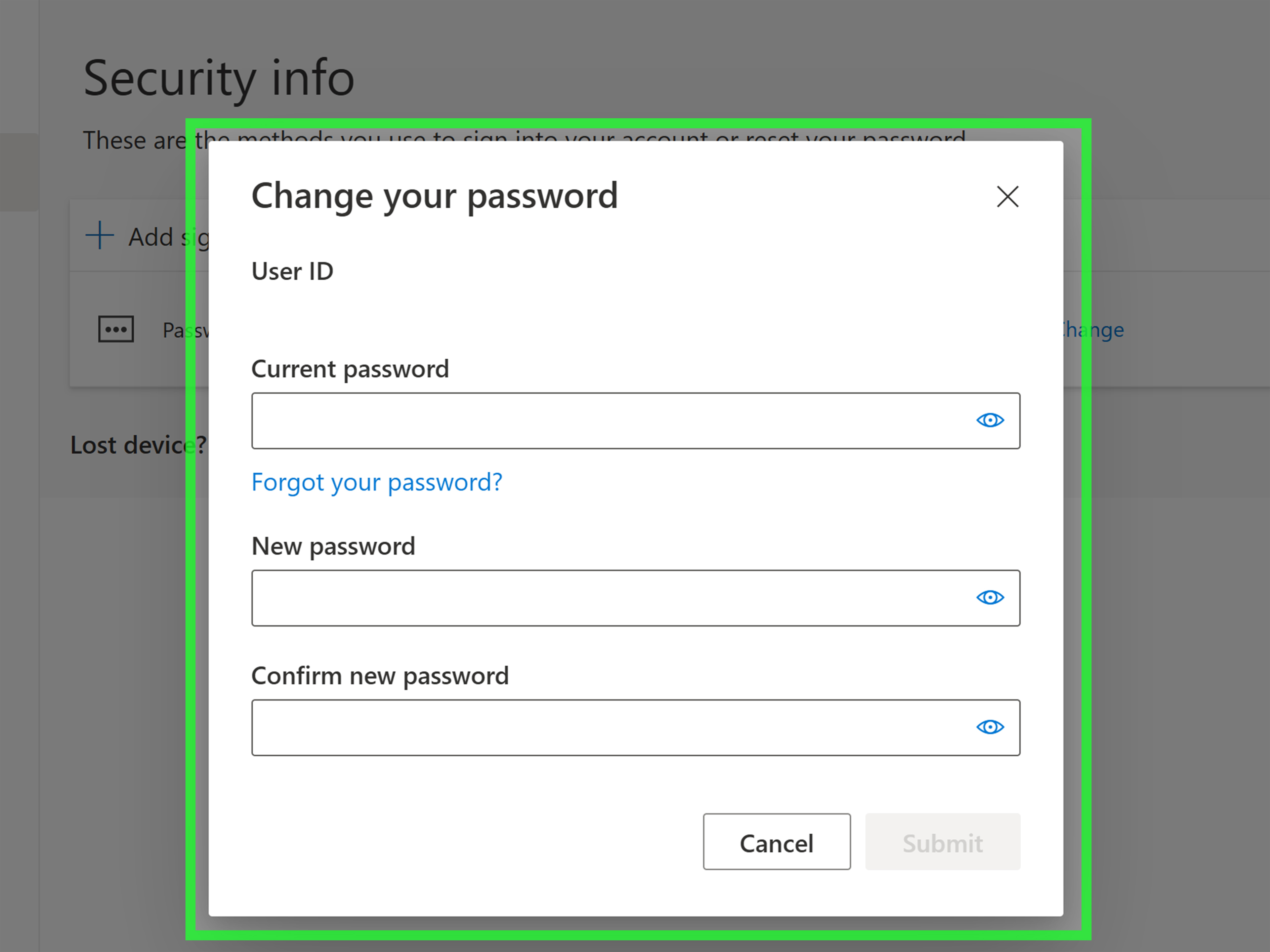
- Choose Change password.
- Verify your identity if Microsoft asks for a code or authentication prompt.
- Enter your current password, then create a new password.
- Save the change and sign back in on your devices.
After you change the password, Outlook on the web usually works immediately after signing in again. Desktop and mobile apps may ask you to reauthenticate. That is normal. Outlook is not being dramatic; it simply needs the new credentials.
Example
Suppose your email is [email protected]. You do not change the password inside a random Outlook message window. You sign in to your Microsoft account security settings, change the password there, and then use the new password when Outlook asks you to sign in again.
Method 2: Reset a Forgotten Outlook Password
If you forgot your Outlook password, do not waste the afternoon guessing. Microsoft may lock or limit sign-in attempts if there are too many incorrect tries. Instead, use the password reset process.
Steps to reset a forgotten Outlook password
- Go to the Microsoft sign-in page.
- Enter your Outlook, Hotmail, Live, or MSN email address.
- Select Forgot password?.
- Choose a verification method, such as a recovery email, phone number, authenticator app, or another available option.
- Enter the security code or approve the sign-in request.
- Create a new password.
- Sign in again using the new password.
If you no longer have access to your recovery email or phone number, Microsoft may ask you to complete an account recovery form. Be as accurate as possible. Useful details include old passwords, recent email subjects, Skype names, Xbox information, billing details, or contacts you have emailed. The goal is to prove you are the real account owner, not a suspicious raccoon with Wi-Fi.
When this method works best
Use this method when you cannot remember the password, your saved password stopped working, or you suspect someone changed your password without permission.
Method 3: Change a Microsoft 365 Work or School Outlook Password
Work and school Outlook accounts are different from personal Outlook.com accounts. Your employer, school, or organization may control password length, expiration rules, multifactor authentication, and reset options. That means your IT department may be the final boss of this particular level.
Steps for work or school accounts
- Go to your organization’s Microsoft 365 sign-in page or password reset page.
- Enter your work or school email address.
- Select the option to change or reset your password.
- Verify your identity using the methods your organization has enabled.
- Create a new password that follows your organization’s rules.
- Sign back in to Outlook, Teams, OneDrive, and other Microsoft 365 apps.
If self-service password reset is not enabled, contact your IT administrator. In some workplaces, users can reset their own passwords. In others, only IT can do it. This is why two employees at the same company can have different password experiences and both swear the other person is doing it wrong.
Helpful tip
After changing a work or school password, give your devices a few minutes to sync. Then reopen Outlook. If Outlook keeps asking for the old password, remove and re-add the account or contact IT if the account uses special security policies.
Method 4: Update Your Password in Outlook for Windows
Outlook for Windows can store credentials for accounts you have already added. But here is the key point: if you want to change the actual email password, you usually do that with your email provider first. Outlook for Windows then needs the updated password so it can keep sending and receiving mail.
Steps to update Outlook for Windows after a password change
- Change your password at the email provider’s website first.
- Open Outlook for Windows.
- If Outlook prompts you to sign in, enter the new password.
- If no prompt appears, go to File > Account Settings > Account Settings.
- Select the account that needs updating.
- Choose the repair, change, or manage option available for your version of Outlook.
- Enter the new password or complete the modern sign-in prompt.
Newer Microsoft accounts often use a browser-style sign-in window instead of a simple password box. Older POP or IMAP accounts may still show a password field. Either way, your mission is the same: help Outlook learn the new login information without yelling at your monitor.
Common Outlook for Windows password problems
- Repeated password prompts: Remove saved credentials from Windows Credential Manager and sign in again.
- Send/receive errors: Check that the password was changed successfully with the provider.
- Two-step verification issue: Older Outlook versions may require an app password instead of your normal password.
- Work account issue: Your organization may require a fresh sign-in through Microsoft 365.
Method 5: Update Your Outlook Password on Mac
Outlook for Mac can behave slightly differently depending on whether you use classic Outlook, new Outlook, Microsoft 365, Exchange, Gmail, iCloud, or another account type. In many modern setups, you do not manually type a new password into a small field. Instead, Outlook asks you to sign in again through the provider.
Steps for Outlook on Mac
- Change the password through your email provider or Microsoft account first.
- Open Outlook on your Mac.
- Go to Tools > Accounts.
- Select the account that needs attention.
- If a password field is available, enter the new password.
- If Outlook shows a sign-in or reconnect option, follow the prompts.
- Close the Accounts window and let Outlook sync.
If Outlook for Mac refuses to sync after the password change, remove the account from Outlook and add it again. This sounds annoying because it is annoying, but it often fixes stubborn authentication problems quickly. Your email usually remains on the server for Outlook.com, Microsoft 365, Gmail, Yahoo, and other modern IMAP or Exchange accounts, but confirm your account type before removing anything from an old POP setup.
Method 6: Change Your Outlook Password on iPhone, iPad, or Android
The Outlook mobile app does not normally change the account password directly. Instead, you change the password at the email provider’s website, then Outlook mobile detects a sync issue and asks you to sign in again.
Steps for Outlook mobile
- Open your browser and go to your email provider’s account page.
- Change the password there.
- Open the Outlook app on your iPhone, iPad, or Android device.
- Wait for Outlook to show a sign-in, password, or sync prompt.
- Enter the new password or complete the provider’s sign-in screen.
- If Outlook still will not sync, remove the account from Outlook mobile and add it again.
Example for mobile users
If you use a Hotmail address, change the password through your Microsoft account. If you use Gmail inside Outlook, change the Gmail password through Google. If you use Yahoo Mail inside Outlook, change it through Yahoo. Outlook is the messenger here, not the password kingdom.
After changing the password, you may also need to sign in again to other Microsoft apps, such as OneDrive, Teams, Microsoft 365, Xbox, or the Microsoft Store. One password change can ripple across your digital life like a tiny administrative earthquake.
Method 7: Use an App Password, Two-Step Verification, or Passwordless Sign-In
This method is for users who have two-step verification enabled, use older versions of Outlook, or want stronger account protection. Sometimes Outlook does not accept your normal password because the account requires modern authentication. In that case, an app password or updated sign-in method may be needed.
When to use an app password
An app password is a special password generated for an app or device that does not support standard two-step verification. You might need one for older Outlook desktop versions, older phone mail apps, or legacy POP and IMAP setups. If you use a newer Outlook app with modern authentication, you may not need an app password at all.
Basic app password process
- Sign in to your Microsoft account security settings.
- Open advanced security options.
- Find the app password section if it is available for your account.
- Create a new app password.
- Copy it and paste it into Outlook when prompted.
- Do not reuse that app password anywhere else.
Consider passwordless sign-in
Microsoft also supports more secure sign-in options such as Microsoft Authenticator, passkeys, biometrics, and security keys. These methods reduce the risk of password theft because you are not relying only on a typed password that can be guessed, reused, leaked, or phished.
If you still use passwords, make them long, unique, and hard to guess. Security guidance from major public agencies emphasizes length, uniqueness, and multifactor authentication over cute substitutions like turning “password” into “P@ssw0rd.” Attackers have seen that trick. They were not impressed.
How to Create a Strong New Outlook Password
A strong Outlook password should be easy for you to manage and hard for anyone else to crack. The best password is not necessarily a chaotic soup of symbols that looks like a cat walked across your keyboard. Long, unique passphrases are often easier to remember and more secure than short “complex” passwords.
Good password examples
- Better: RiverLanternCoffeeMuseum42
- Better: BlueTrainLaughsAfterMidnight
- Weak: Outlook123
- Weak: Password2026!
- Weak: Your name plus birthday
Password rules that actually help
- Use a different password for every important account.
- Make your Outlook password long and memorable.
- Do not reuse passwords from shopping, social media, or gaming accounts.
- Use a reputable password manager if you have many accounts.
- Turn on multifactor authentication whenever possible.
- Keep your recovery email and phone number updated.
What to Do After Changing Your Outlook Password
Changing the password is only step one. Step two is cleaning up the digital confetti afterward. If you skip this part, your apps may keep asking for the old password, your phone may stop syncing, or your account may remain vulnerable if someone else had access.
Post-change checklist
- Sign back in to Outlook on the web.
- Update Outlook for Windows or Mac if prompted.
- Reauthenticate Outlook on your phone or tablet.
- Check Microsoft 365, OneDrive, Teams, and other connected apps.
- Review account security information.
- Turn on multifactor authentication if it is not already enabled.
- Look for suspicious inbox rules, forwarding settings, or sent messages.
- Remove devices you no longer use or recognize.
That last part matters. If you are changing your password because you suspect unauthorized access, inspect your mailbox. Attackers sometimes create forwarding rules, hide emails, or send messages from your account. A password change helps, but a quick security review helps more.
Troubleshooting: Why Outlook Still Asks for Your Old Password
Outlook may keep asking for a password even after you changed it correctly. This usually means one device, app, or saved credential is still clinging to the old login like it paid rent.
Try these fixes
- Restart Outlook: Simple, boring, and surprisingly effective.
- Restart the device: Especially useful after a work or school password change.
- Remove saved credentials: On Windows, check Credential Manager for old Outlook or Microsoft entries.
- Update Outlook: Older versions may struggle with modern authentication.
- Remove and re-add the account: This often fixes mobile and Mac sync issues.
- Check MFA settings: Older apps may need an app password.
- Contact IT: For work or school accounts, policies may block changes or require admin help.
Security Warning: Change Your Password Immediately If You Notice These Signs
Sometimes changing your Outlook password is not routine maintenance. It is emergency pest control. Act quickly if you notice anything suspicious.
Red flags
- You see sent emails you did not send.
- Friends or coworkers receive strange messages from you.
- Your inbox has unfamiliar rules or forwarding addresses.
- You receive security alerts about sign-ins you do not recognize.
- Your password suddenly stops working.
- Recovery email or phone information was changed without your permission.
- Emails are disappearing or being marked as read automatically.
If any of these happen, change the password, secure your recovery options, enable multifactor authentication, review recent activity, and sign out of unfamiliar devices. If it is a workplace account, report the issue to IT immediately. Speed matters because email accounts are often used to reset passwords for banking, shopping, cloud storage, and social media accounts.
Experience Section: Real-World Lessons From Changing an Outlook Password
The first lesson from changing an Outlook password is that the password itself is rarely the only thing involved. A personal Outlook.com account may be tied to Windows, OneDrive, Skype, Xbox, Microsoft Store purchases, browser sync, and mobile apps. A work Outlook account may be tied to Teams, SharePoint, company VPN, payroll portals, and internal tools. That is why a single password change can feel like pulling one cable and watching the whole entertainment center blink.
One common experience is the “everything works except my phone” problem. You change the password successfully on a laptop, Outlook web opens perfectly, and then your phone quietly stops receiving messages. The fix is usually simple: open the Outlook mobile app, respond to the sign-in prompt, and complete authentication again. If the app keeps spinning, removing and re-adding the account often clears the stale login token. It is not elegant, but neither is fixing a printer, and humanity somehow survives.
Another frequent situation happens with Outlook for Windows. Users change their email password through Microsoft, Gmail, Yahoo, or another provider, then expect Outlook desktop to magically know. Sometimes it does. Sometimes it does not. If Outlook keeps requesting a password, the saved credential may be outdated. In that case, signing out and back in, repairing the account, or clearing old saved credentials can solve the issue. For business accounts, the problem may also be a company security policy, especially if multifactor authentication was recently added.
The third lesson is about password quality. Many people change a weak password into a slightly less weak password. For example, going from Summer2025! to Summer2026! is not a security transformation; it is a costume change. A better move is to create a long, unique password or passphrase that you do not use anywhere else. A password manager makes this much easier because it can generate and remember strong passwords for you. Your brain has better things to do, such as remembering where you put your glasses while they are on your face.
The fourth lesson is that recovery information matters as much as the password. If your recovery email is ancient, your phone number is outdated, or your authenticator app is stuck on a phone you traded in two years ago, password recovery becomes much harder. After changing your Outlook password, take two extra minutes to review your security information. Add a backup method if available. Remove anything you no longer control. This small habit can save you from a future account recovery saga starring you, Microsoft, and a form asking questions you barely remember.
Finally, changing your Outlook password is a good moment to inspect your account for damage. If the password change was prompted by suspicious activity, check forwarding rules, inbox rules, connected devices, and recent sign-ins. Hackers love quiet persistence. They may not need your password again if they already added a rule that forwards your mail somewhere else. A clean password plus a clean account review is the safer combination.
In short, the smoothest Outlook password change follows a simple pattern: change the password at the correct provider, reauthenticate every app, update security settings, and check for anything suspicious. Do that, and Outlook should return to its proper job: delivering emails, organizing calendars, and occasionally reminding you about a meeting you emotionally were not ready for.
Conclusion
Changing your Outlook password is easy once you know where the password actually belongs. For personal Outlook.com, Hotmail, Live, and MSN accounts, change or reset the password through your Microsoft account. For work or school accounts, use your organization’s Microsoft 365 password tools or contact IT. For Outlook on Windows, Mac, iPhone, iPad, and Android, remember that the app usually needs to be updated or reauthenticated after the provider password changes.
The best method depends on your situation: change a known password, reset a forgotten one, update Outlook desktop, reconnect Outlook mobile, use an app password for older setups, or strengthen your account with multifactor authentication and passwordless sign-in. Once finished, review your recovery options, check connected devices, and make sure no suspicious inbox rules are hiding in the background.
A strong Outlook password is not just a login detail. It protects your email, files, calendar, contacts, and the many other accounts that rely on email for password resets. Treat it like the front door to your digital house. Lock it properly, keep the spare key updated, and do not hide it under a doormat labeled “Password123.”